# Releases & Updates
Software releases, upgrade guidance, maintenance notifications, and quality assurance.
# What is Cyber Crucible's quality assurance program?
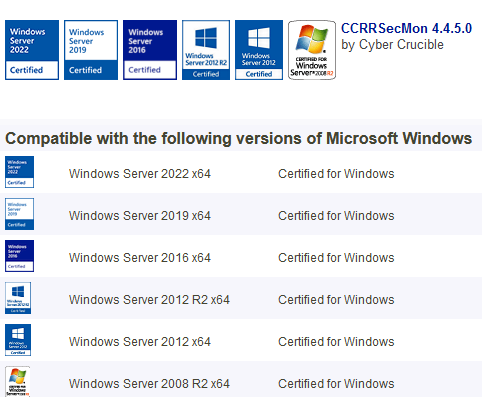
Cyber Crucible undergoes many stages of internal testing as well as external validation including the Microsoft Windows Hardware Certification Program tests to ensure functionality on all Microsoft Operating Systems as far back as Server 2008 R2.
This can be seen by browsing the Windows Server Catalog, which shows only drivers that have passed WHCP validation. As well as by searching the Microsoft Altitude list, which shows the altitude of all registered drivers.
- [https://learn.microsoft.com/en-us/windows-hardware/drivers/ifs/allocated-altitudes](https://learn.microsoft.com/en-us/windows-hardware/drivers/ifs/allocated-altitudes)
- [Windows Server Catalog - Cyber Crucible](https://www.windowsservercatalog.com/results.aspx?text=cyber+crucible&bCatID=1282&avc=10&ava=0&OR=5)
# 06 March, 2024
## Issue Summary
A network outage occurring on 6MAR2024 impacted front-end access to the Cyber Crucible
dashboard and telemetry access via API. This issue has since been resolved as of 7MAR2024.
##
Root Cause
At 0400 UTC on 6MAR2024, telemetry traffic began escalating to an eventual 1600% of normal
agent traffic. Additionally, the network bandwidth between AWS instances began to throttle to
limited speeds between the AWS-hosted load balancers, servers, and databases. Across
multiple zones, bandwidth constraints were variable and ranged from complete transmission
loss (0% of capacity) to 50% of capacity. AWS DNS availability was also compromised.
Network traffic inbound to Cyber Crucible was confirmed to be valid agent traffic from existing
customers. Bot traffic to load balancers did not increase in volume.
The additional bandwidth was not the primary driver for server unavailability, but exacerbated
the middleware and database bandwidth issues.
The spike in agent traffic during that time has partially subsided.
At this time, Cyber Crucible communicates no correlation between published cloud outages on
6MAR2024 to the AWS issues or the spike in traffic.
##
Impact
Access to the Cyber Crucible dashboard and APIs would have been delayed or unavailable.
Telemetry from installed agents was fully preserved, and may have been delayed in submission
to the database, but no telemetry was lost. Agent endpoint protections were completely
unaffected, functioning as normal, as no analysis or protections rely on network connection to
any upstream APIs. At this time all telemetry has “caught up” in the dashboard.
##
Resolution
Cyber Crucible created multiple servers inside and outside of AWS. Network stability inside of
AWS seems to have improved overnight (7MAR2024), with improvements observed as early as
0200 UTC. Cyber Crucible is currently operating at 500% server capacity, calculated based on
the peak traffic bandwidth which has subsided. The team has been replacing AWS hosted
servers as they lose network connectivity.
To be clear, additional server scaling was not an effective resolution in this matter.
Cyber Crucible has begun to transition from using AWS as a sole cloud hosting provider. Work
to support being cloud-platform agnostic has already been in progress for months, with initial
plans to move from AWS as a sole provider in Q2 of 2024. End to end testing, including all
necessary double-encryption and x509 authentication schemes for our various servers and
services, was completed at the end of February 2024. The network issues that we experienced
with AWS have accelerated the move, originally planned for Q2, to begin a month ahead of
schedule.
# How can I manage update strategies for groups and agents?
- [Manage Group Update Settings](#bkmrk-manage-group-update-)
- [Manage Agent Update Settings](#bkmrk-manage-agent-update-)
# Manage Group Update Settings
Groups have auto-updating enabled by default and agents follow their group update settings by default. Group update settings can be seen on the Groups page:
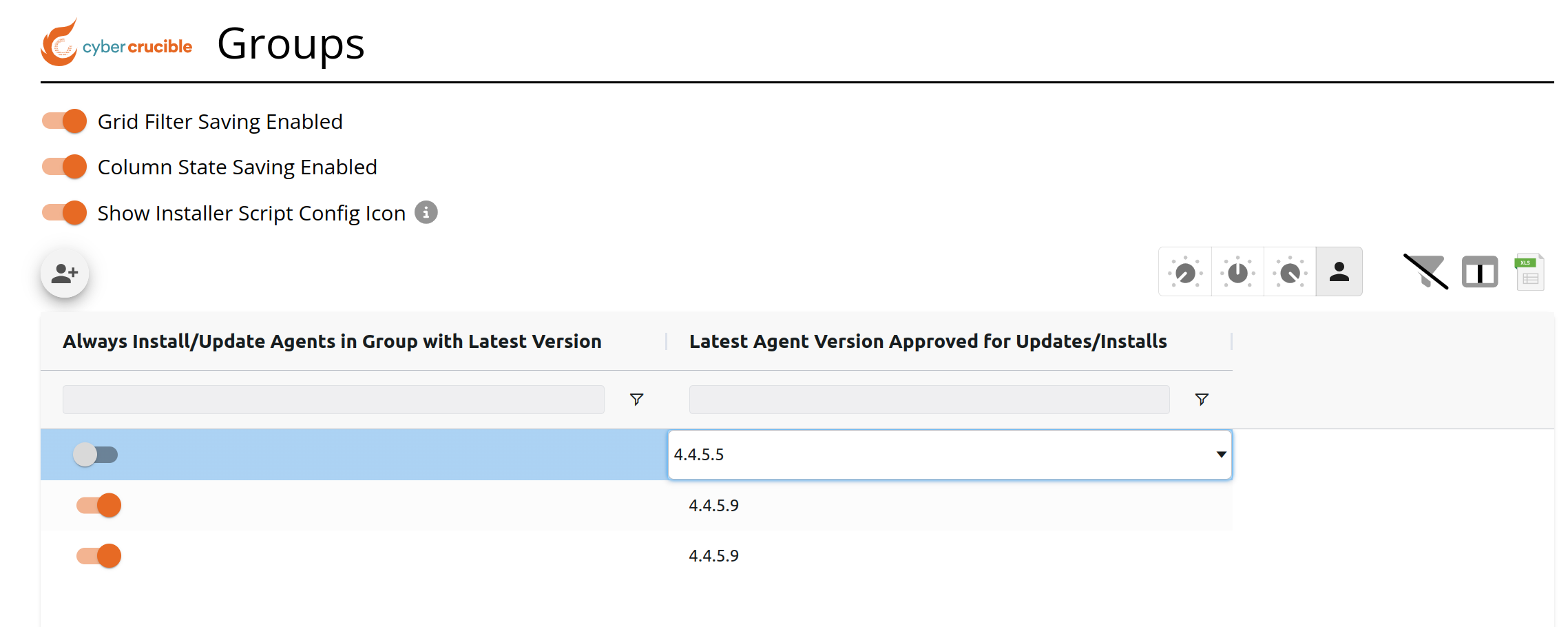The first column shows if the group has auto-update turned on or off. The second column shows what version is approved for updates for agents in this group that are not overriding their group update settings.
When groups have auto-update turned on, the approved agent version column will show the latest agent version released and is not editable.
When groups have auto-update turned off, the approved agent version column is editable by double clicking the cell and selecting which version you want to approve. There also is an option to turn updating off completely (the “Do Not Update” option). Note that agents will not downgrade versions.
Note that the group update settings are applied when installing an agent for deciding which version the agent should install with. If the group has auto-update turned off and “Do Not Update” selected, then the agent will default to installing with the latest available agent version.
# Manage Agent Update Settings
Agents will follow their group’s update settings by default, but agents can be configured to override their group update settings to follow their own. The Agent update settings can be seen on the Agents page:
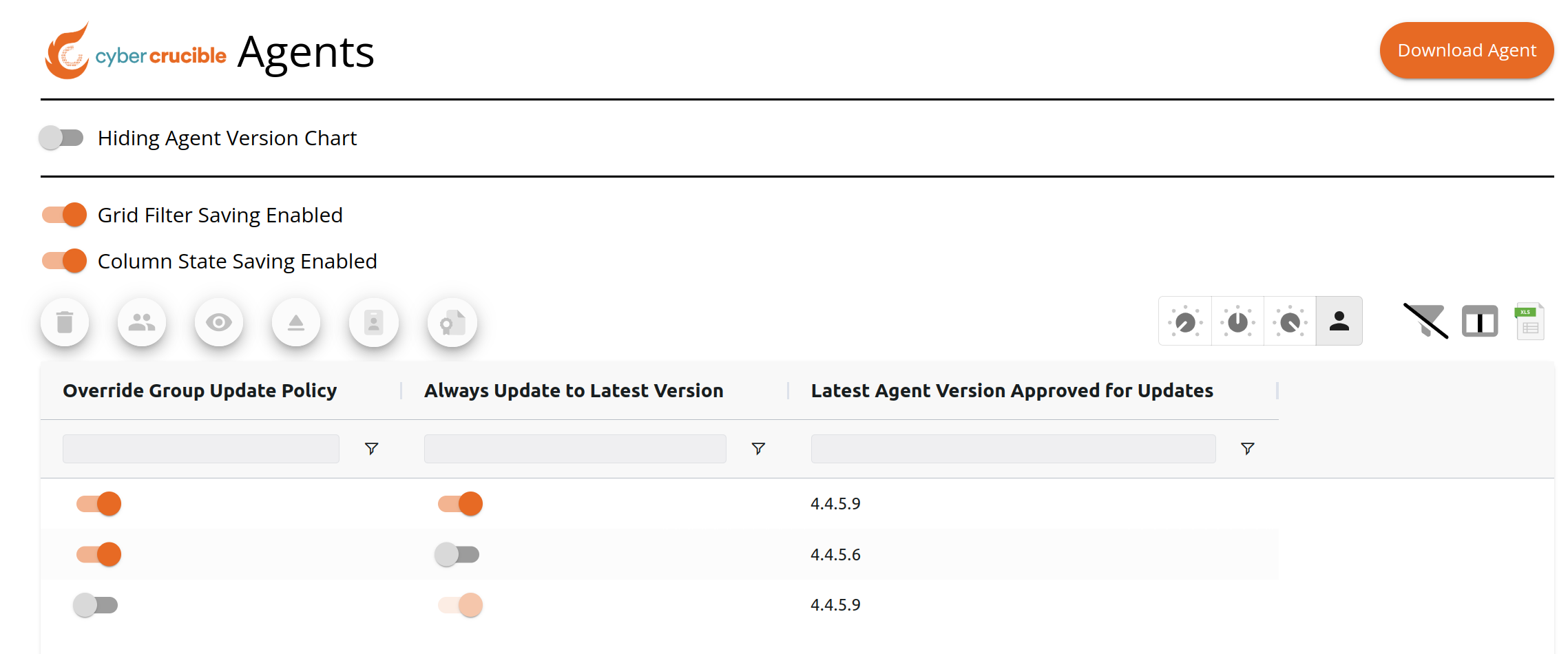When an agent is overriding their group update settings, the auto-update and approved agent version columns are editable where users may configure the agent’s update settings to follow instead of following the group update settings.
When an agent is following their group update settings, the auto-update and approved agent version columns are not editable and will show the group update settings.
# What does Update Staged mean?
Updating Cyber Crucible is an automated, multi-step, protected process.
The update requires a reboot to take effect, after it is retrieved from the Cyber Crucible servers.
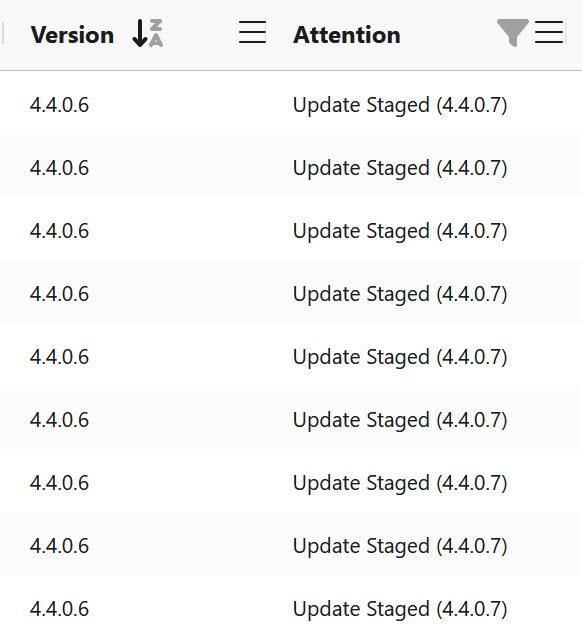
While some updates require multiple steps from very old versions, updates can skip multiple versions if necessary.
For example, the below machines downloaded 4.4.0.6, but did not reboot before 4.4.0.7 was released.
They now will have 4.4.0.7 running when they reboot.
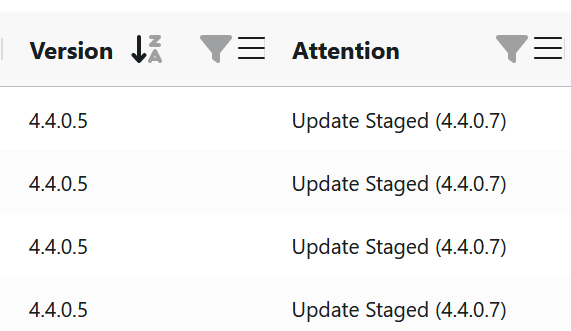In more detail, updating Cyber Crucible requires the following steps:
1. The Cyber Crucible software receives notice that an update is available.
2. This update notice is RSA signed, to ensure an attacker cannot force a malicious update. This update notice is verified to be true. This is part of Cyber Crucible’s zero trust product design.
3. The update is downloaded by the agent.
4. The update is validated, to ensure it has not been corrupted or otherwise tampered with.
5. The update stages the new software for installation. Cyber Crucible protection mechanisms in memory and on disk prevent it from being upgraded or the software replaced, except during boot.
6. Notification is sent to the Cyber Crucible serves that the update is ready and properly positioned, post verification.
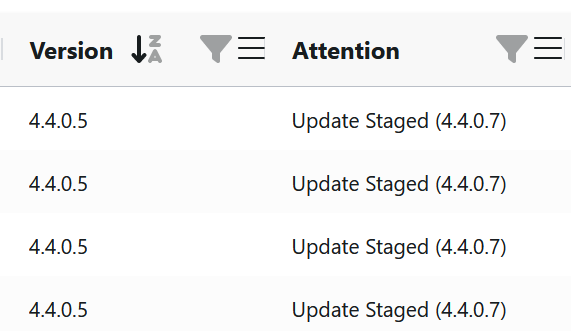
7. Upon reboot, the update is applied to the software, and the Cyber Crucible software responds with the new version. The “Update Staged” notice disappears.
# Does Cyber Crucible require a reboot to update?
Yes, there are a variety of memory, file system, and operating system protections Cyber Crucible software leverages to protect itself from attackers tampering or degrading its performance.
This is part of the Cyber Crucible zero trust product design in use.
Updating requires replacing the driver and services.
A window is created upon reboot, in which Cyber Crucible software allows a properly verified update to occur.
An update is ready for reboot when the following is observed in the Manage Agents page.
# Will Cyber Crucible update multiple versions at once?
While updating multiple versions can rarely need multiple updates, updates normally are done all once, even if an agent is multiple versions behind the newest.
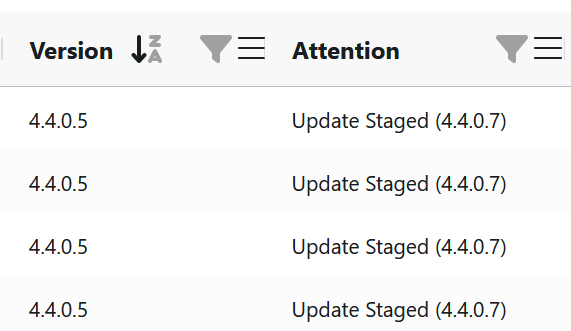
For example, the agents seen below first downloaded 4.4.0.6 to update. They did not reboot to apply the update before 4.4.0.7 was released. When 4.4.0.7 was released, the agents downloaded and staged 4.4.0.7.
When the systems reboot, Cyber Crucible 4.4.0.7 will be running, and the Staged Update message will disappear.
# What is your software update strategy?
Cyber Crucible software does not rely on continual streams of signature updates, trying to catch up to attackers.
Around once per month, new features, zero trust methodology enhancements, and behavioral analytic module enhancements are released.
All software releases by Cyber Crucible are also tested, approved, and certified by the [Microsoft Hardware Compatibility Program](https://docs.microsoft.com/en-us/windows-hardware/design/compatibility/whcp-specifications-policies) after passing our own rigorous testing.
Upgrading requires a reboot before an update is in effect.
# Manage Group Update Settings
Groups have auto-updating enabled by default and agents follow their group update settings by default. Group update settings can be seen on the Groups page:
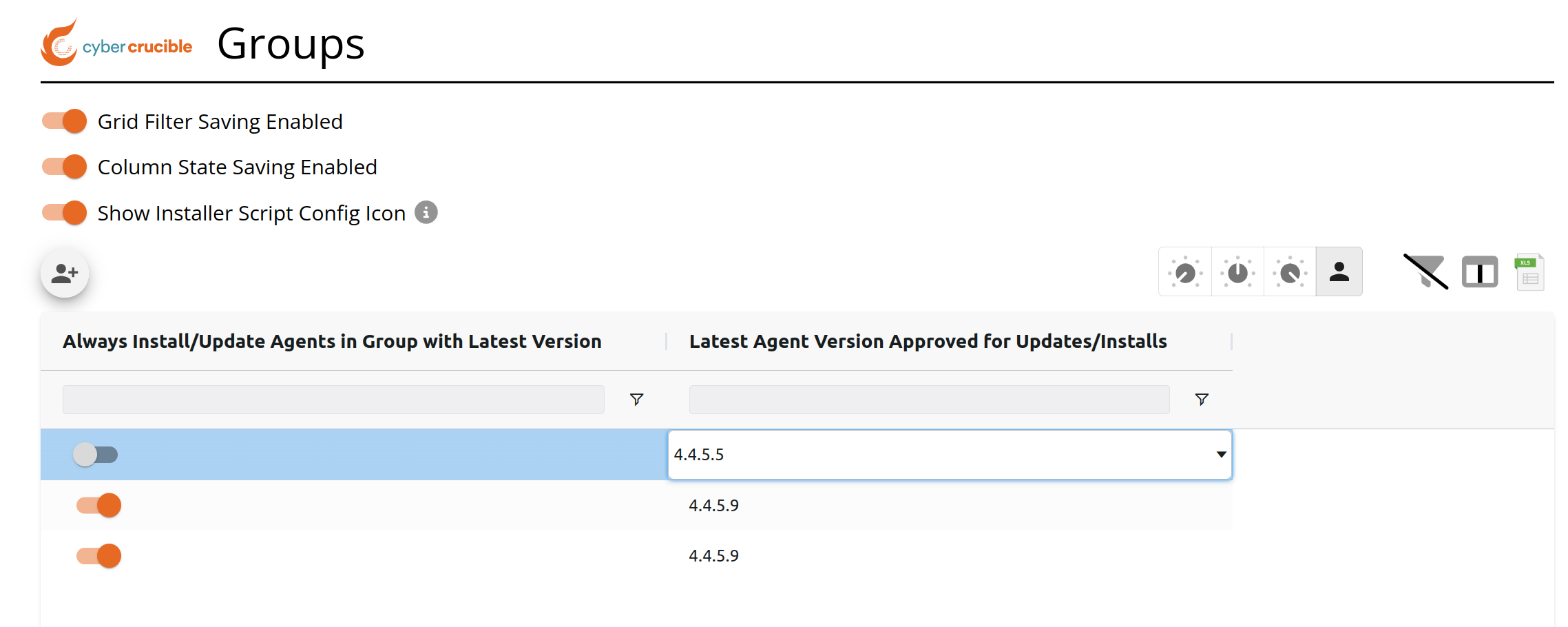The first column shows if the group has auto-update turned on or off. The second column shows what version is approved for updates for agents in this group that are not overriding their group update settings.
When groups have auto-update turned on, the approved agent version column will show the latest agent version released and is not editable.
When groups have auto-update turned off, the approved agent version column is editable by double clicking the cell and selecting which version you want to approve. There also is an option to turn updating off completely (the “Do Not Update” option). Note that agents will not downgrade versions.
Note that the group update settings are applied when installing an agent for deciding which version the agent should install with. If the group has auto-update turned off and “Do Not Update” selected, then the agent will default to installing with the latest available agent version.
# Manage Agent Update Settings
Agents will follow their group’s update settings by default, but agents can be configured to override their group update settings to follow their own. The Agent update settings can be seen on the Agents page:
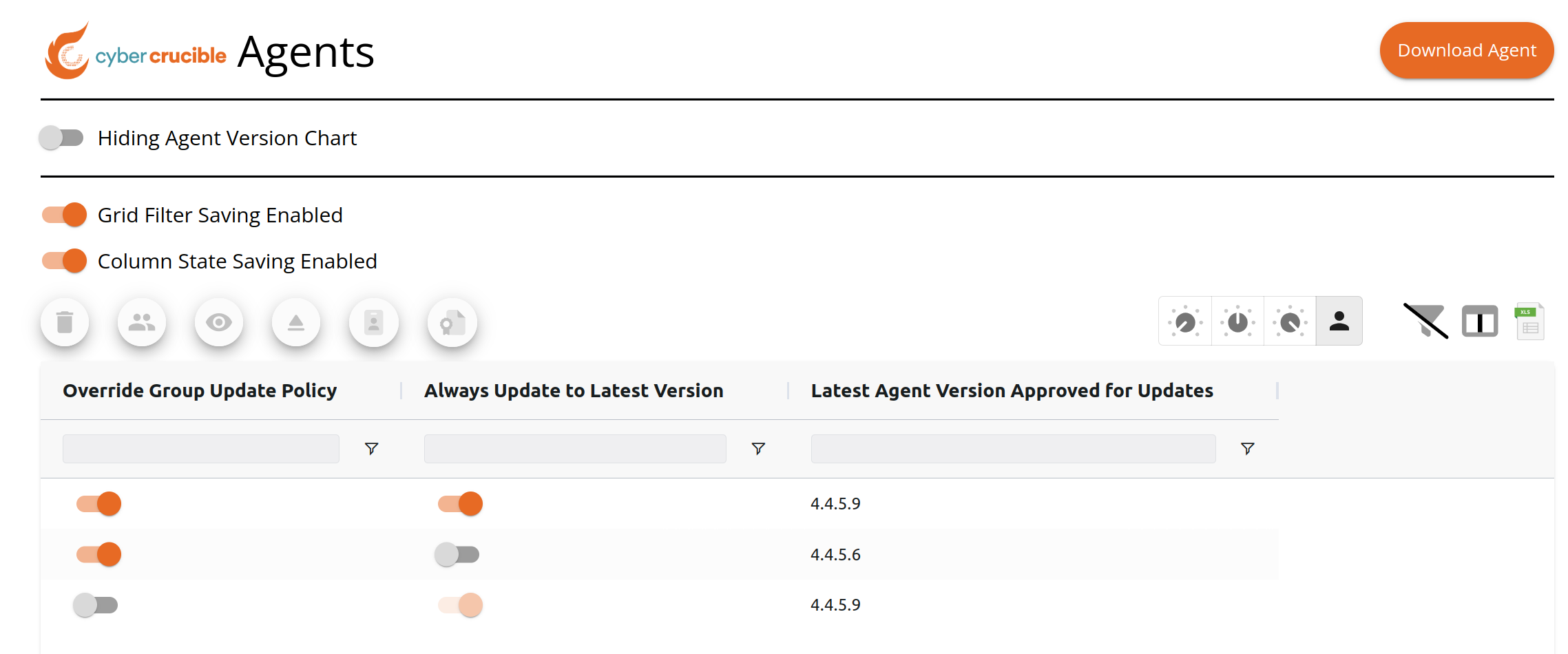When an agent is overriding their group update settings, the auto-update and approved agent version columns are editable where users may configure the agent’s update settings to follow instead of following the group update settings.
When an agent is following their group update settings, the auto-update and approved agent version columns are not editable and will show the group update settings.