- [How to Register a Deal](#bkmrk-how-to-register-a-de)
- [Deal Length and Billing Cycle Options](#bkmrk-deal-length-and-bill)
- [How to Know when a Deal is Approved](#bkmrk-how-to-know-when-a-d)
- [How to Request a Quote for an Existing Deal](#bkmrk-how-to-request-a-quo)
- [How to Pay for a Deal](#bkmrk-how-to-pay-for-a-dea)
- [How to Download a Signed Quote](#bkmrk-how-to-download-a-si)
- [How to Edit a Deal](#bkmrk-how-to-edit-a-deal)
- [How to Disable a Deal](#bkmrk-how-to-disable-a-dea)
- [How to Enable a Deal](#bkmrk-how-to-enable-a-deal)
# How to Register a Deal
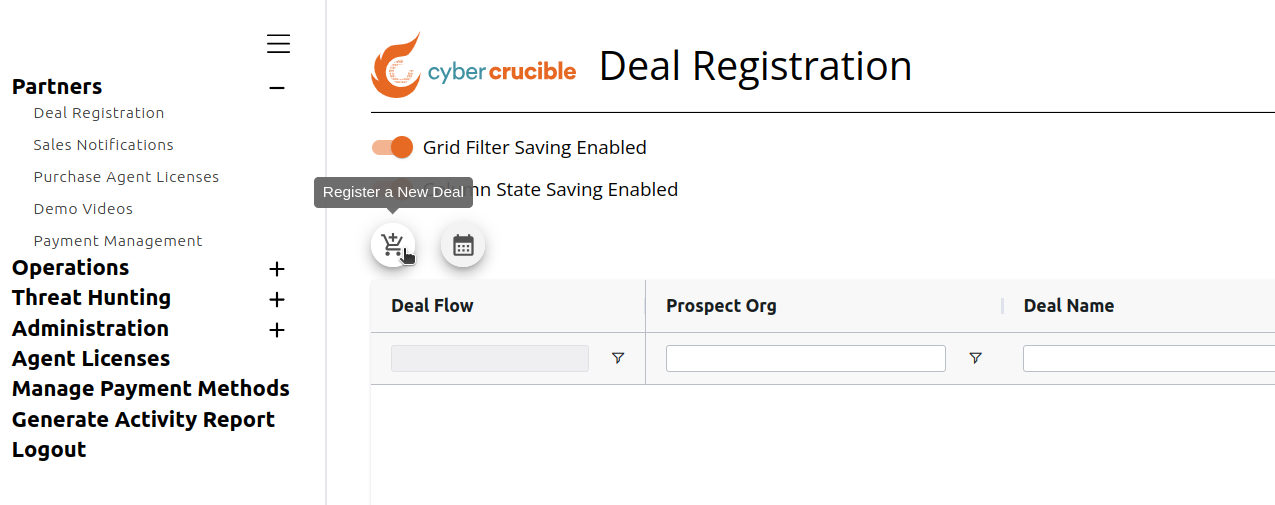
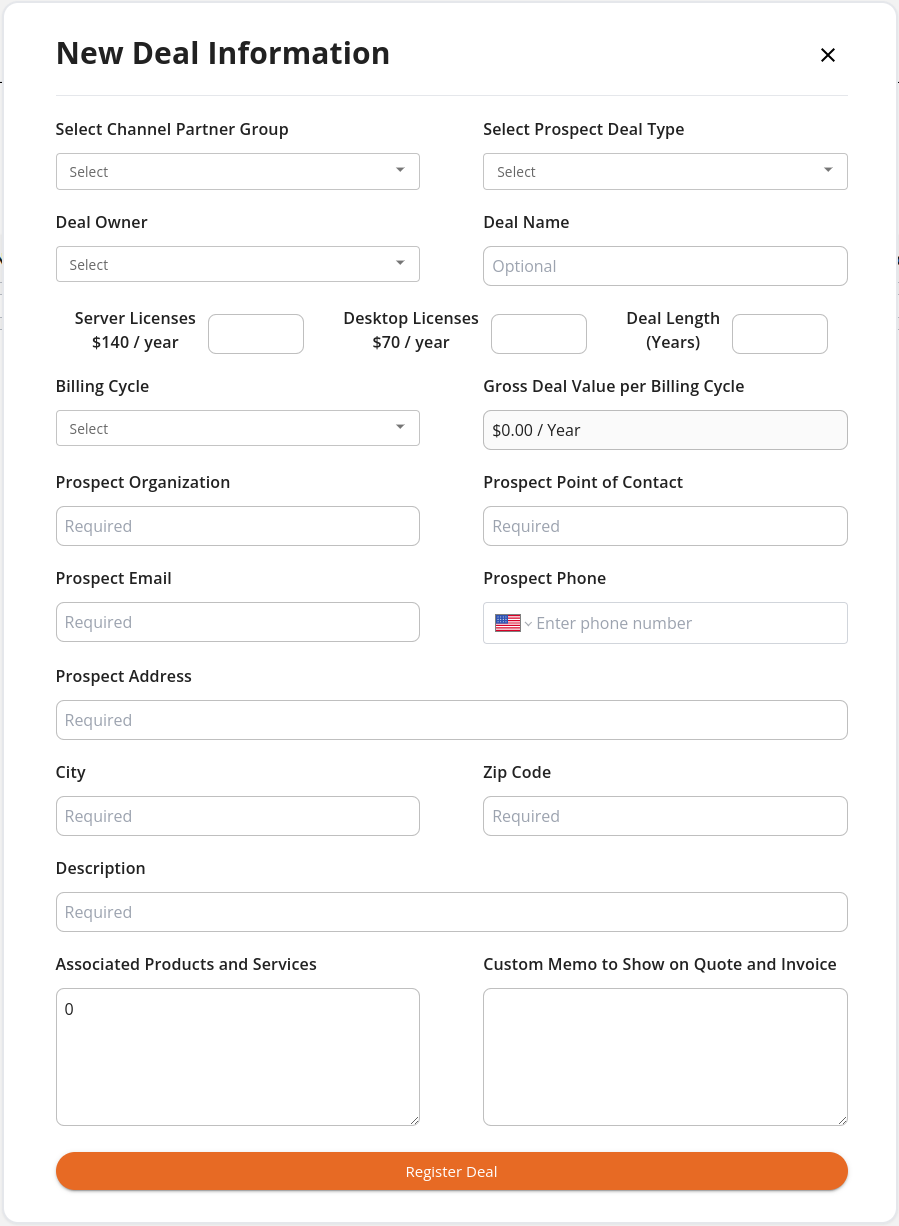
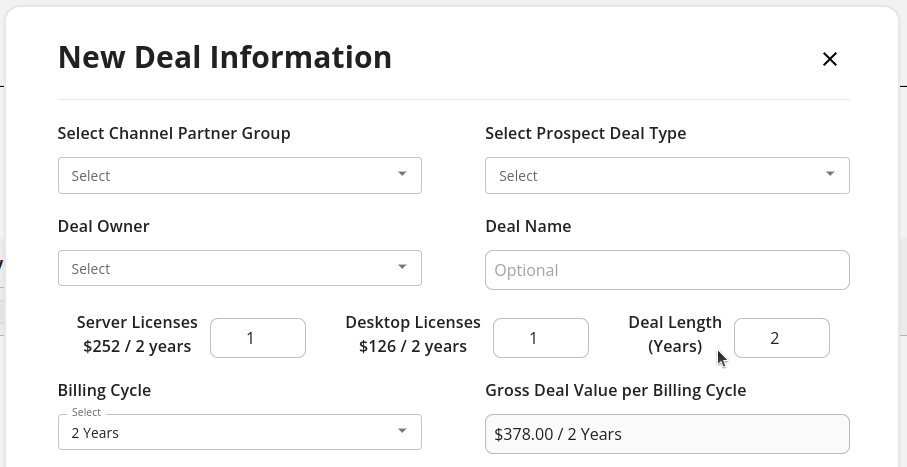
Partners can register a deal prospect by visiting our [Dashboard](https://dashboard.cybercrucible.com/login) and clicking the Deal Registration tab in the Partner Portal. To register a new deal, click the shopping cart icon above the grid. Clicking this icon will open a modal that contains a form to fill out about the new deal. Note that the calendar icon to the right of the shopping cart icon can be used to schedule a product demonstration.
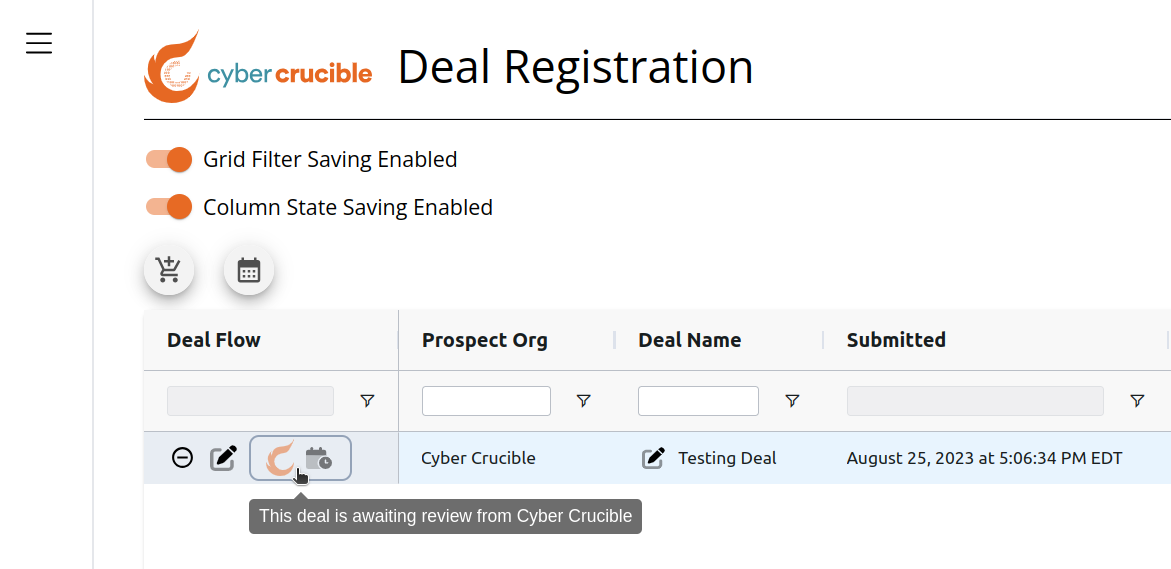
Users will need to wait for their newly registered deal to be approved by Cyber Crucible before sending a quote or making a payment. The disable deal icon is still available to users while the deal is awaiting approval.
# Deal Length and Billing Cycle Options
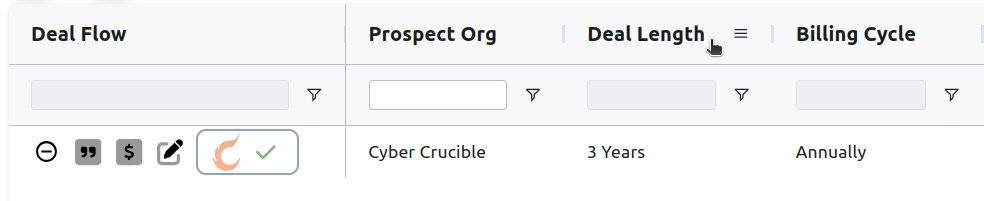
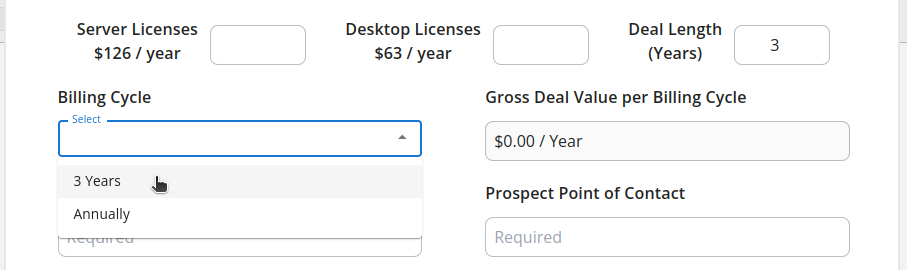
Users can register deals for 1-3 years with varying billing cycle options. See the Deal Length option on the new deal modal and in the Deal Length column on the grid.
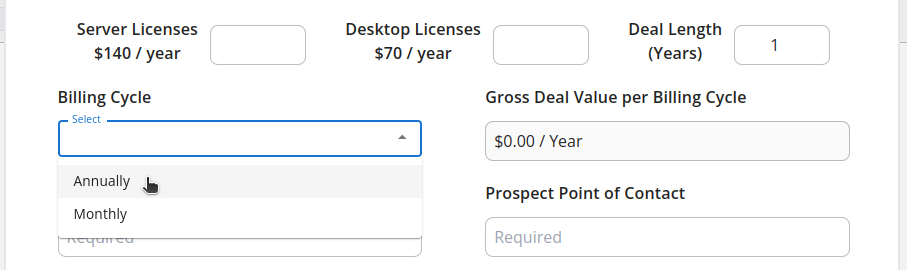
For 1 year deals, the billing cycle options are to pay annually or pay monthly.
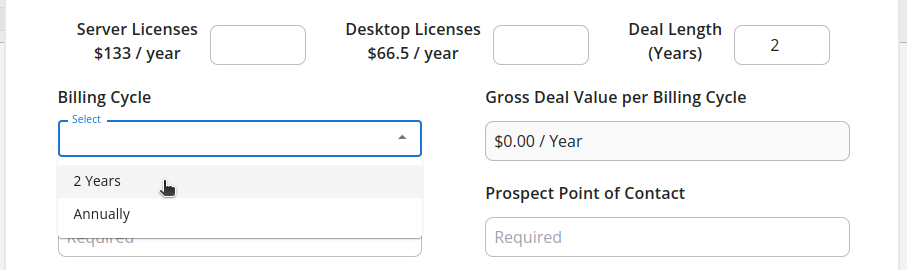
For 2 and 3 year deals, users can pay up front or pay annually.
# How to Know when a Deal is Approved
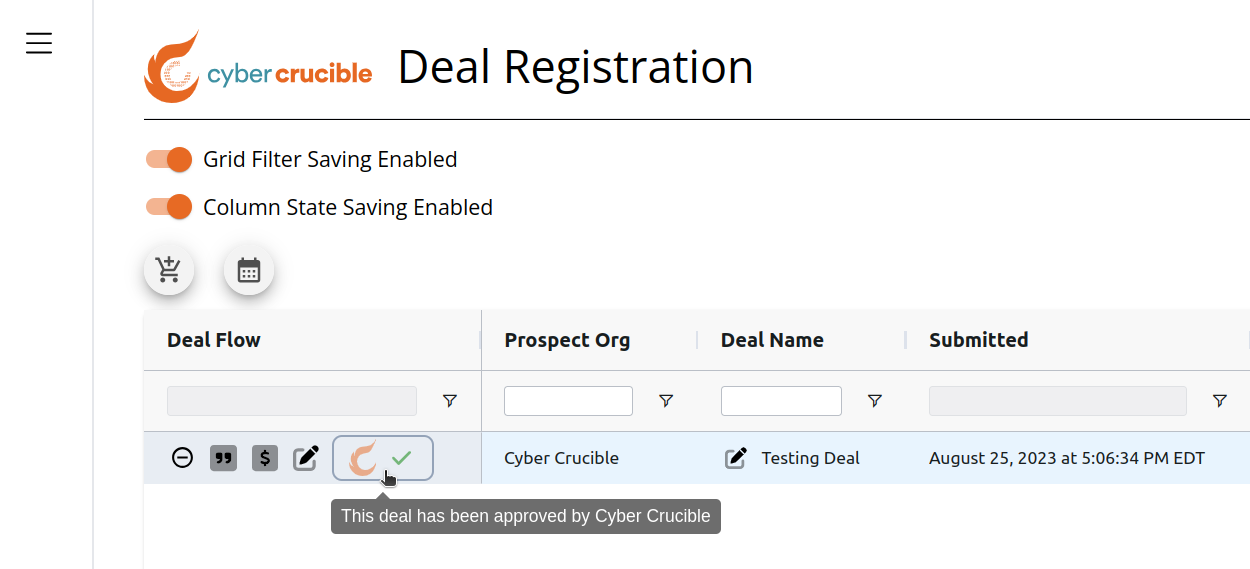
Users will know when a deal has been approved by Cyber Crucible when they see a green check mark in the Deal Flow column for the specific deal. When a deal is approved, users will be able to request and sign a quote for the deal.
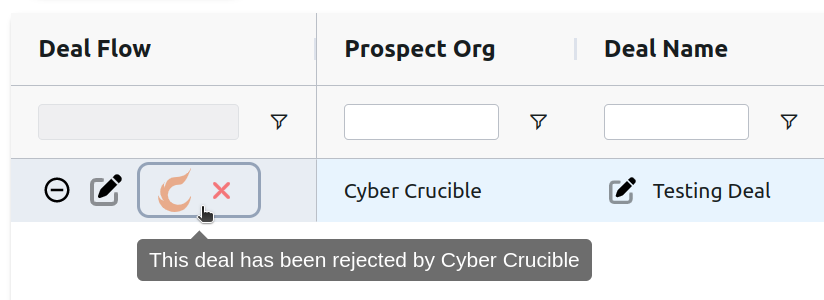
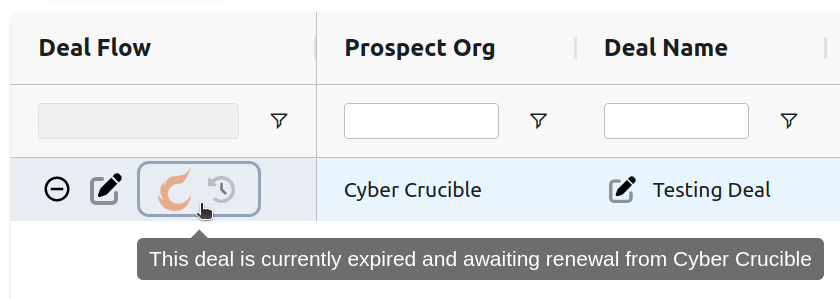
Deals may also be rejected or awaiting renewal from Cyber Crucible.
# How to Request a Quote for an Existing Deal
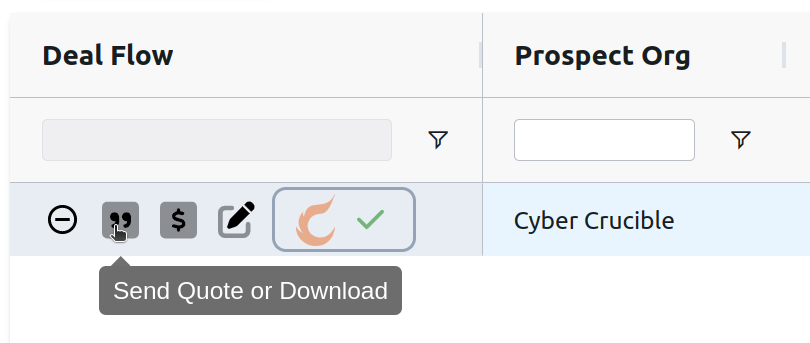
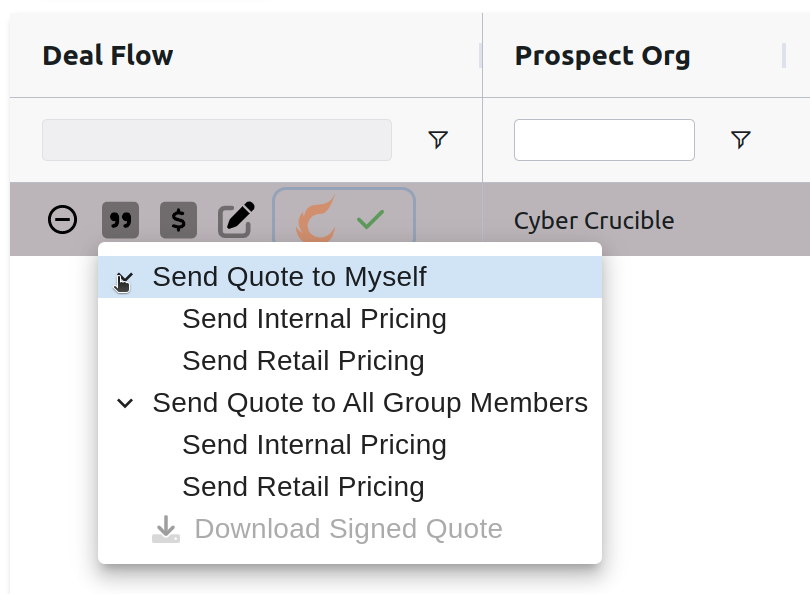
Users can click the quote icon in the Deal Flow column to request a quote for a deal. Clicking this icon will show options for requesting a quote. You can opt to send the quote only to your user email address or send the quote to all members of the specific deal’s group. You can also opt to show the internal pricing in the quote that will show the discount applied for the deal, or retail pricing that will not show the discount applied for the deal and will show full market price.
Please note that users can only request a quote for Cyber Crucible approved deals.
# How to Pay for a Deal
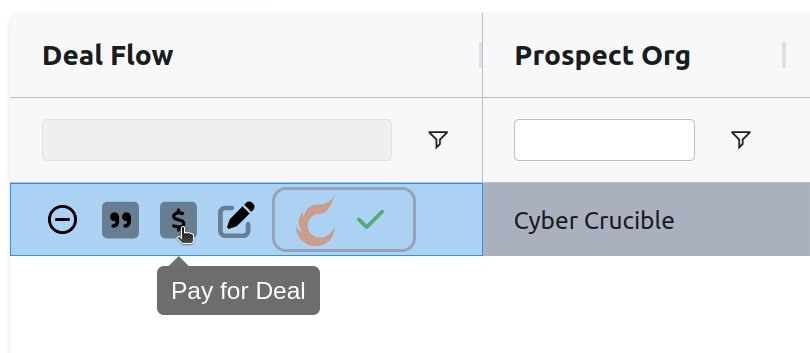
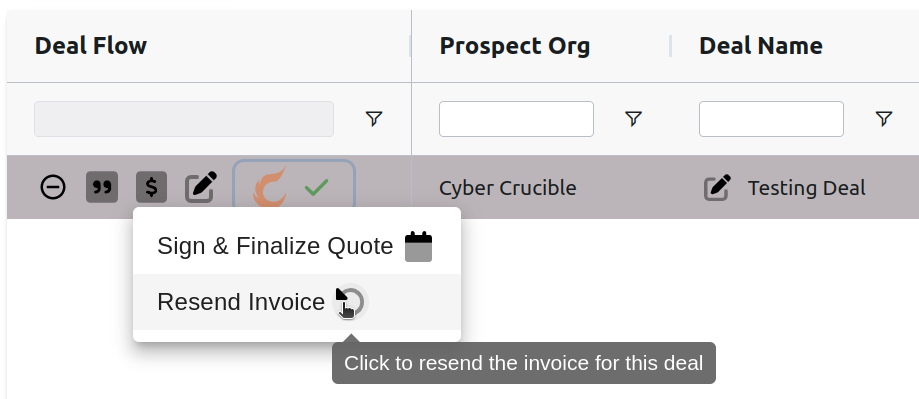
To pay for a deal, users can click the dollar sign icon in the Deal Flow column which will then show the Sign & Finalize Quote option. Clicking this option will alert our sales team of the request, and a salesperson will be in contact for the next steps. Hovering over the calendar icon also shows the date the most recent request was made.
Signing the quote will complete the deal, and the licenses for the deal will be populated shortly after with a net 30 invoice for payment.
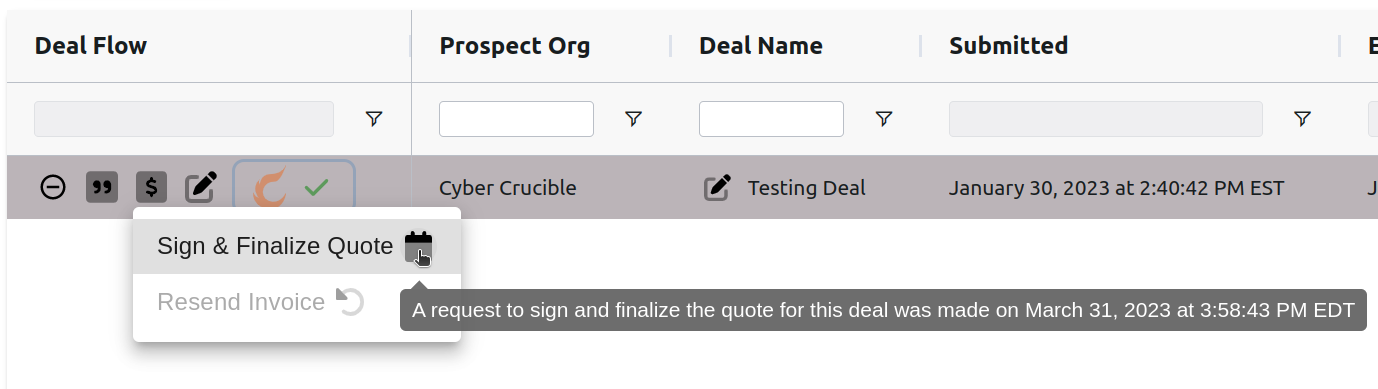Note that you can also resend the invoice in this menu:
# How to Download a Signed Quote
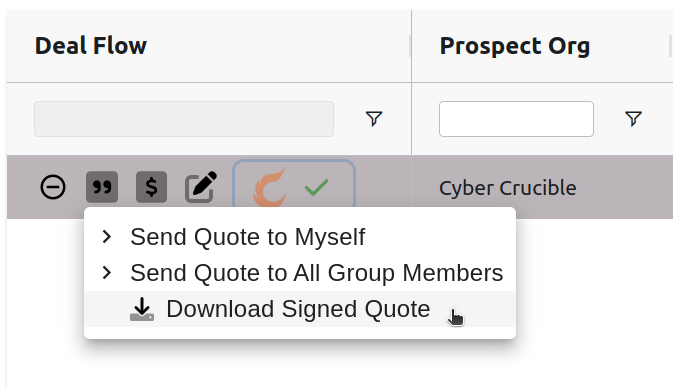
After signing a quote to complete the deal, users will be able to download the signed quote by clicking the quote icon in the Deal Flow column and clicking the Download Signed Quote option.
# How to Edit a Deal
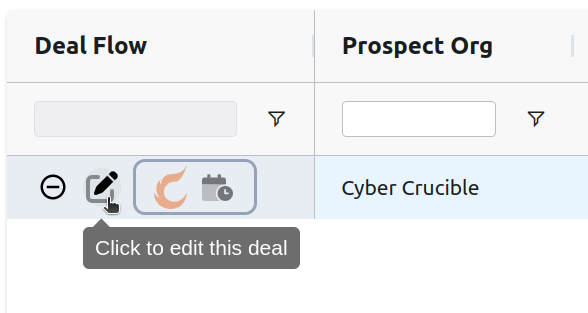
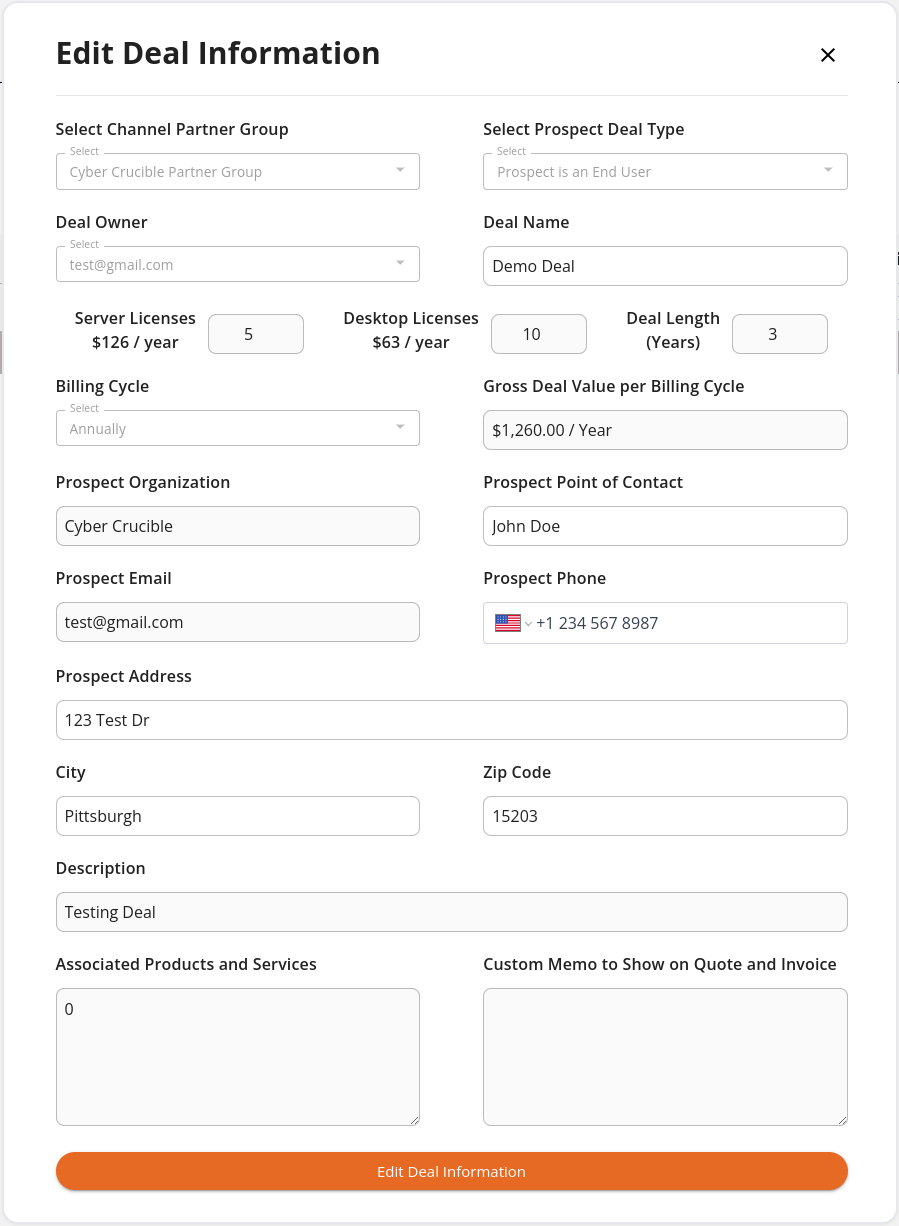
Users can edit a deal by clicking the edit icon in the Deal Flow column. Clicking this icon will open up a modal where users can edit the information of the deal. This modal is the same as the new deal modal, except the information is pre-filled with the deal’s current information.
If the deal has not been completed and a request to sign and finalize the quote for the deal has not been made, then users are able to edit all of the deal’s attributes on the modal.
Note that changes involving the deal type, license counts, billing cycle, channel partner group, and prospect organization will need to be approved Cyber Crucible. This means that deals will be reset to the pending Cyber Crucible approval state when these fields are changed.
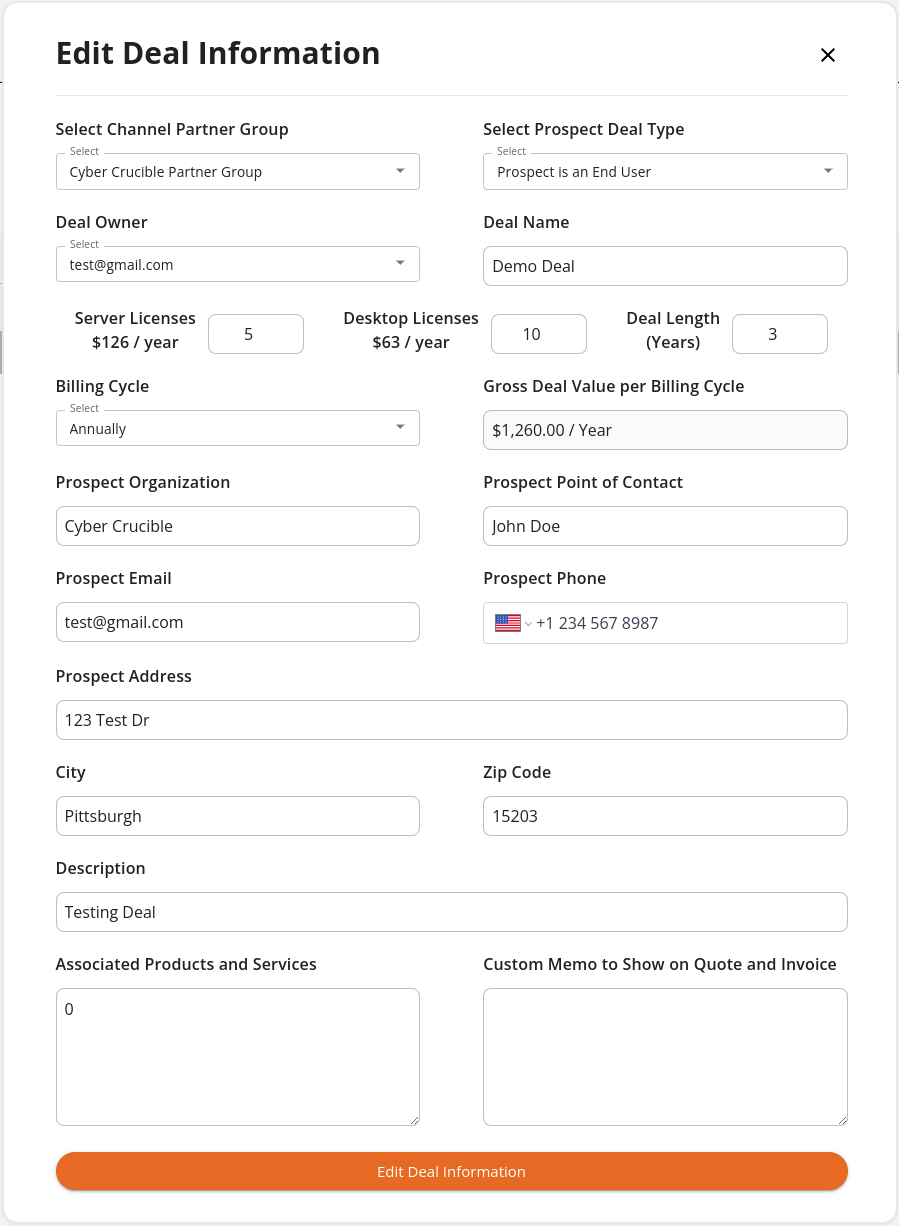If the deal has been completed or the request to sign and finalize the quote for the deal has been made, certain attributes of the deal are not able to be changed and will be disabled on the modal.
# How to Disable a Deal
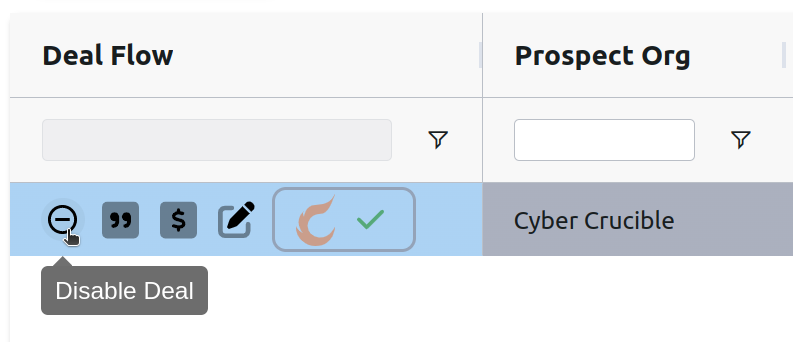
Users can disable a deal by clicking the minus sign icon in the Deal Flow column. Disabling a deal means that quotes for this deal cannot be sent, and users will not be able to use the Sign & Finalize Quote option for payment.
# How to Enable a Deal
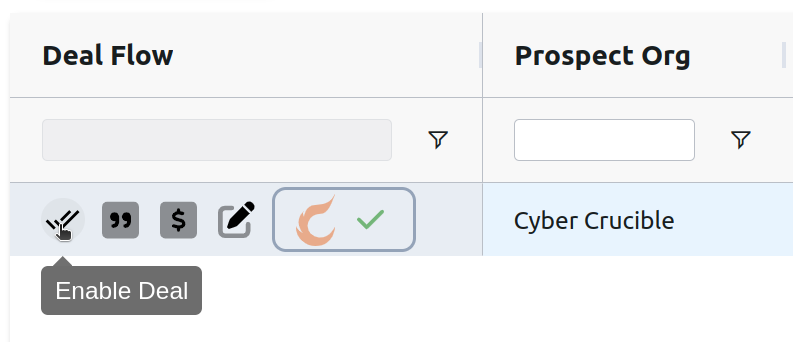
Users can enable a disabled deal by clicking the double check mark icon in the Deal Flow column.