# How to Manage Payments and Subscriptions
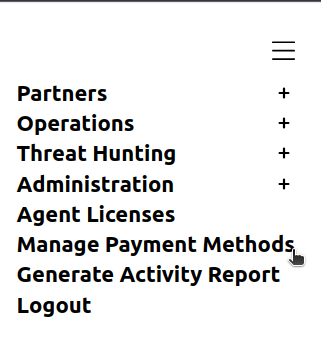
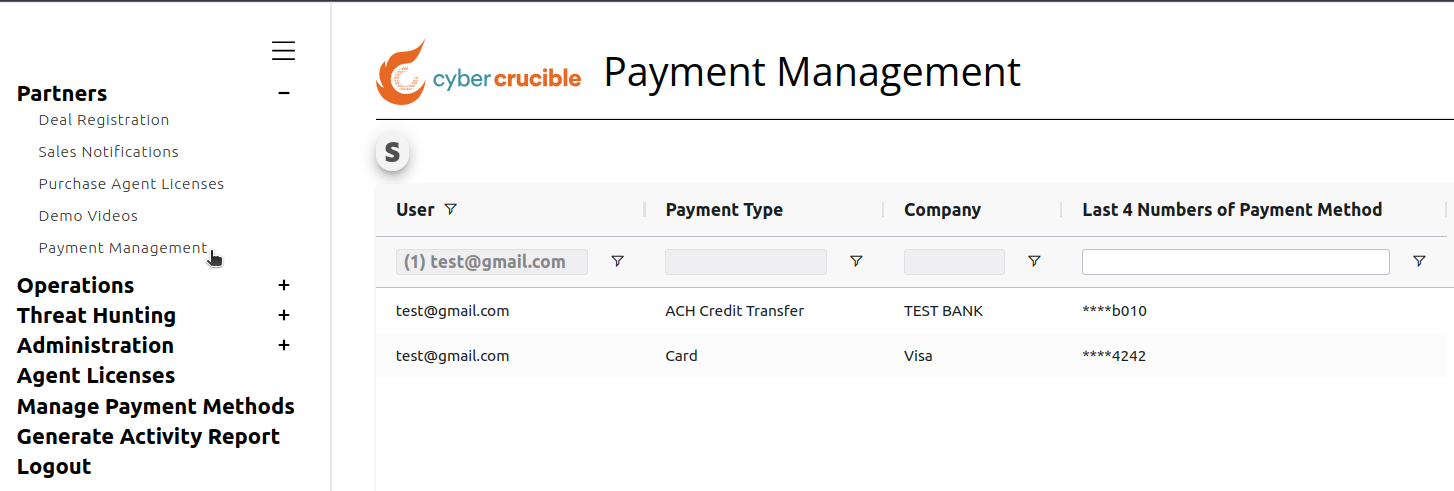
Partners can manage payments and subscriptions by visiting our [Dashboard](https://dashboard.cybercrucible.com/login) and clicking the Payment Management tab in the Partner Portal. This will take you to the Payment Management page where you will be able to see user payment methods in partner groups that you are an Admin of.
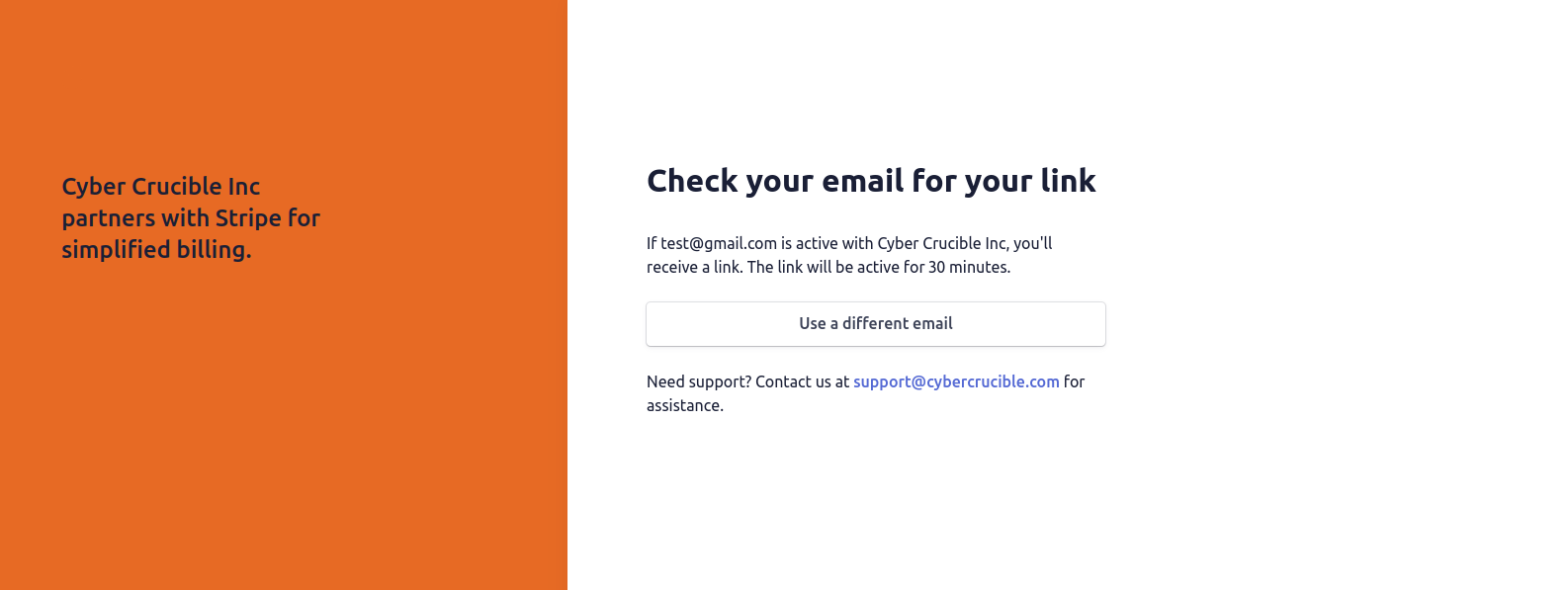
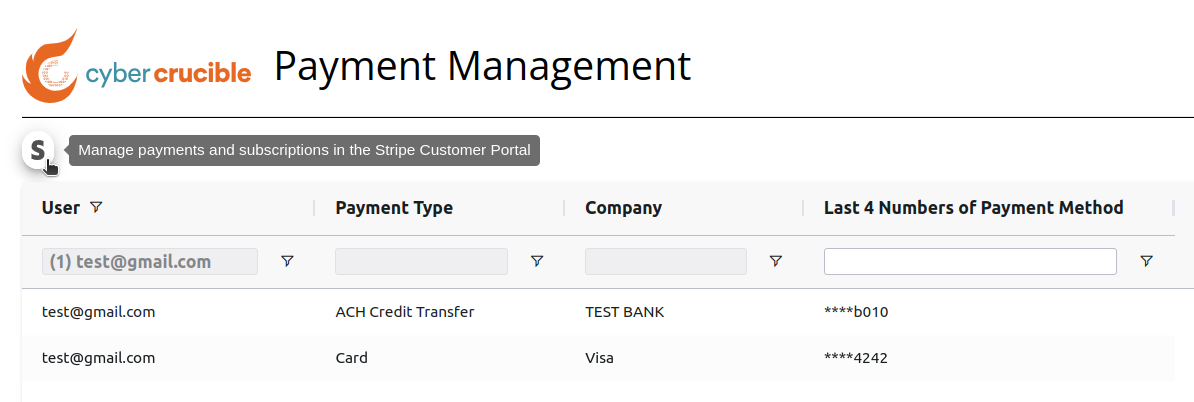In order to manage your subscriptions and payment methods, click the Stripe icon above the grid. Clicking this icon will redirect you to the Stripe Customer Portal in a new tab with your current user prefilled on the login form. Clicking Send will send a link to the email address entered, which will log you into the Stripe Customer Portal where you will be able to manage your account.
You will need to have an existing Stripe customer account (created through Cyber Crucible) to be able to access the Customer Portal, which happens when purchasing licenses. Note that for Deals, the Stripe customer account is associated with the Deal Owner, and also the Prospect Email for referral deals where Cyber Crucible will bill the customer.
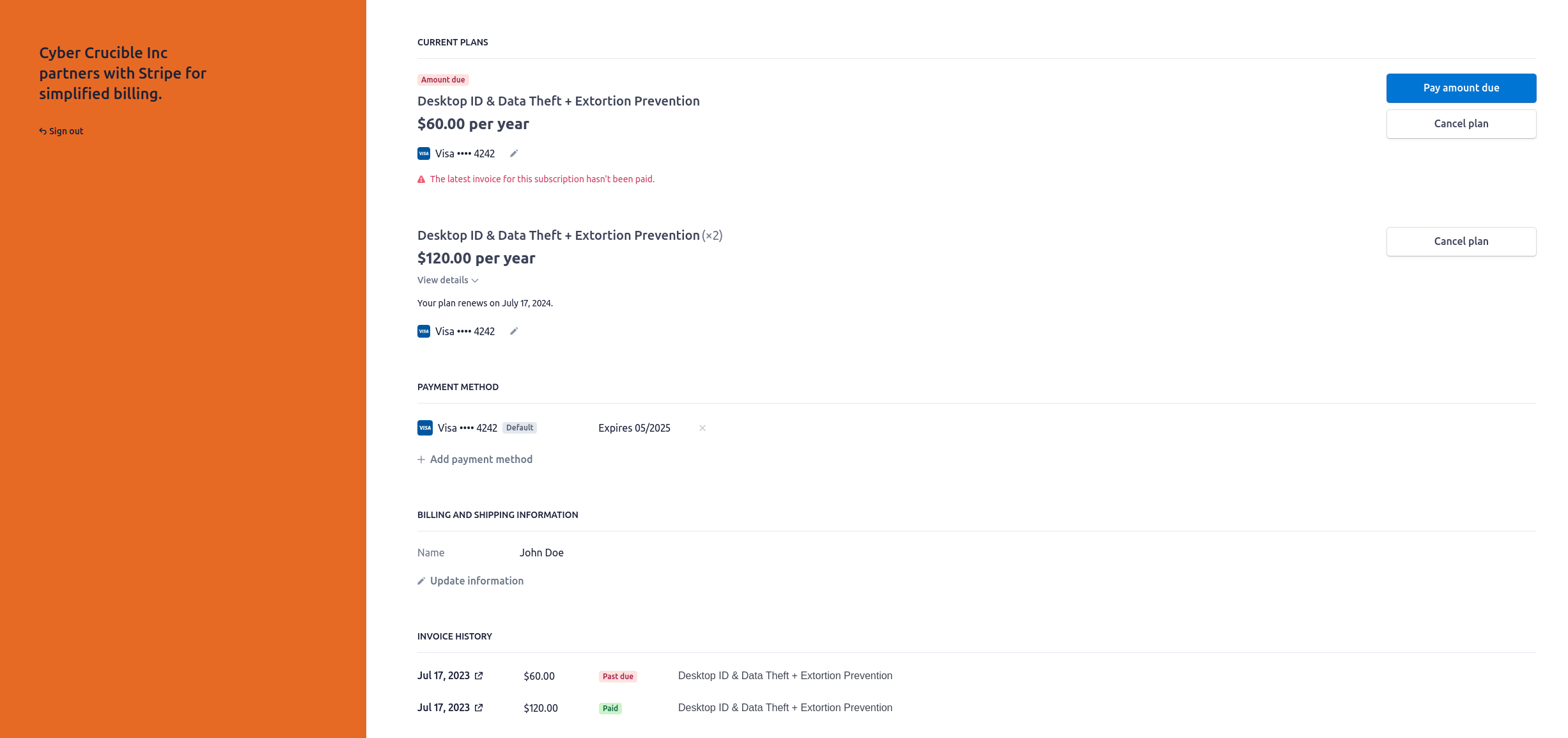
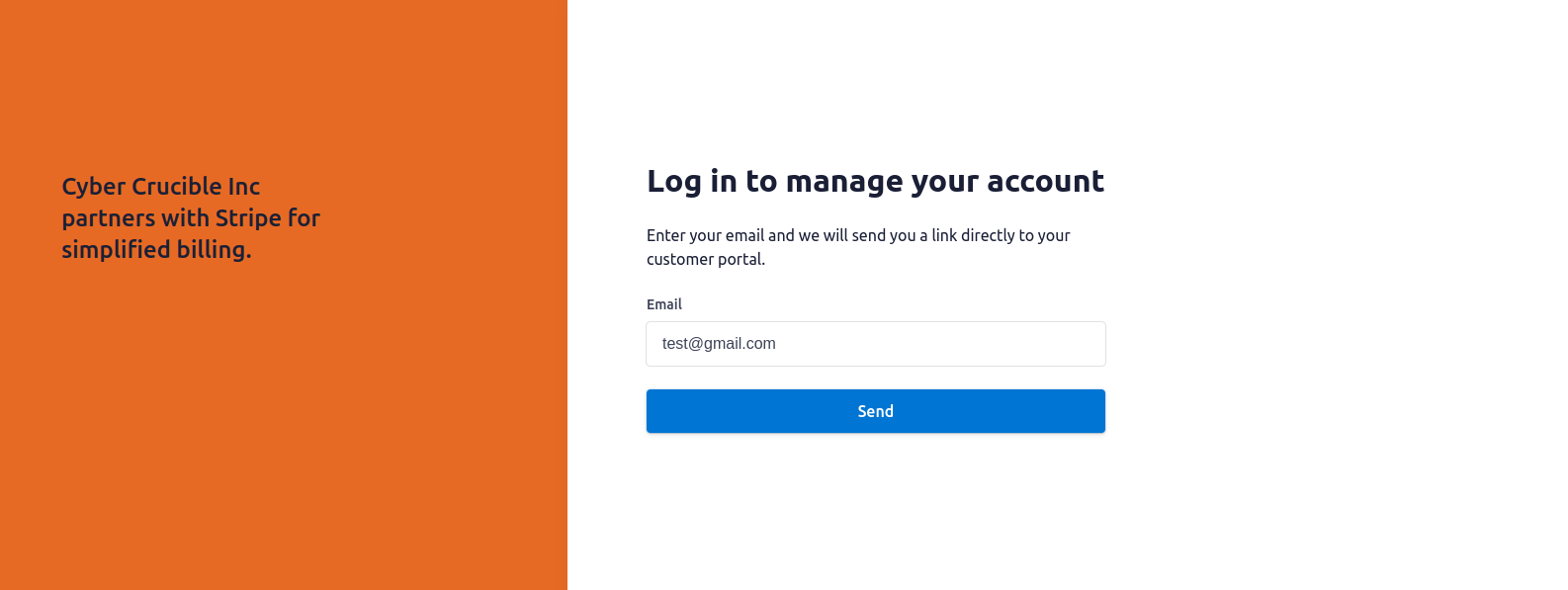After clicking the link sent to your email address, you will be redirected to this page where you are able to:
- View and manage your current subscriptions
- Make payments
- Add payment methods and set the default payment method for your account
- Edit your customer account information
- View the invoice history for your account and pay for open invoices
For ease of access, you can also click the Manage Payment Methods tab that will open the Stripe Customer Portal in a new tab.