- [Creating the POC](#bkmrk-creating-the-poc)
- [Where Can I View the POC Licenses?](#bkmrk-where-can-i-view-the)
- [Where Can I View the POC Group?](#bkmrk-where-can-i-view-the-1)
# Creating the POC
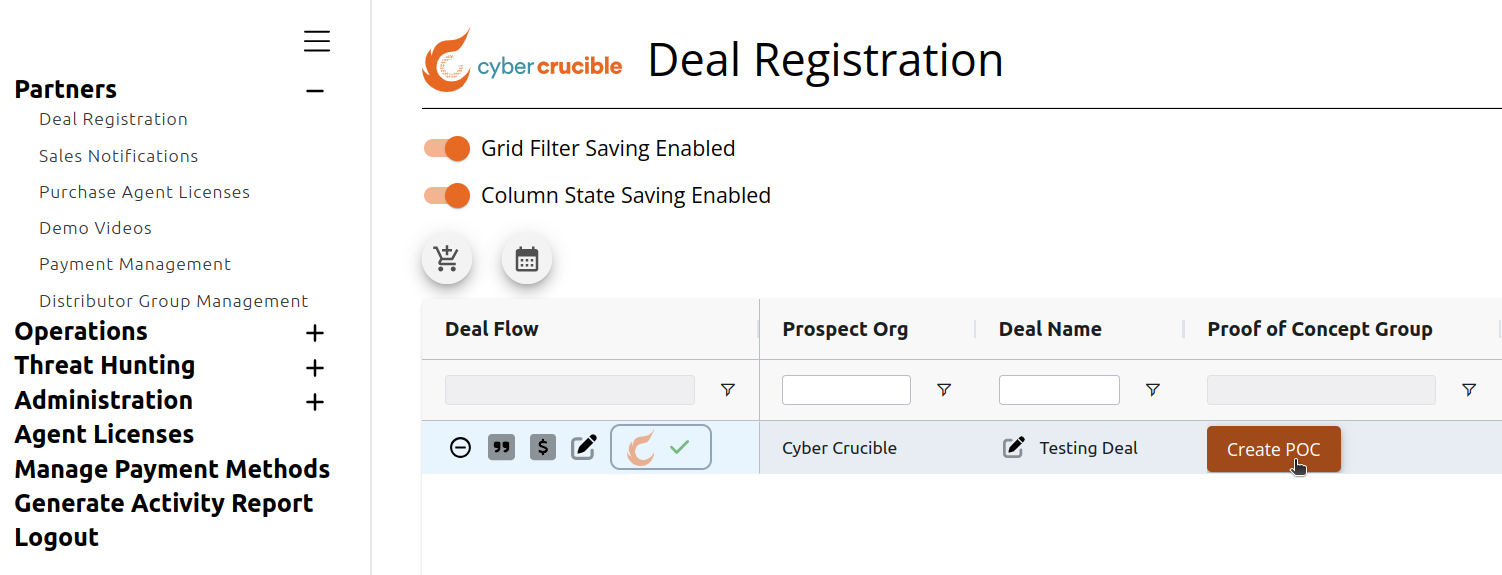
Partners can create a POC for a deal by first visiting our [Dashboard](https://dashboard.cybercrucible.com/login) and clicking the Deal Registration tab in the Partner Portal. Then, click the Create POC button for the specific deal in the Proof of Concept Group column, which will open the POC Setup modal. Note that in order to create a POC for a deal, the deal must already be registered and approved by Cyber Crucible, and the partner group for the deal must be given permission by Cyber Crucible to create a POC.
Please see the Partner Deal Registration article [here](/books/Partner-Operations/page/Partner-Deal-Registration) for how to register a deal and how you will know when a deal has been approved by Cyber Crucible.
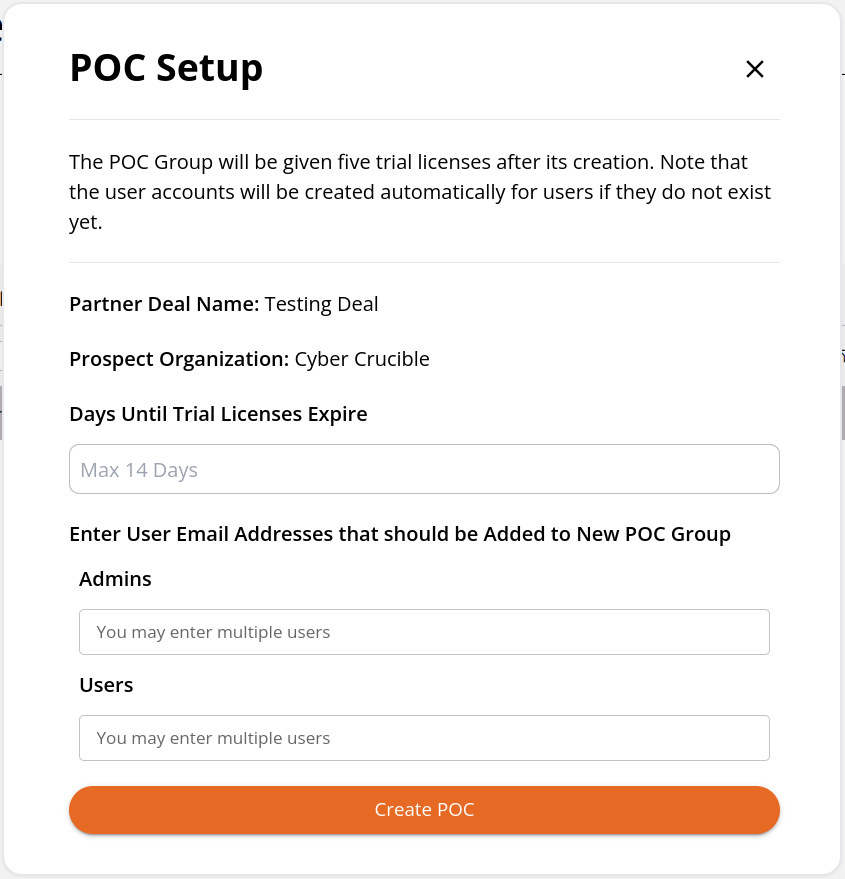As specified in the POC Setup modal, the POC Group will be given five trial licenses after its creation. You can specify how long the trial licenses should last (up to the max amount). You can also enter the Admin and Non-Admin users that should automatically be added to the POC Group upon creation. Please note that the user who is creating the POC Group will automatically be added as an Admin of the POC Group.
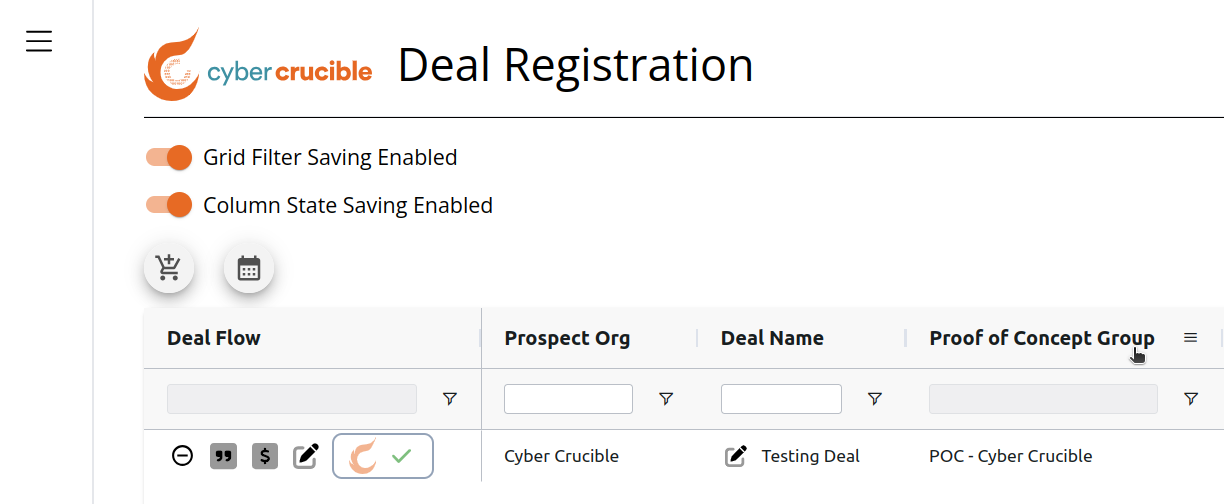
After the POC is created, the Proof of Concept Group column will appear as:
# Where Can I View the POC Licenses?
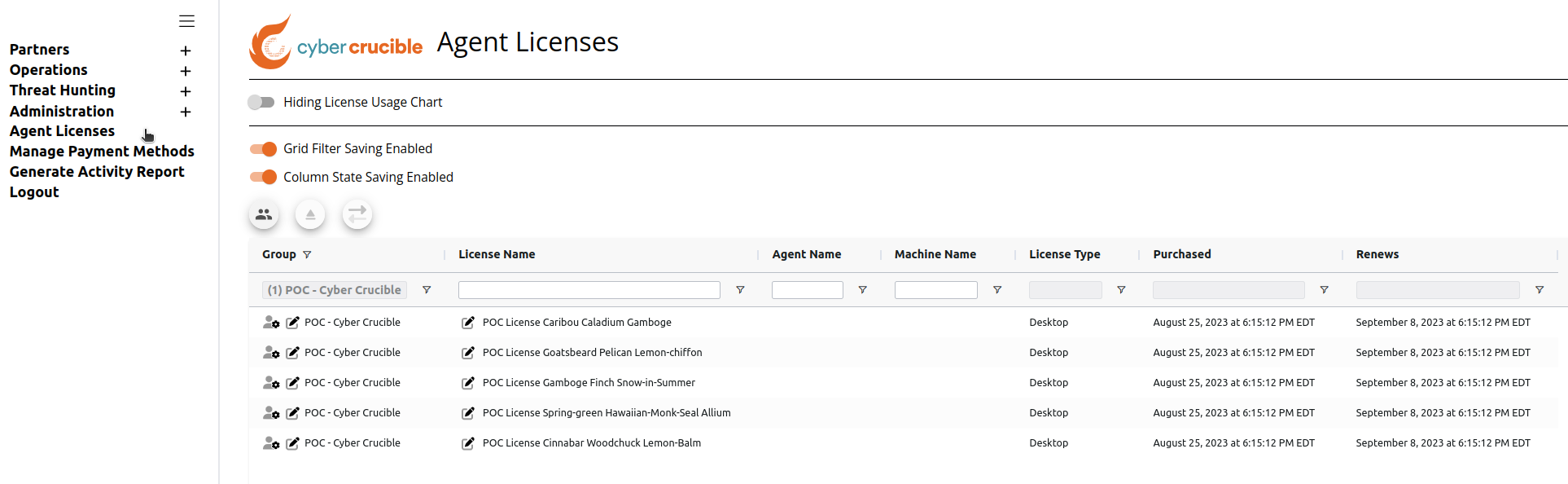
After the POC Group is created, users can view the POC Licenses on the Agent Licenses page.
# Where Can I View the POC Group?
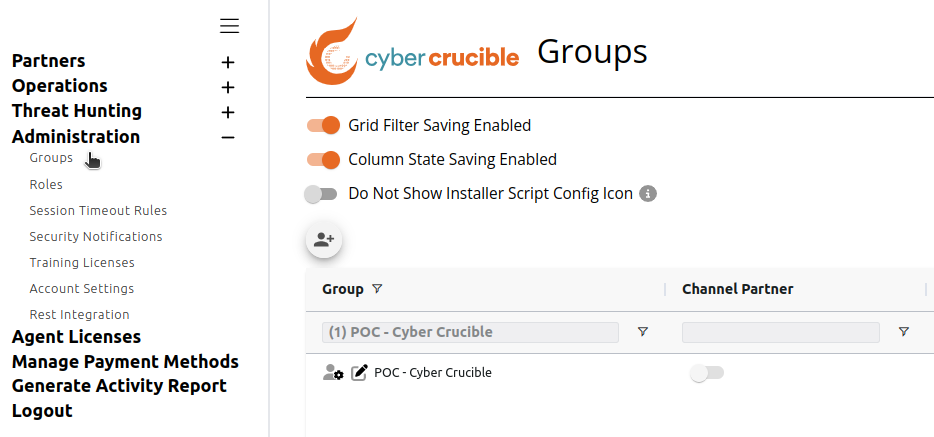
After the POC Group is created, users can view the POC Group on the Groups page under the Administration tab in the sidebar.