# Administration
Users, groups, licensing, SSO, and notification configuration.
# How do I automatically allocate licenses from a distribution group?
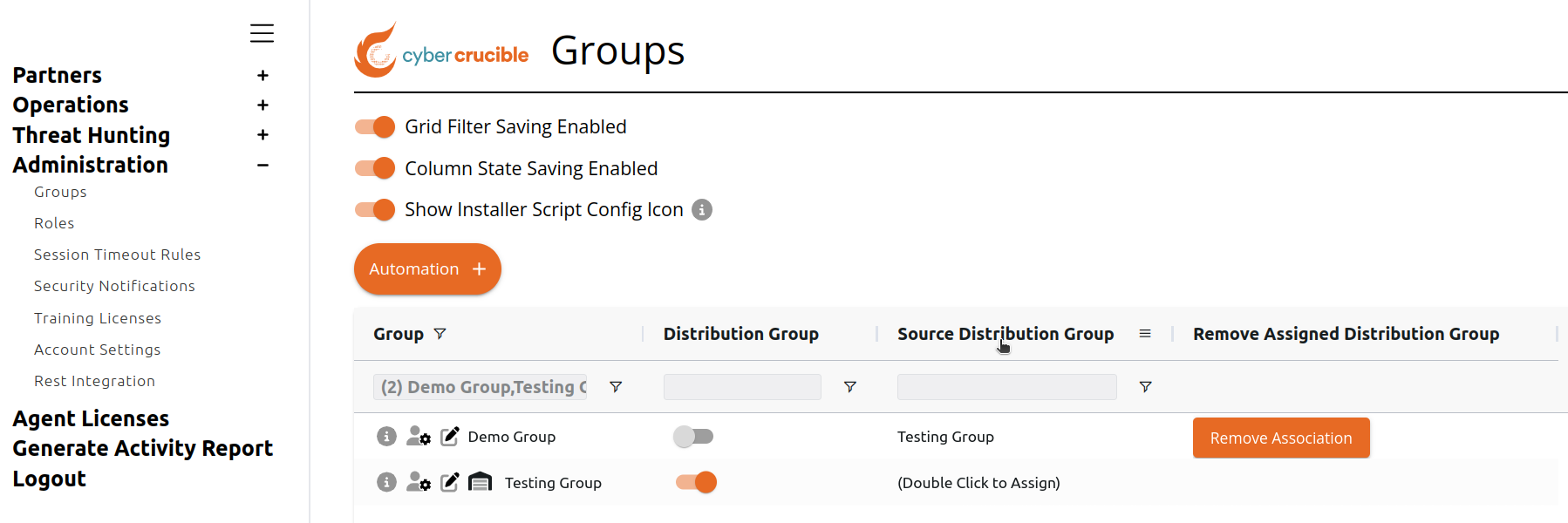
- [Where is the Source Distribution Group Setting?](#bkmrk-where-is-the-source-)
- [When Does the Source Distribution Group Setting Get Used?](#bkmrk-when-does-the-source)
- [Introduction](#bkmrk-introduction)
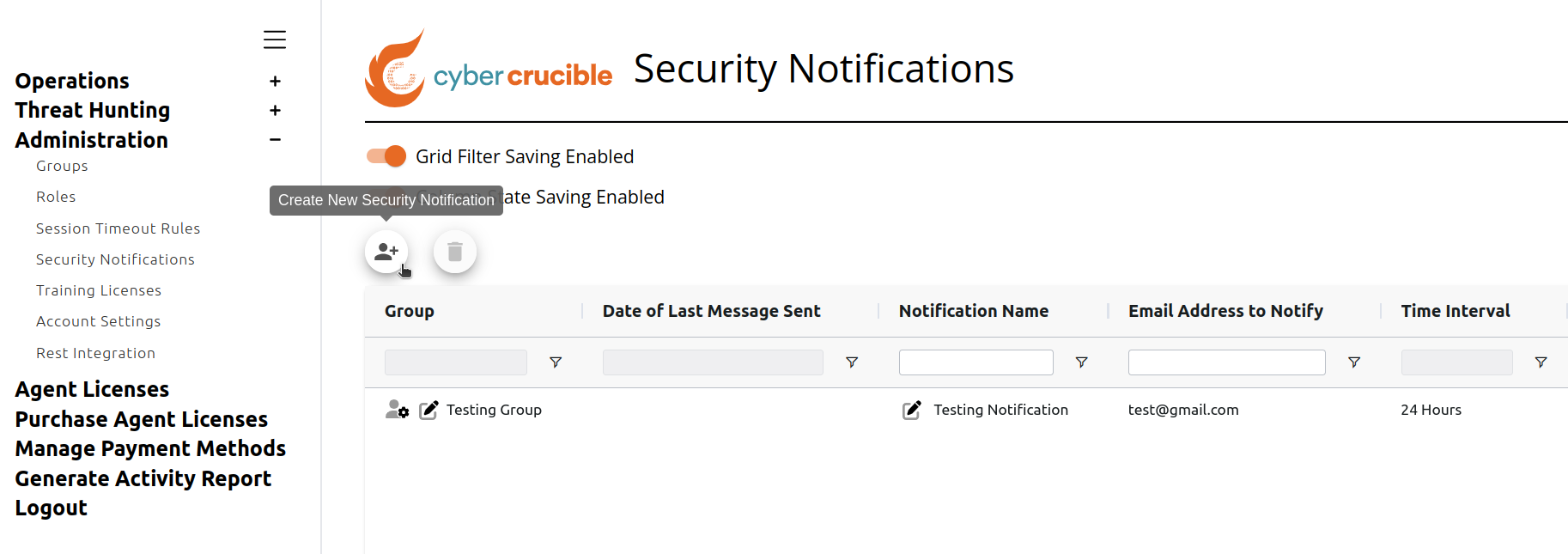
- [How to Create a Security Notification](#bkmrk-how-to-create-a-secu)
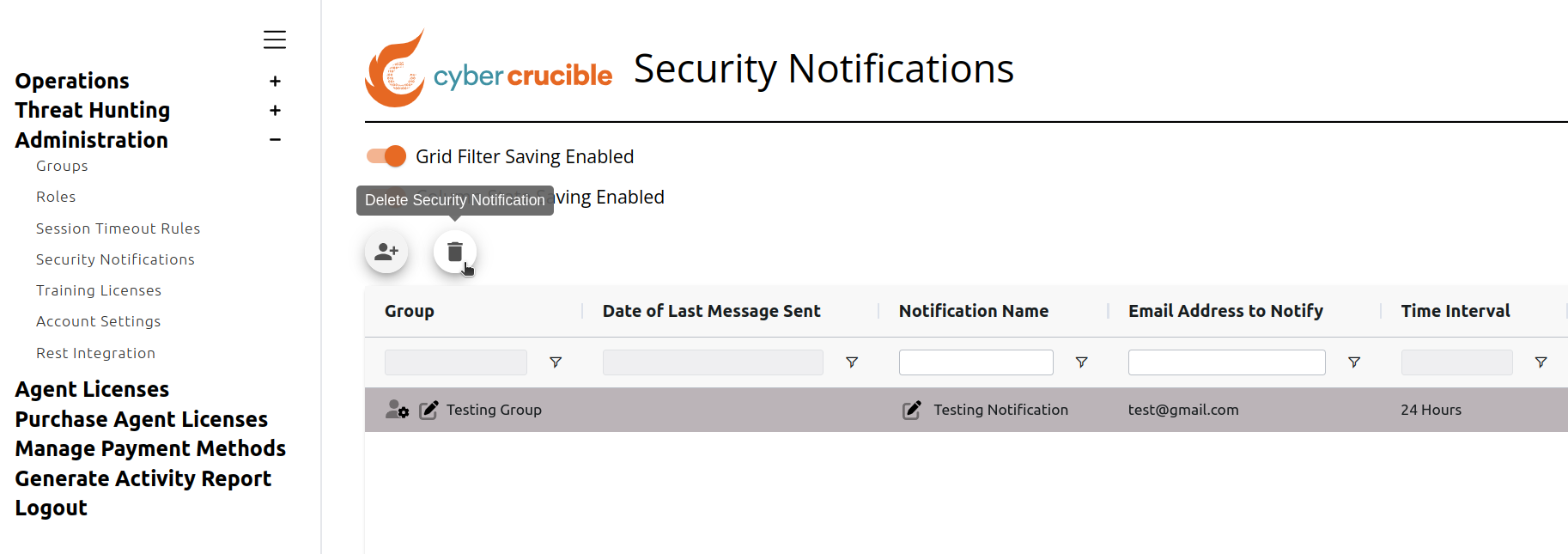
- [How to Delete a Security Notification](#bkmrk-how-to-delete-a-secu)
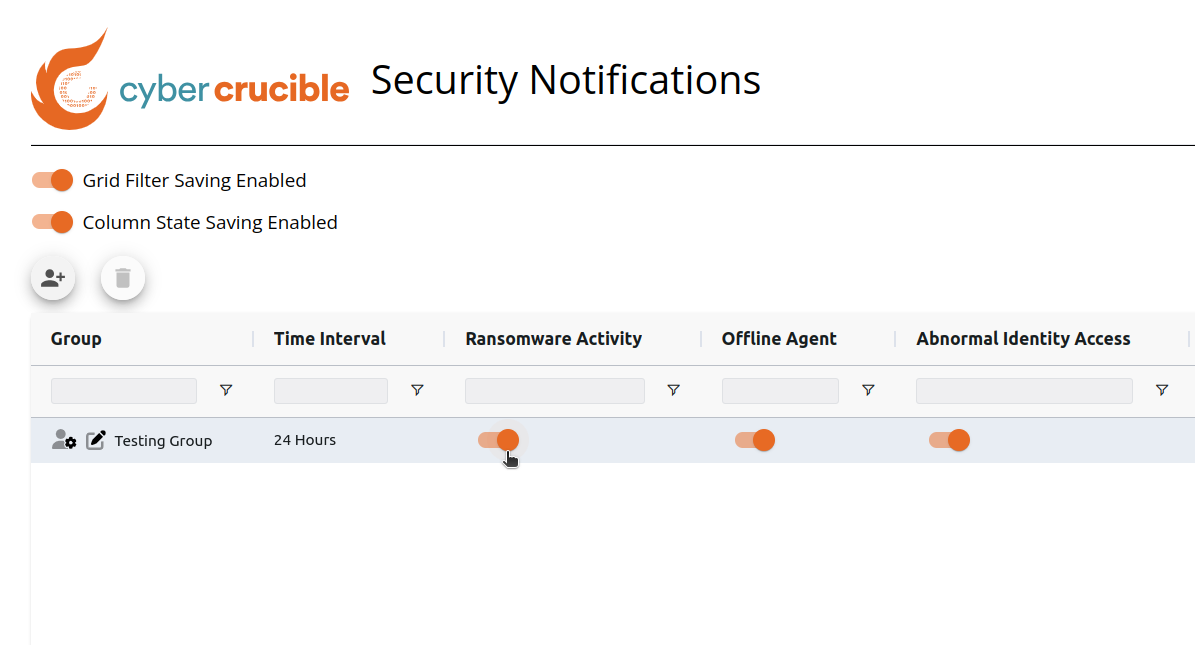
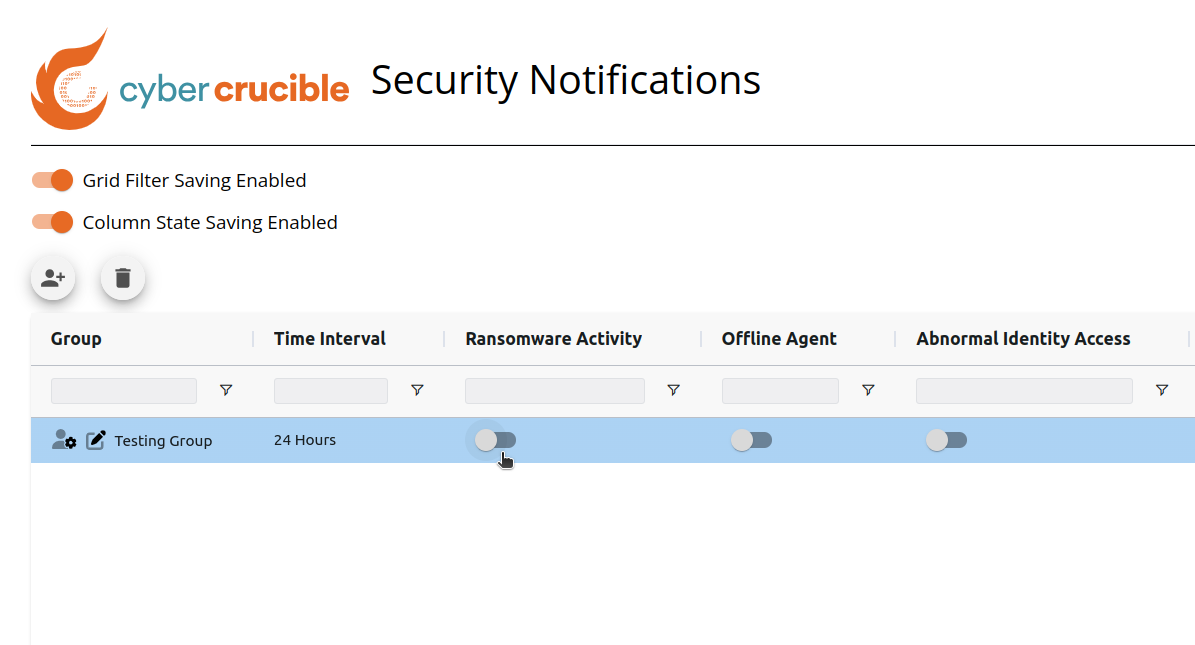
- [How to Turn a Security Notification Off Without Deleting](#bkmrk-how-to-turn-a-securi)
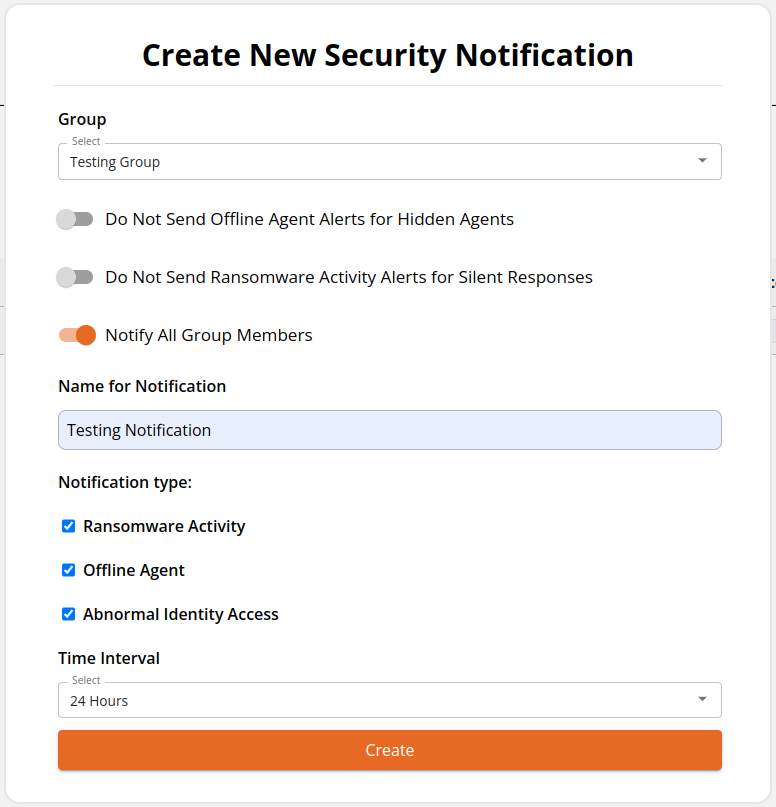
- Select the group the notification is for
- Send offline agent alerts for agents that are set as hidden on the agents grid. Turning this setting off means that hidden agents will be ignored when sending offline agent alerts for this notification
- Send ransomware activity alerts for Silent Responses, see [here](https://cybercrucible.atlassian.net/l/cp/d9s5931o)
- Send notification emails to all group members, or limit to a single email address
- Enter a friendly name for the notification (optional), otherwise the notification will be given a randomly assigned name
- Select Notification Types that this notification will send alerts for
- Select the time interval for how often these alerts will be sent out. Note that alerts will only be sent out if 1 or more events are found over the time interval. Alerts do not send for 0 events found
- [Group Setting for Automatically Releasing Inactive Agents' Licenses](#bkmrk-group-setting-for-au)
- [How Can I Automatically Hide Agents When Licenses are Removed?](#bkmrk-how-can-i-automatica)
- [How Can I Filter for Inactive Agents and Release Their Licenses Myself on the Agents Page?](#bkmrk-how-can-i-filter-for)
- [How Can I Filter for Inactive Agents and Release Their Licenses Myself on the Licenses Page?](#bkmrk-how-can-i-filter-for-1)
**The software will no longer stop any data extortion attacks after the license is removed.**
# Group Setting for Automatically Releasing Inactive Agents' Licenses
Users have the ability to edit a Group setting that will automatically release inactive agents' licenses for agents in the Group.
First, navigate to the Groups page found under the Administration tab.
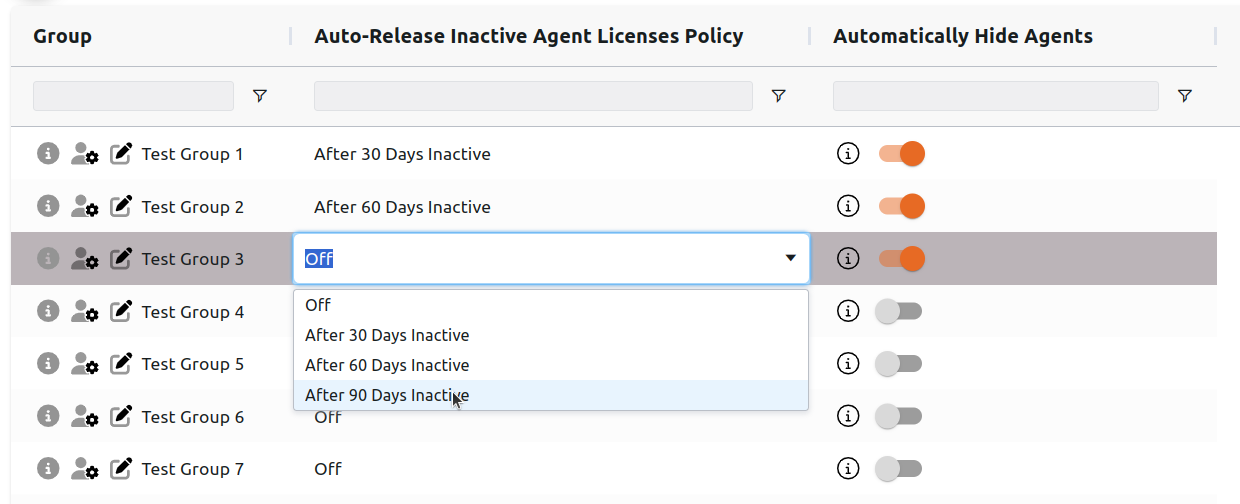
Next, find the “Auto-Release Inactive Agent Licenses Policy“ column for the desired group and double click the cell. This will show options for when an agent should be considered inactive and have their license removed automatically.
# How Can I Automatically Hide Agents When Licenses are Removed?
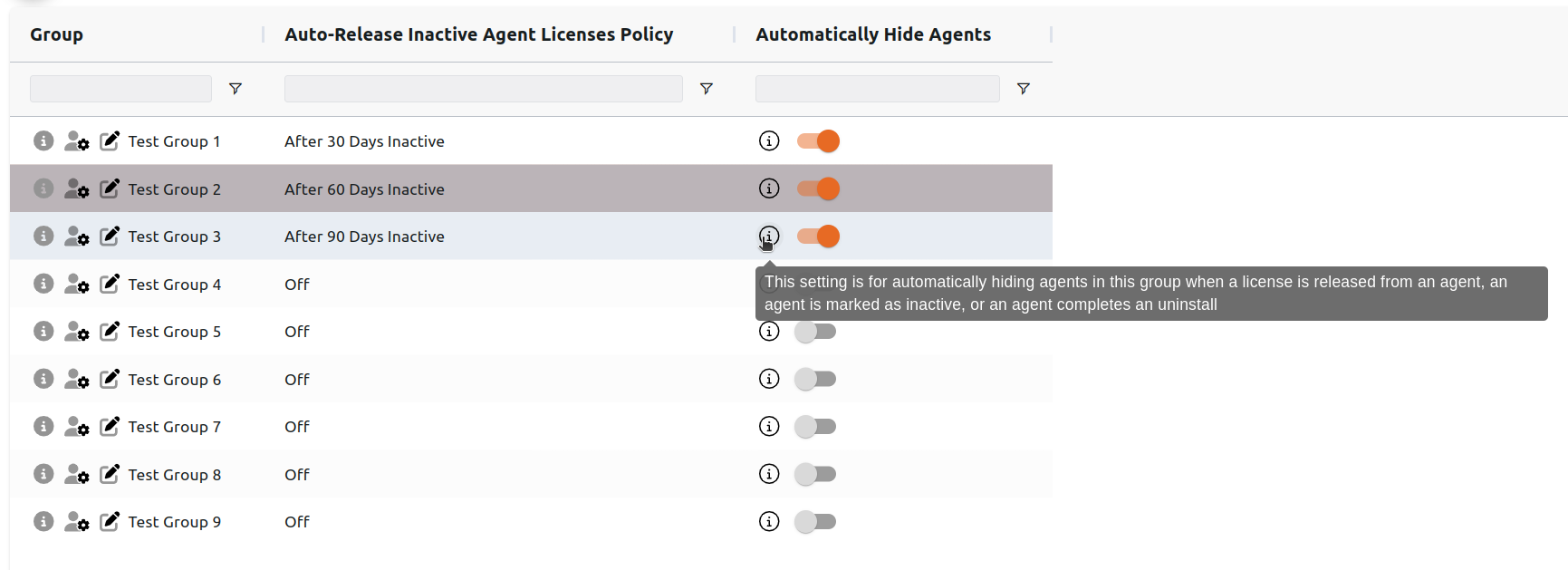
Users have the option to automatically hide agents in the group when: a license is released from an agent, an agent is marked as inactive, or an agent is uninstalled.
This setting can be found on the Groups page under the “Automatically Hide Agents“ column.
Hidden Agents will not be visible on the Agents page by default
# How Can I Filter for Inactive Agents and Release Their Licenses Myself on the Agents Page?
If users do not want to use the Group setting for automatically releasing inactive agents' licenses or want to release licenses sooner than the group setting:
First, navigate to the Agents page and clear any present filters.
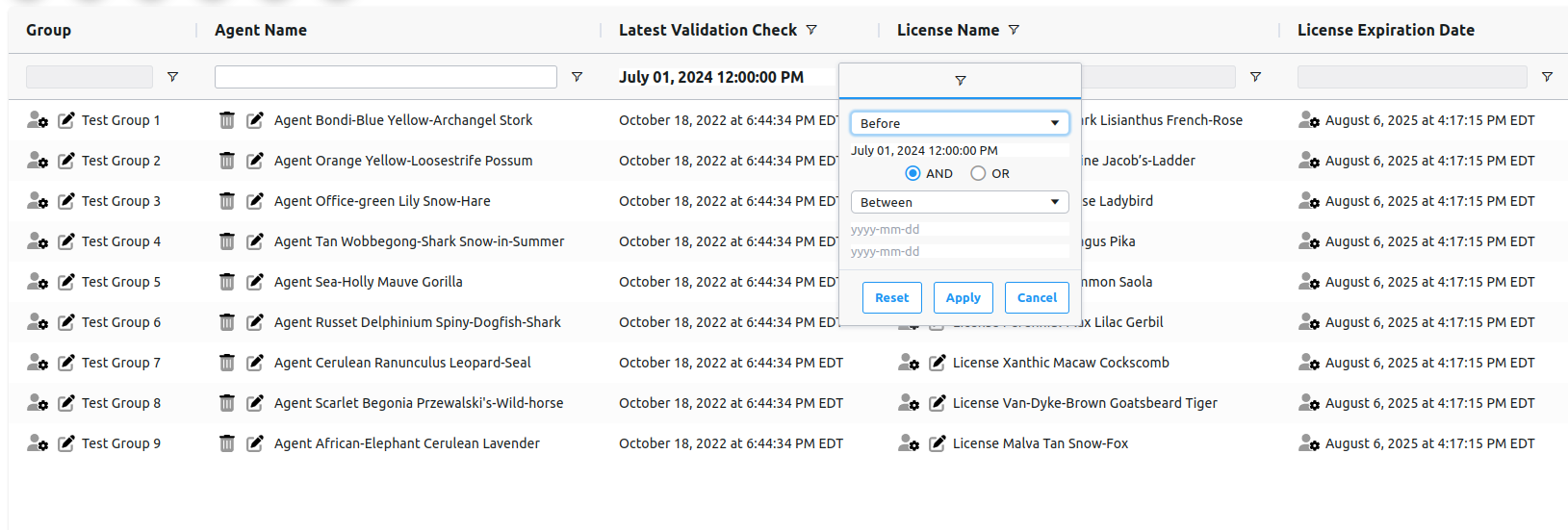
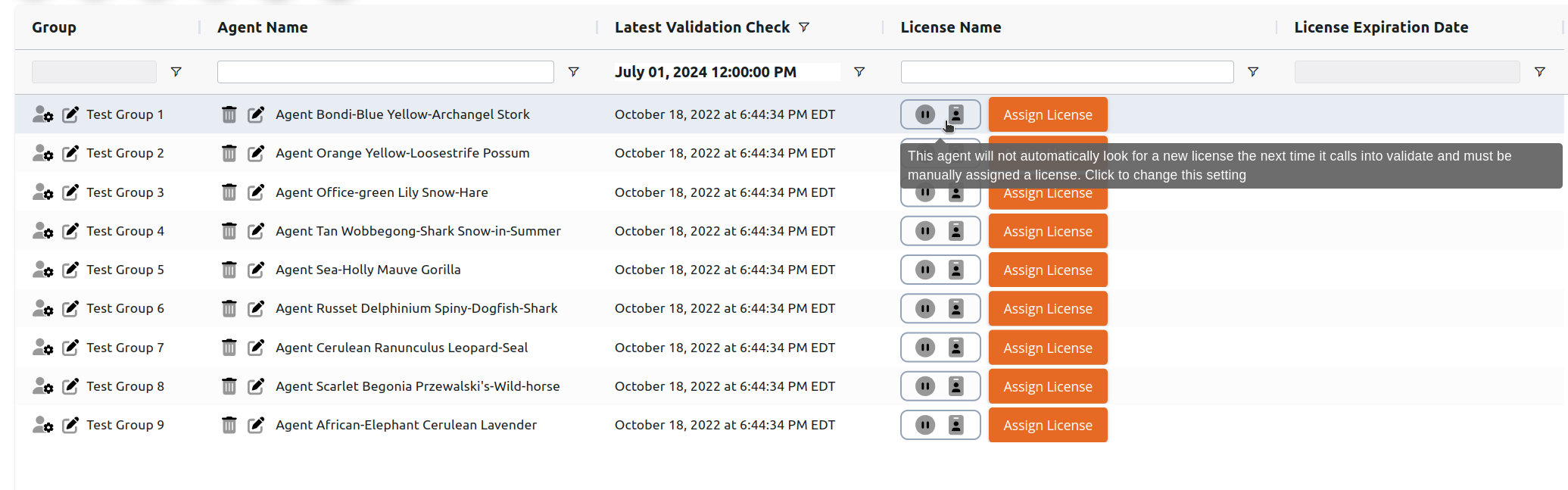
Then, locate the Latest Validation Check column and click this column’s filter and enter the desired date for agents to have not called in by.
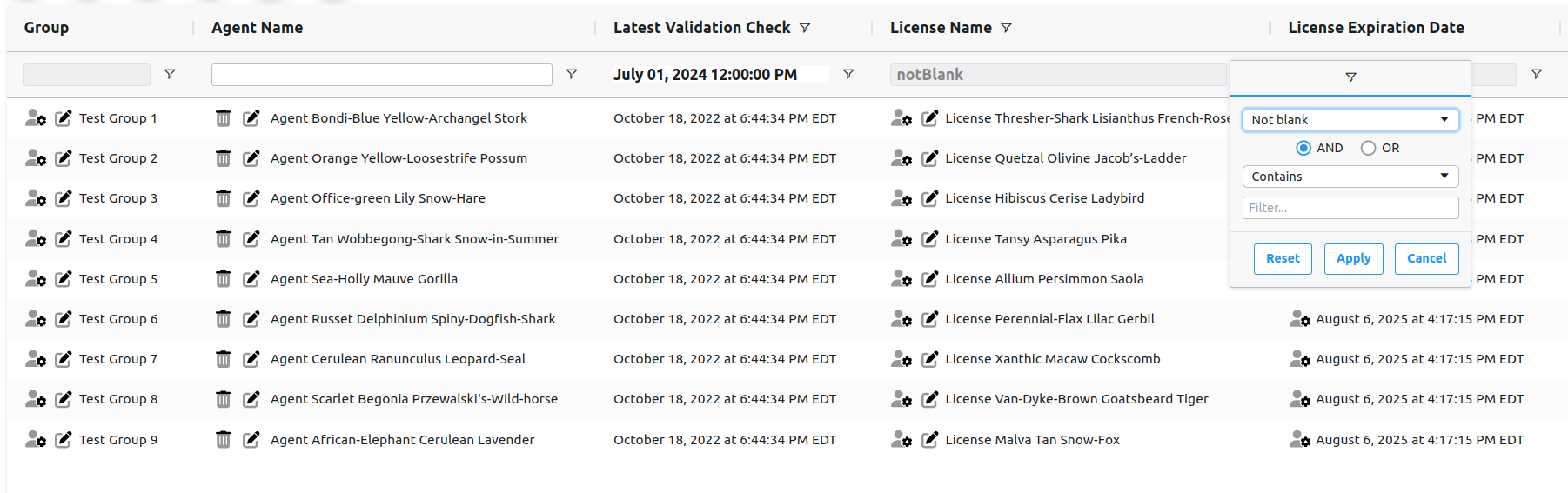
Next, locate the License Name column and filter for Not blank.
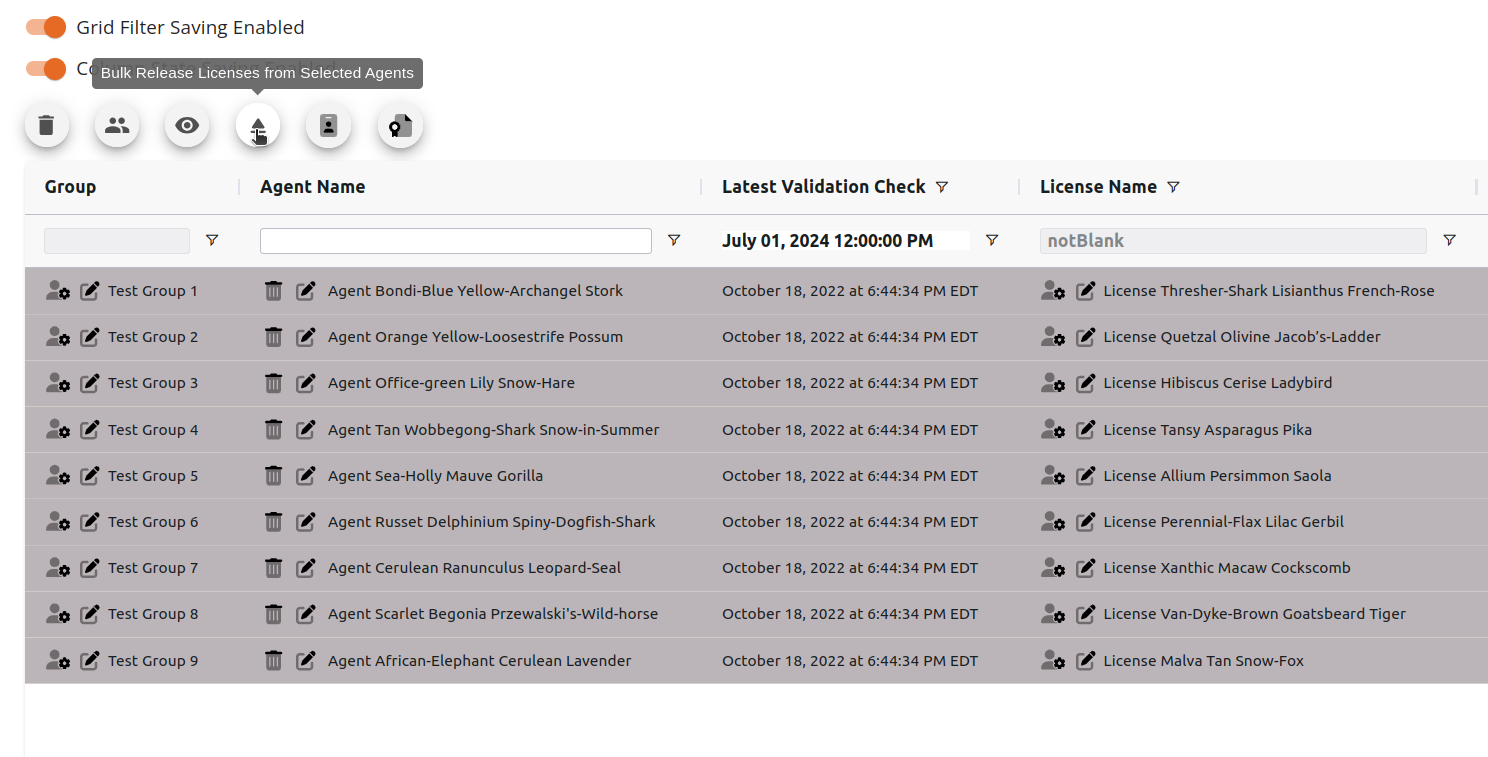
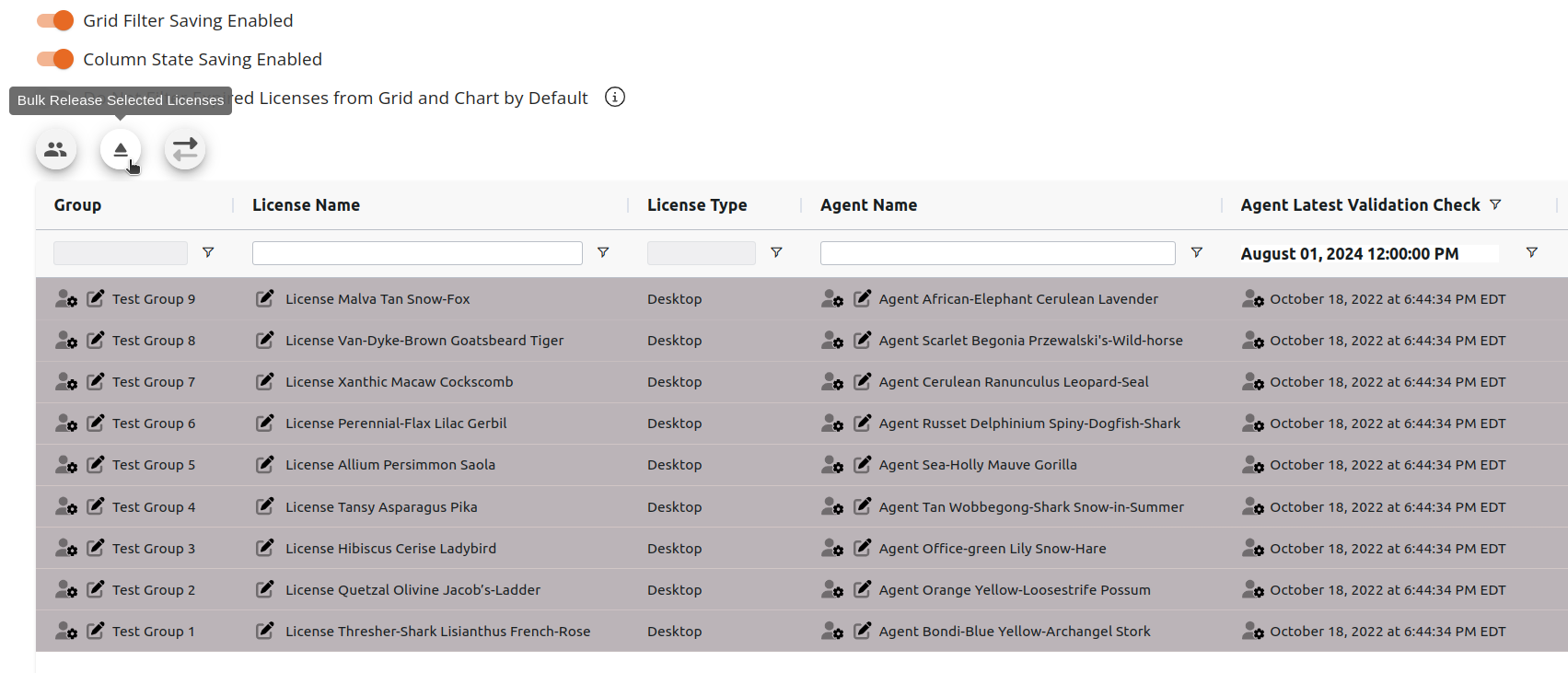
After these filters are entered, select all desired agents whose license should be released, and click the eject icon above the grid. After clicking this icon, the licenses will be released from the selected agents.
Note that the default behavior of agents when their license is released is to not look for a new license automatically the next time they call in. To change this behavior follow the instructions [here](https://cybercrucible.atlassian.net/wiki/spaces/CYB/pages/2981907/How+do+I+remove+a+license+from+an+agent#Change-Behavior-of-Agents-When-Their-License-is-Released).
# How Can I Filter for Inactive Agents and Release Their Licenses Myself on the Licenses Page?
Users have the ability to filter for inactive agents and release their licenses on the Licenses page as well as the Agents page.
First, navigate to the Agent Licenses page and clear any present filters.
Then, locate the Agent Latest Validation Check column and click this column’s filter and enter the desired date for agents to have not called in by.
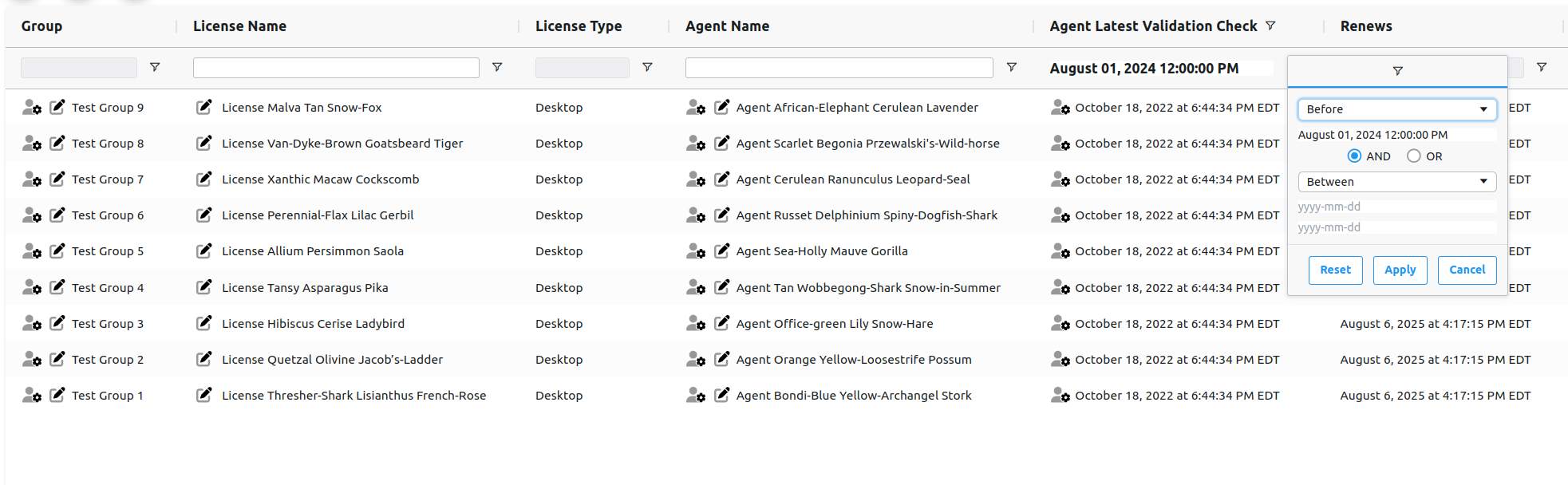Next, select all desired licenses that should be released from the agents and click the eject icon above the grid. After clicking this icon, the licenses will be released.
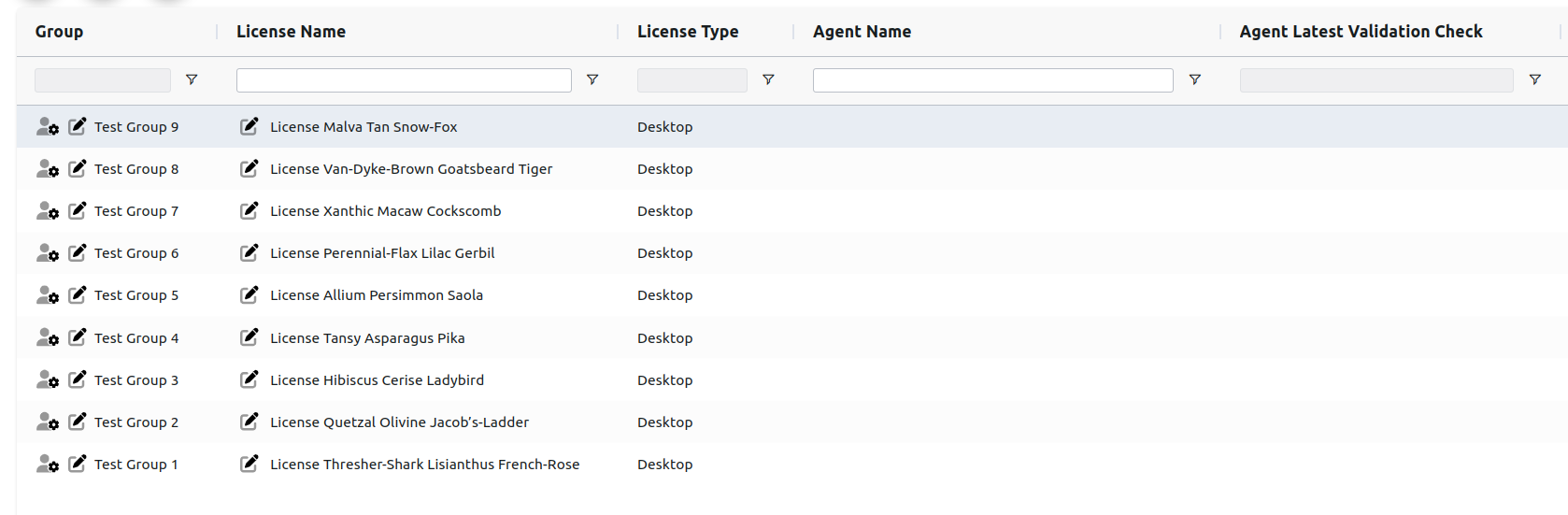
Note that the default behavior of agents when their license is released is to not look for a new license automatically the next time they call in. To change this behavior follow the instructions [here](https://cybercrucible.atlassian.net/wiki/spaces/CYB/pages/2981907/How+do+I+remove+a+license+from+an+agent#Change-Behavior-of-Agents-When-Their-License-is-Released).
# Password / Authentication Policy
## Authentication
Authentication within Cyber Crucible adheres to OAuth 2.0 standards, and is backed by AWS Cognito. All Advanced Security controls are enabled, leveraging IP address, user agent, login behavior, user behavior, and threat lists to detect a potential account compromise.
Multi-factor authentication (MFA) is strictly required for user authentication, and may be implemented with any TOTP capable app, but may not be any other, weaker, method of MFA (SMS, Email, etc.)
To reset TOTP, users must submit a request to the [support.cybercrucible.com](http://support.cybercrucible.com) portal. The request is then verified through secondary communications with our support staff to ensure authenticity.
An account lockout is triggered after **five failed login attempts** and initially lasts **one second**. Each additional failed attempt **doubles the lockout duration**, up to a **maximum of 15 minutes**. The lockout automatically resets when a user successfully logs in or when there are no login attempts for 15 consecutive minutes.
## Passwords
User password requirements have a global minimum length of 14 characters, and must contain **at least** 1 of each of the follow: lowercase letter, capital letter, number, symbol.
Password expiration is set by a group admin and managed on a group-by-group basis.
Users are not permitted to reuse their most recently used password.
Temporary passwords—for example, those used to invite a new user—expire after 3 days. After that, a new invitation or temporary password must be issued.
# Adding Users to A Group
Adding users to a group is easy.
If a user is already in the Cyber Crucible user database, they are simply added to another group.
If the user is not already in the Cyber Crucible system, the following will automatically happen:
1. A user account will be created.
2. That user account will be added to the group, as you intended.
3. An invite email is sent to the user, for them to setup their new account. To resend an account invitation, follow the instructions [here](/books/Group-Management/page/How-do-I-Resend-an-Invitation-to-a-New-User-Account).
First, go to the Groups page found under the Administration tab in the sidebar.
Then click the Manage Group icon on the group you want to add the user to.
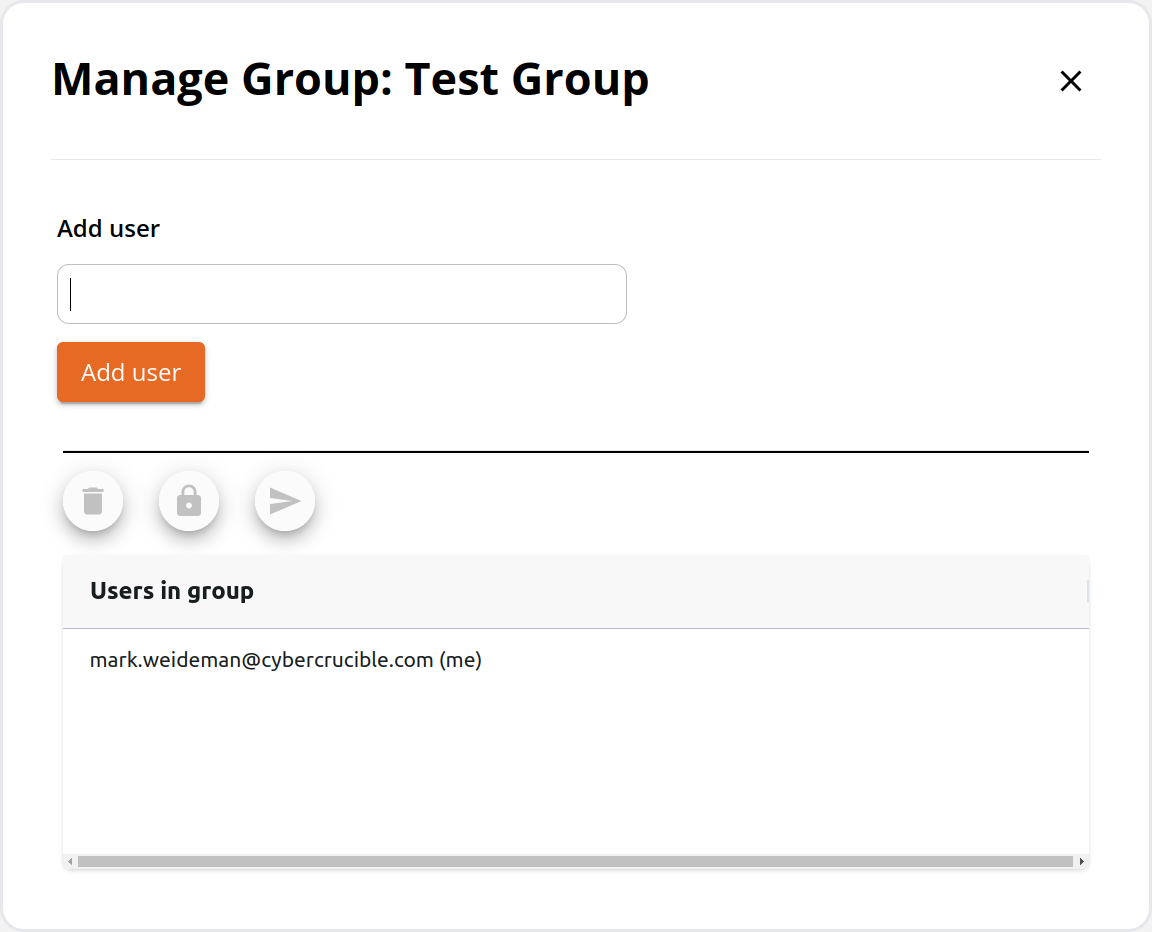
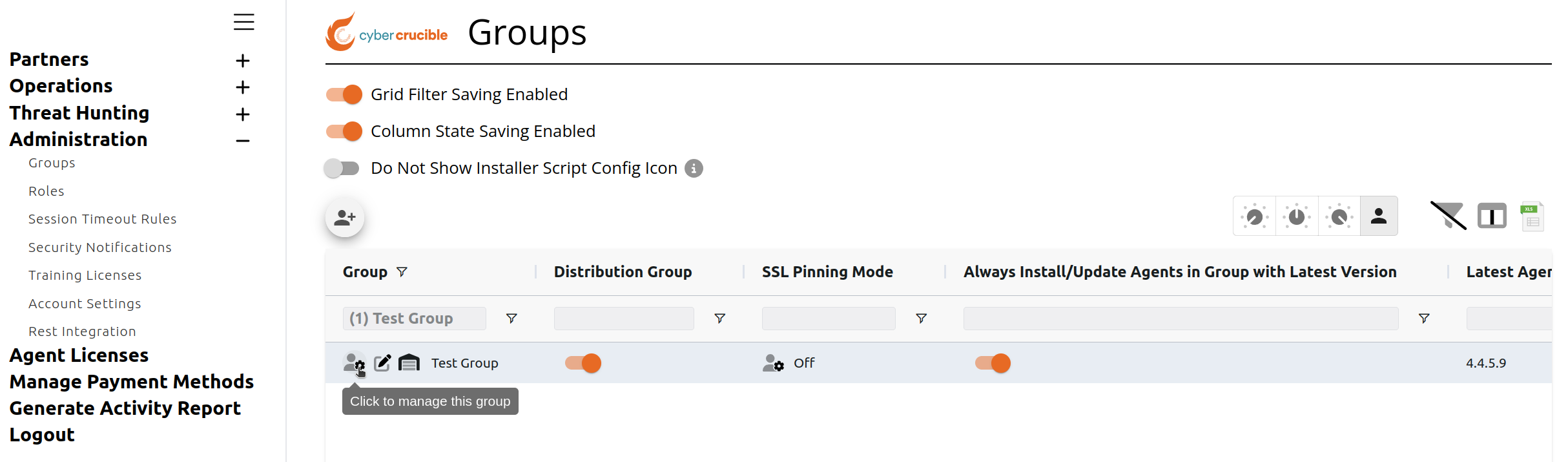Clicking the icon will popup the Manage Group Modal where you can enter the email of the user you wish to add
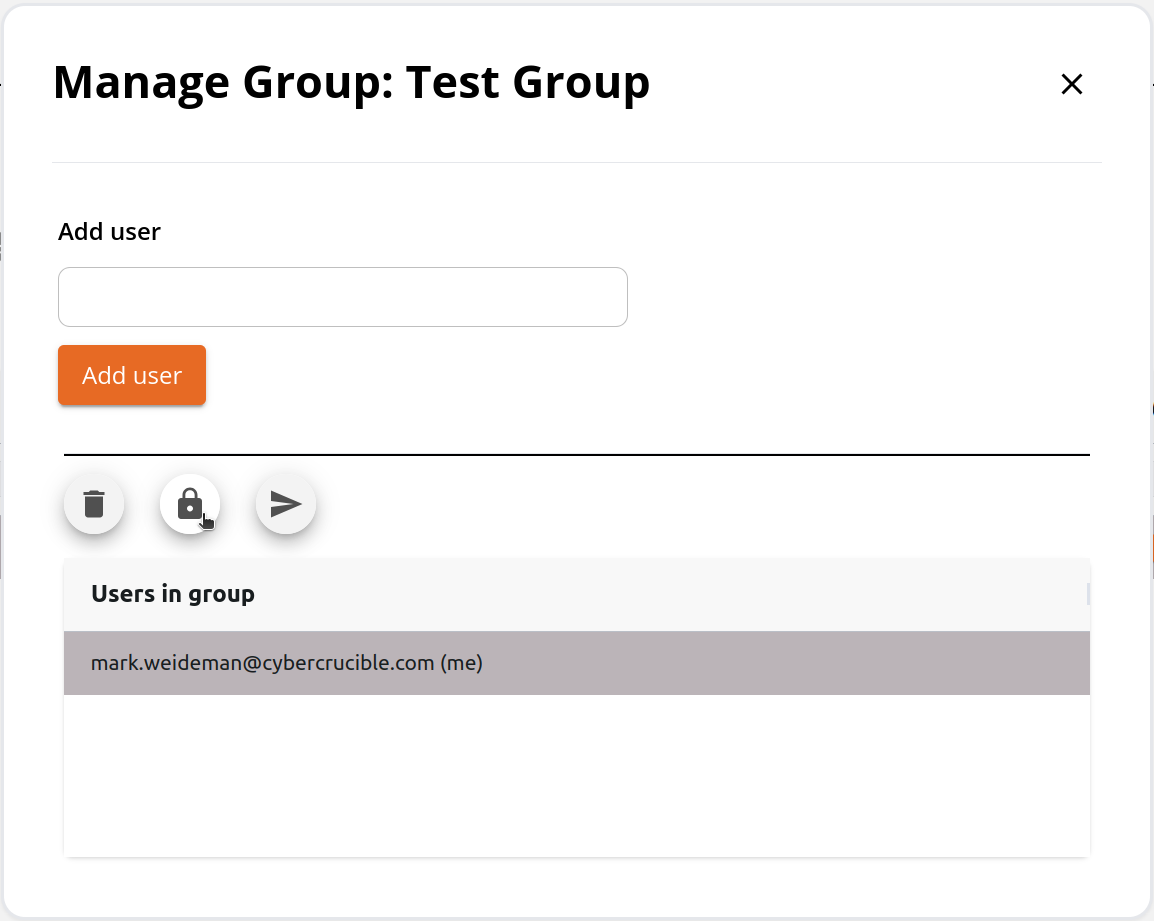
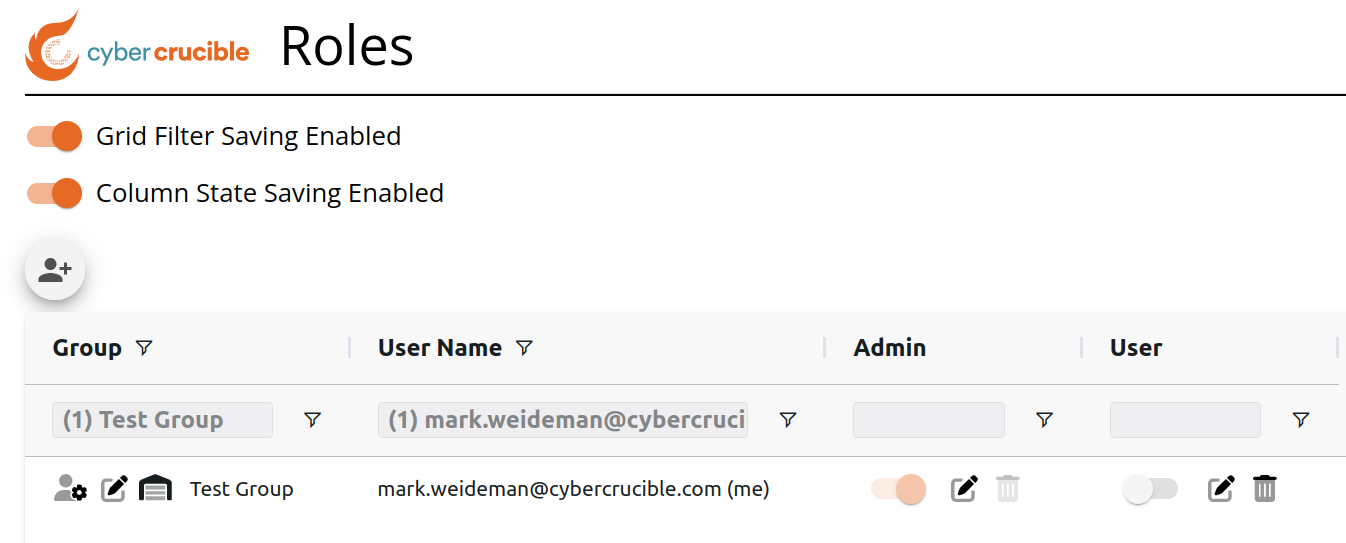
The default role is read-only with limited functionality. To change a user’s role, click the desired user, then click the lock icon. This will redirect you to the roles page and automatically filter the data by user and group where you can easily manage their roles inside the group.
# How to Require Users in a Group to Login through SSO
Users must have an already existing SSO Integration through Cyber Crucible to require users in a group to sign in using their integrated SSO. For more on how to complete this integration click [here](https://cybercrucible.atlassian.net/wiki/x/AwB5JQ).
First, go to the Groups page found under the Administration tab in the sidebar.
Then locate the “Require User Login through SSO“ column on the grid and click to turn the toggle on for the desired group
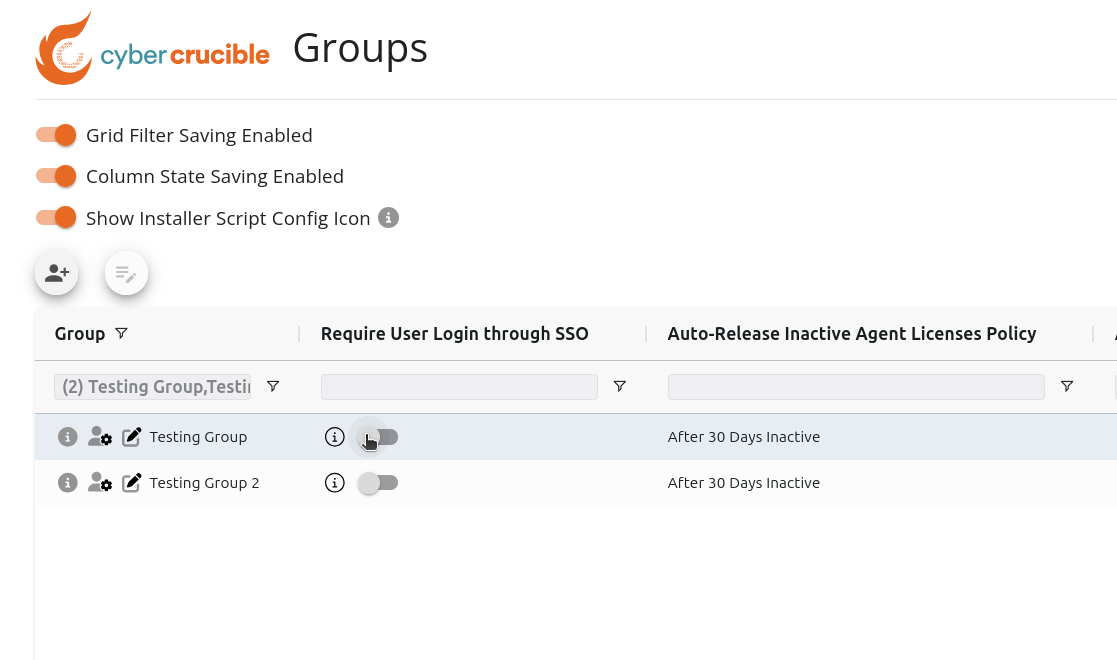After turning the toggle on the toggle will look like this:
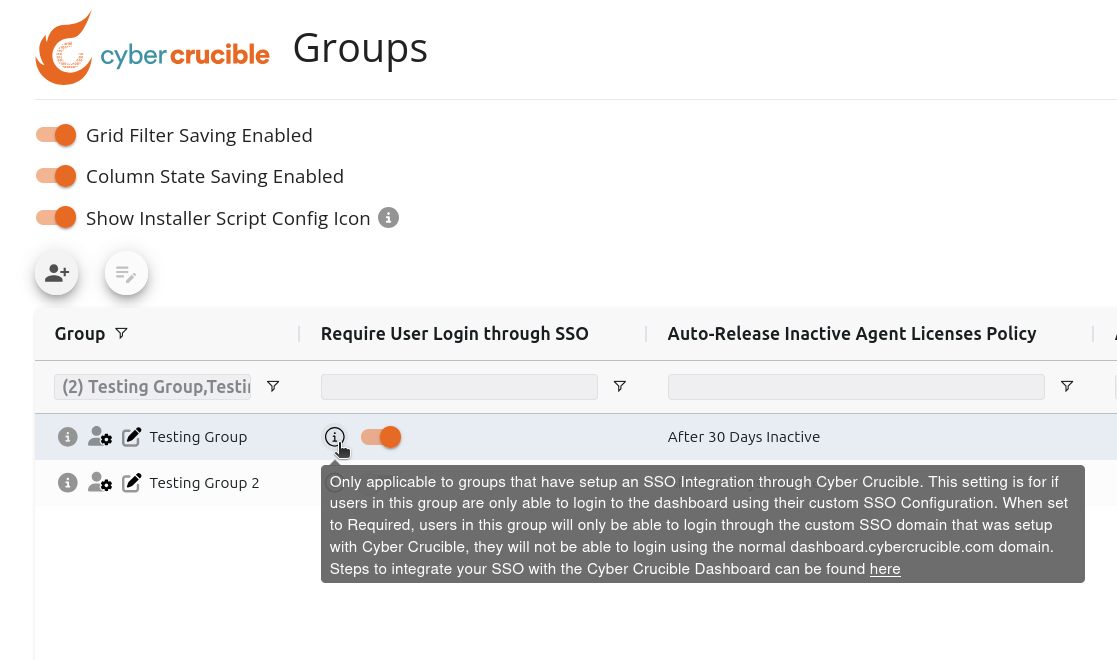Now with the toggle turned on to require users in the group to login through their Integrated SSO, users in this group will not be able to login normally through the [dashboard.cybercrucible.com](http://dashboard.cybercrucible.com) domain, they will be required to go to the custom domain setup during the Integration and login through their SSO.
# How do I remove a license from an agent?
- [Remove License on the Agent Licenses Page](#bkmrk-remove-license-on-th)
- [Remove License on the Agents Page](#bkmrk-remove-license-on-th-1)
- [Change Behavior of Agents When Their License is Released](#bkmrk-change-behavior-of-a)
Removing a license is painless.
**The software will no longer stop any data extortion attacks after the license is removed.**
The software will, however, not be automatically uninstalled. It will instead go dormant.
# Remove License on the Agent Licenses Page
First, navigate to the Agent Licenses page.
Second, select the license or licenses you want to remove from an agent.
Then click the eject icon.
The default behavior for agents when a license is released from them is to not look for a new license the next time it calls in. This behavior may be changed on the agents page as detailed later in this article.
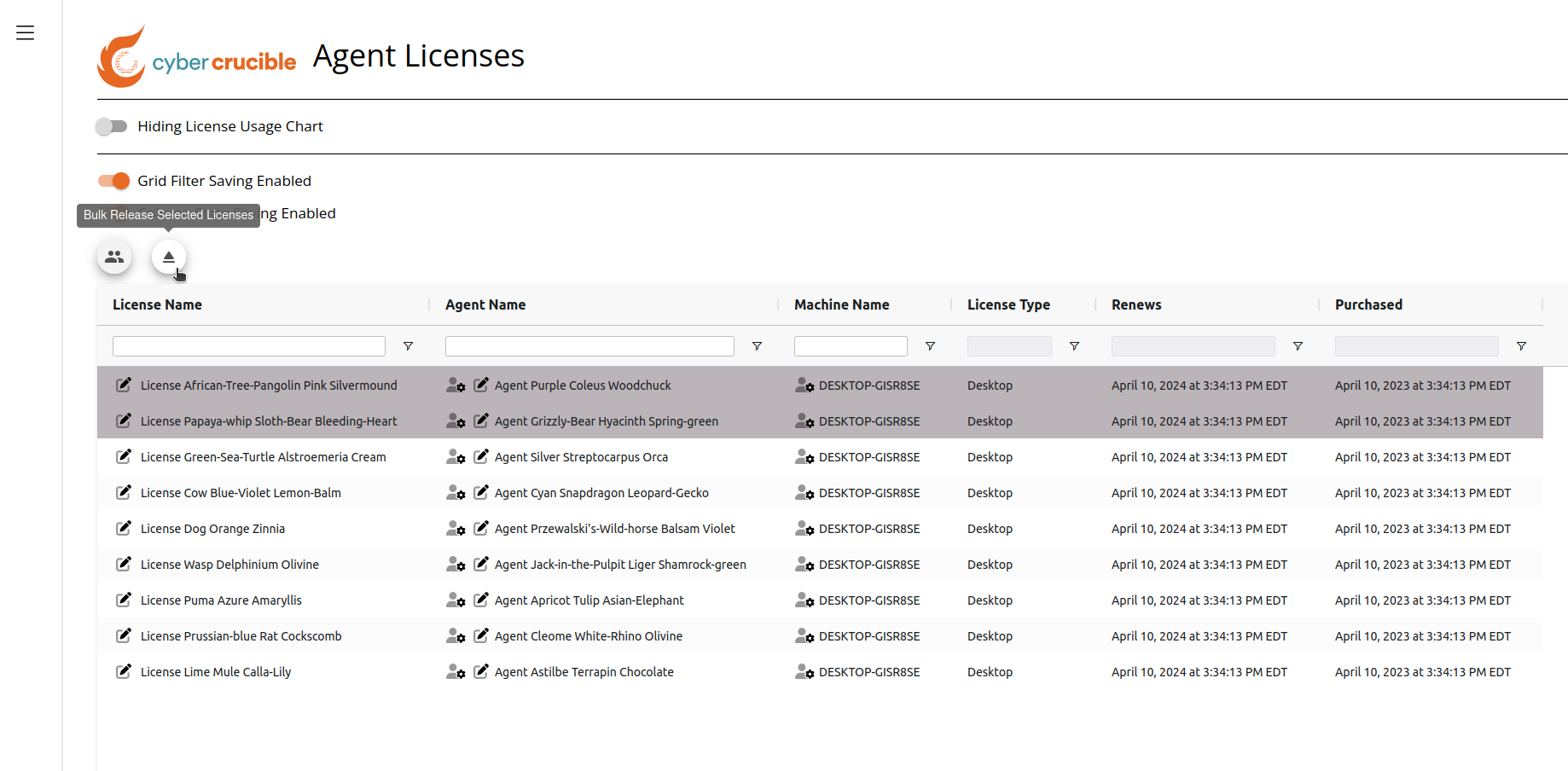After you click on the eject icon to release the selected licenses, the agents will not be uninstalled, but will go dormant.
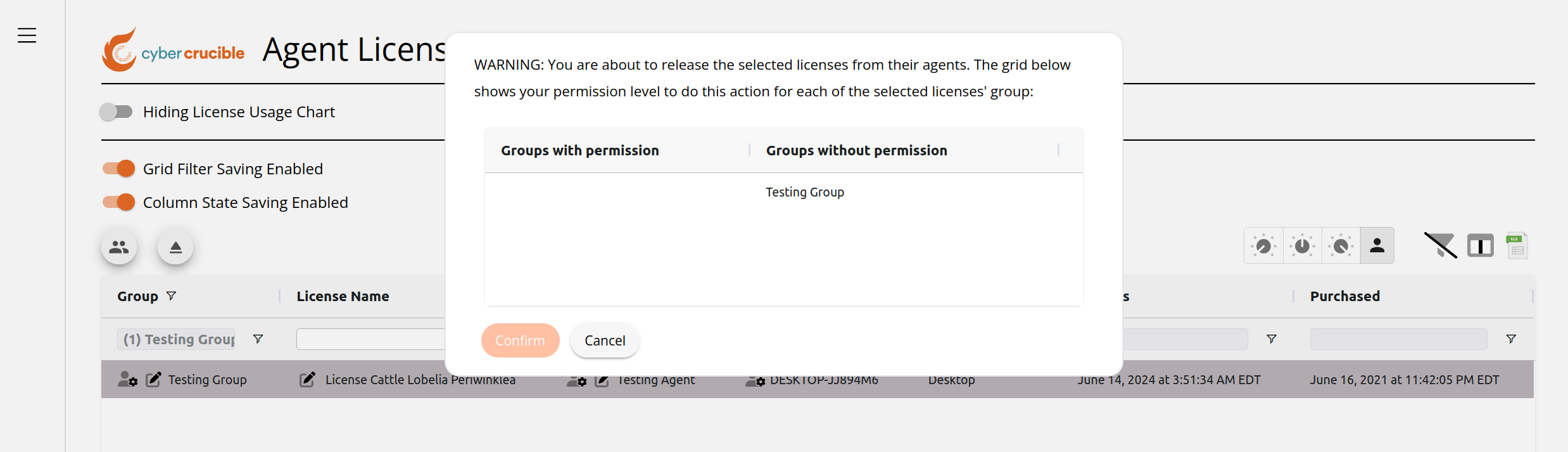
Role based permissions are checked, to inform if you do not have permissions to manage the licenses for any groups. The permission necessary is called “Release Agent License”. If you click on the eject icon and you do not have permission to release licenses for any of the selected licenses' groups, a menu will come up.
# Remove License on the Agents Page
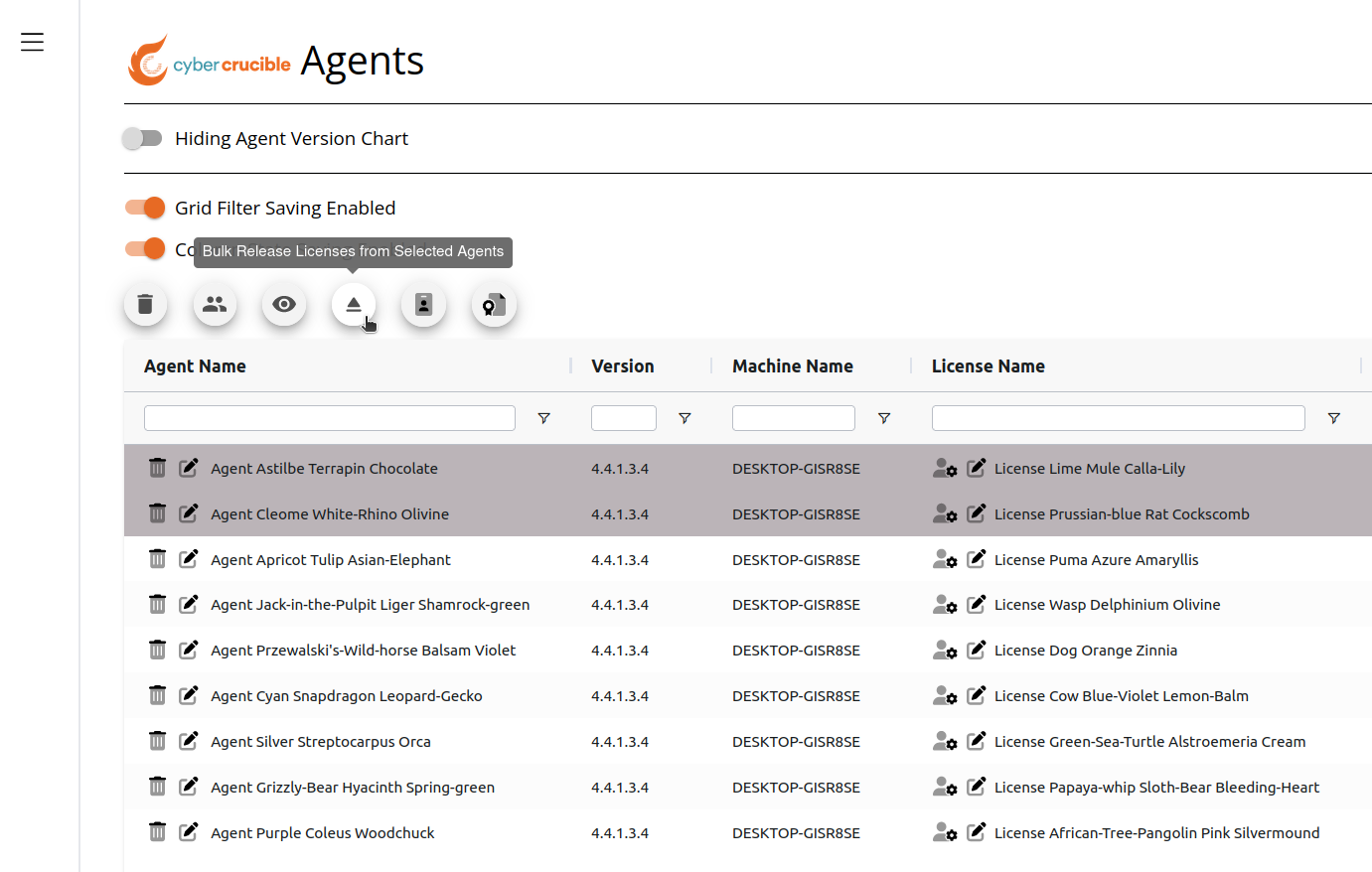
First, navigate to the Agents page.
Second, select the agent or agents that you want to release a license from.
Then click the eject icon.
# Change Behavior of Agents When Their License is Released
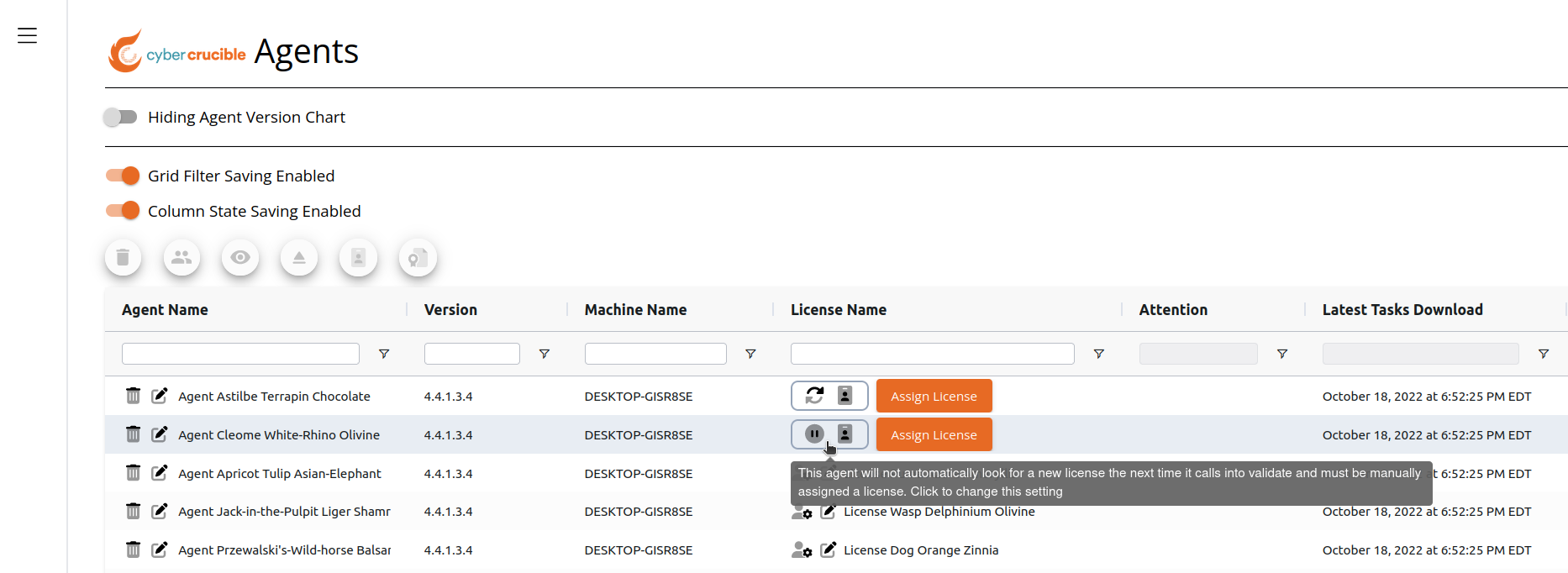
By default, agents will not look for a new license automatically the next time they call in after a license is removed from them. This behavior can be see on and changed on the Agents page. Users can see this setting in the “License Name” column for agents currently without an assigned license. Clicking this button will change the setting.
The pause icon means the agent will not automatically look for a new license the next time it calls in, while the sync icon means the agent will automatically look for a new license the next time it calls in.
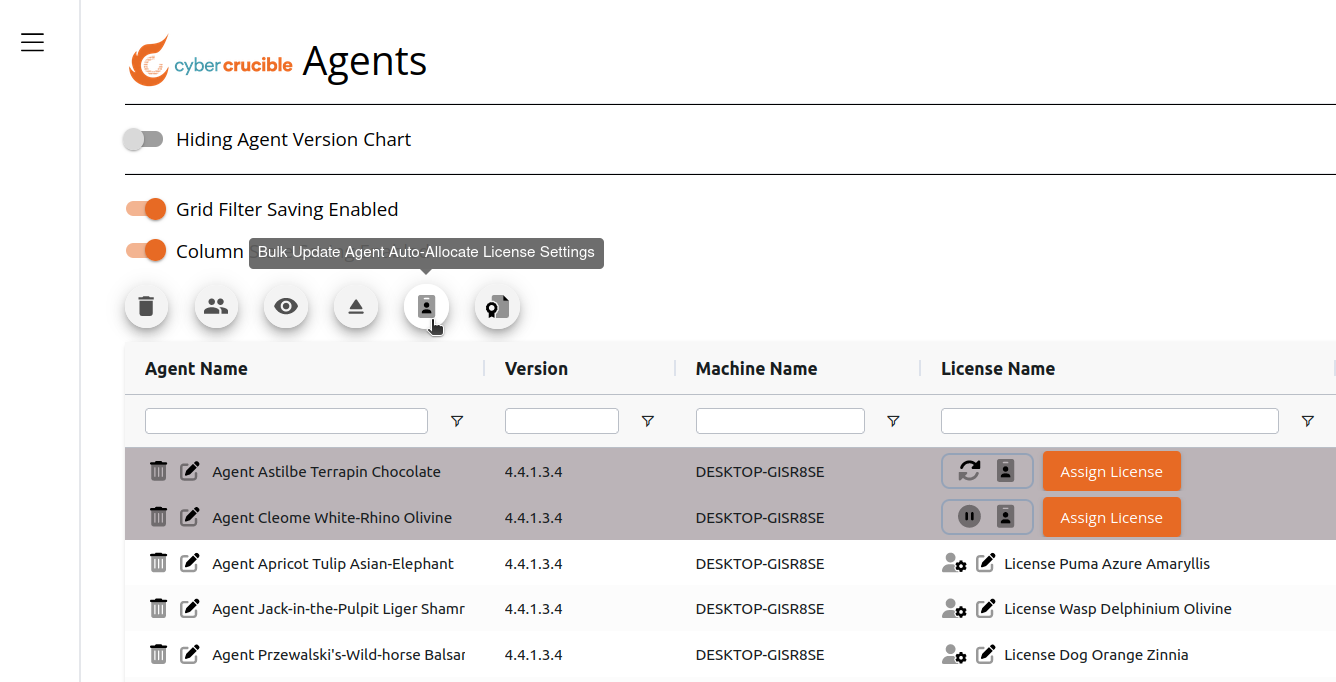
You may also change this setting for multiple agents at once by:
First, selecting the agents you want to change this setting for.
Then click the license icon.
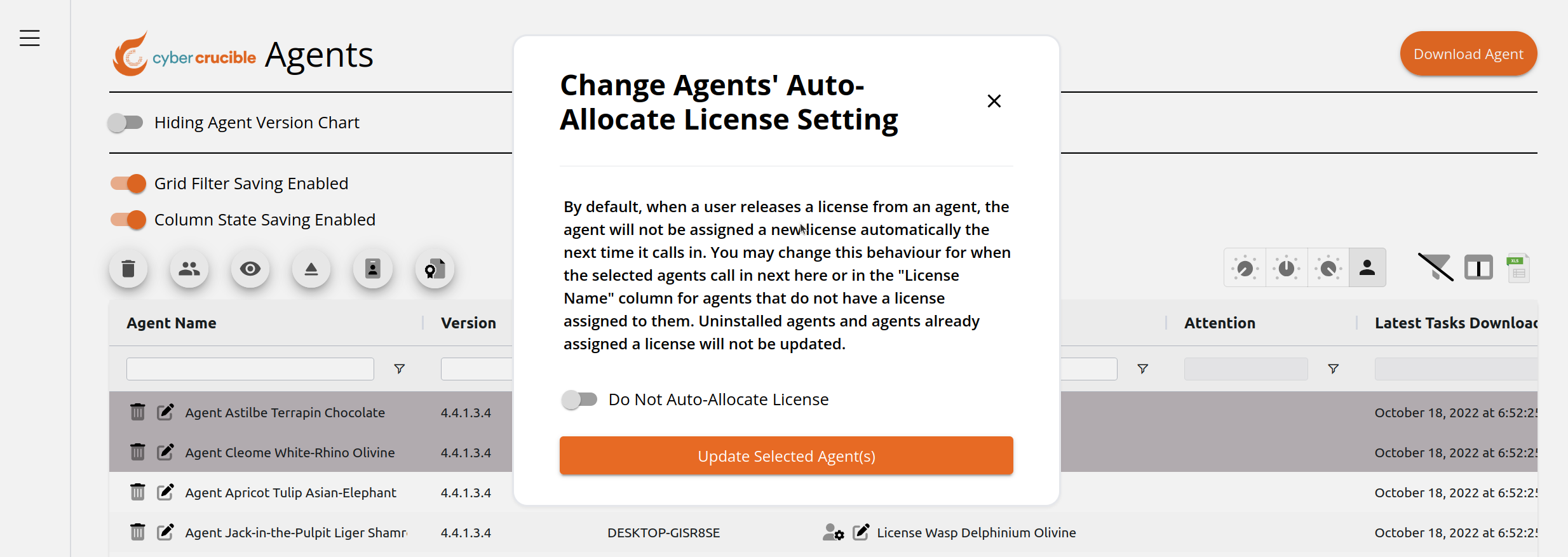
Clicking this icon will popup a modal where you can choose the setting you want the selected agents to have.
# Changing The Group of Multiple Agents At Once
# Preparation
There are a couple actions you can take before doing a mass reassignment of agents, to make the process go much smoother.
Ensure you have administration permissions to use both the source and destination groups. This can be validated via the Roles page, under Administration.
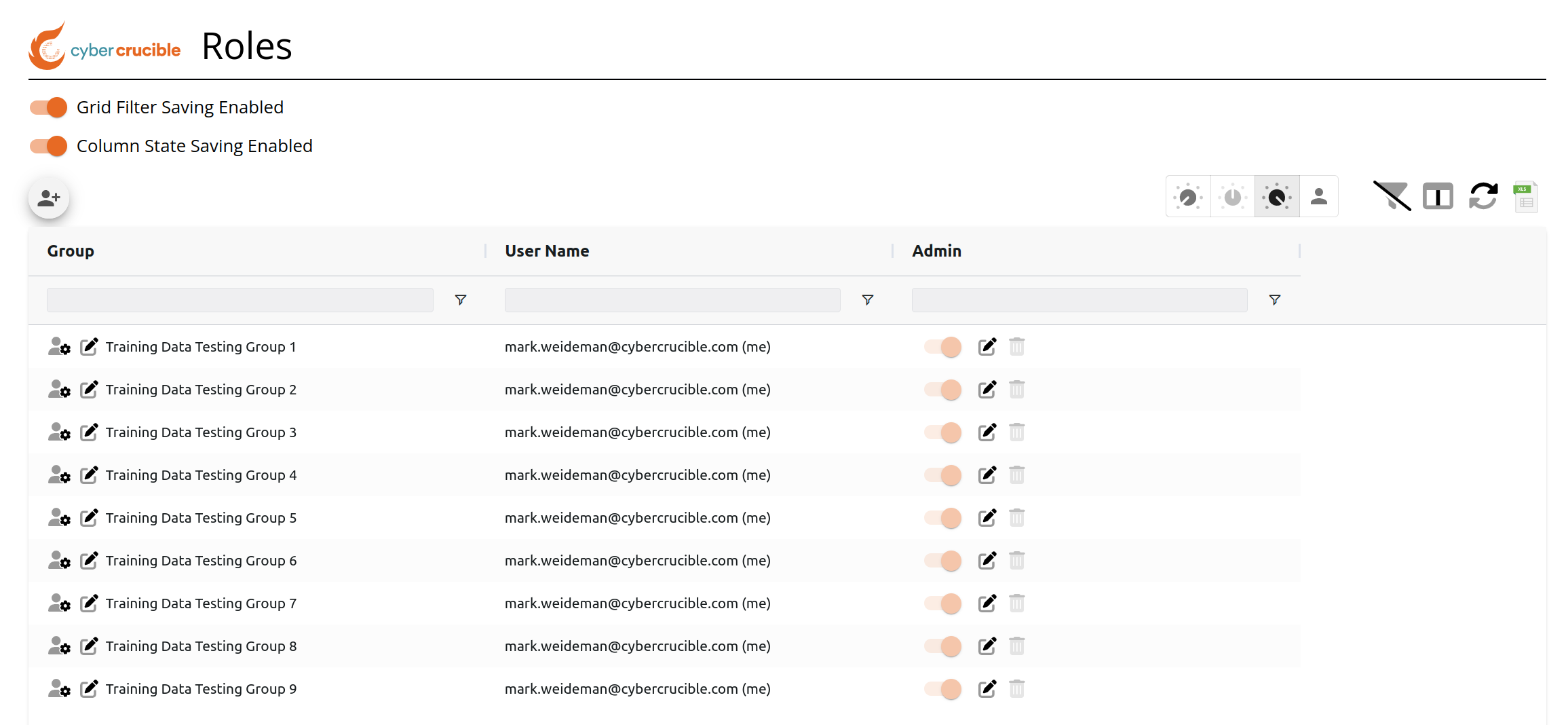Next, you will want to ensure you have enough licenses available in the destination group.
The ability to count available licenses easily, is to show the License Usage Count Chart on the Agent Licenses page.
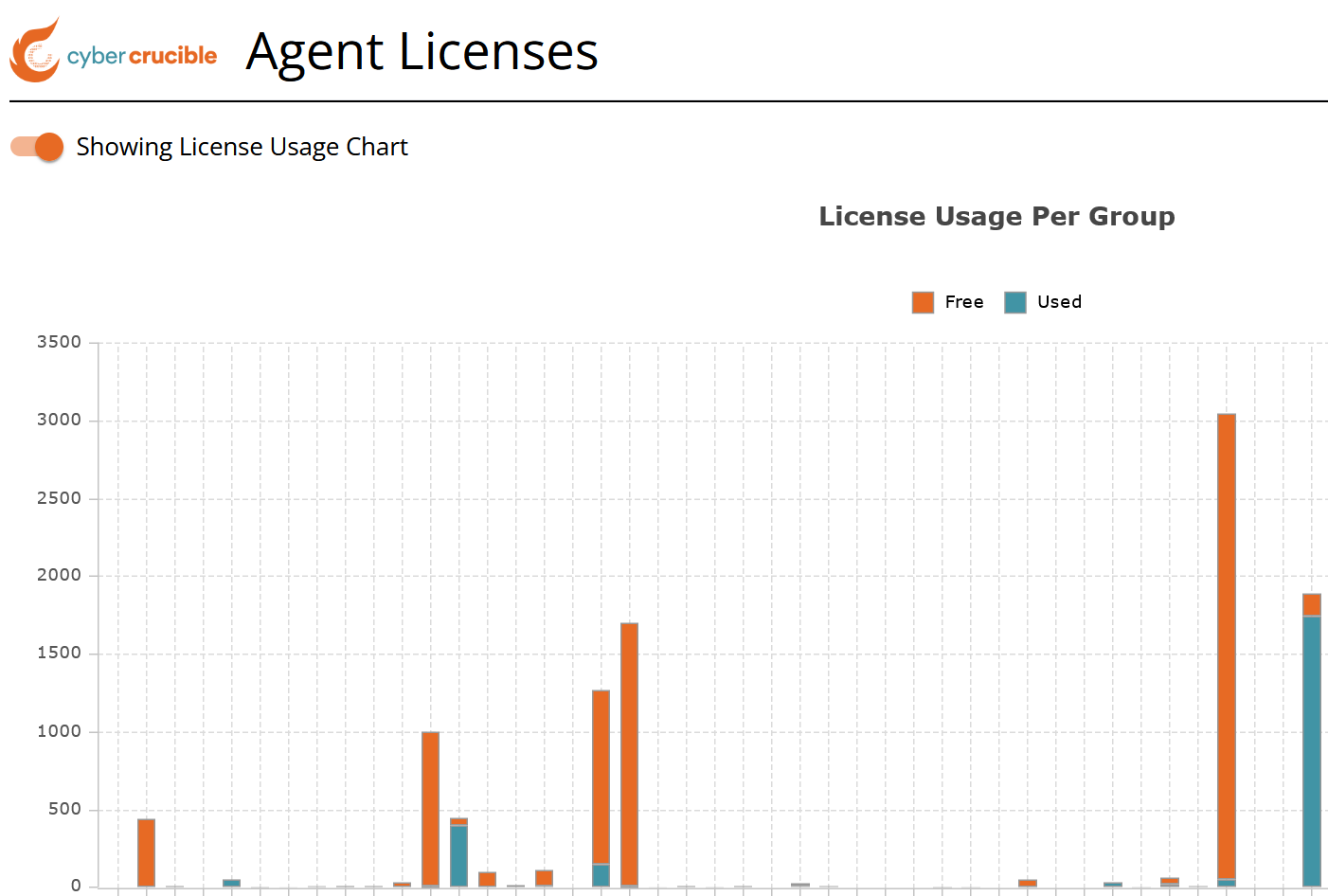Hovering over a bar will detail the exact number of licenses available and consumed.
# Moving Agents
First, select multiple agents that you wish to move. The bulk change group icon will be disabled until agents are selected by clicking on the rows.
Multiple rows are selected by holding down the control key while single clicking on rows.
Then click the bulk change group icon above the grid.
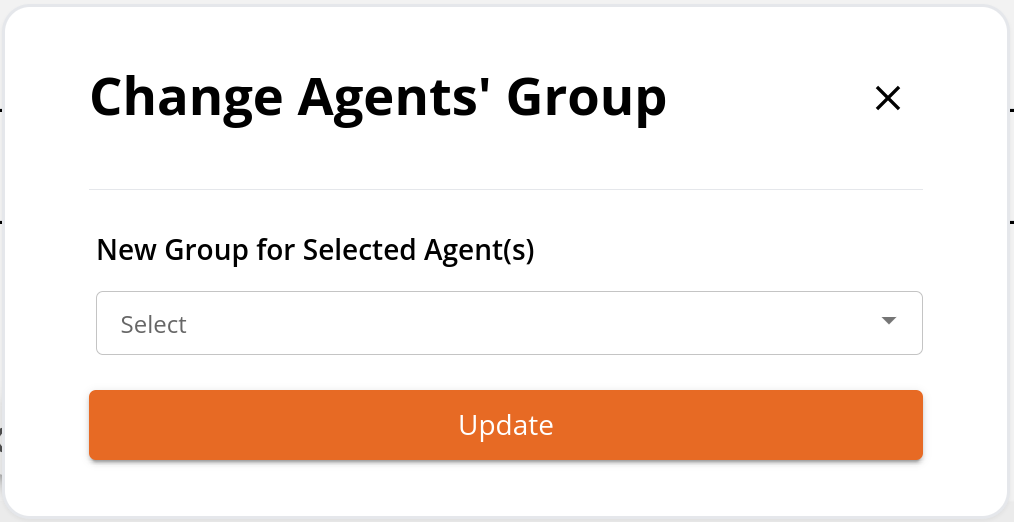
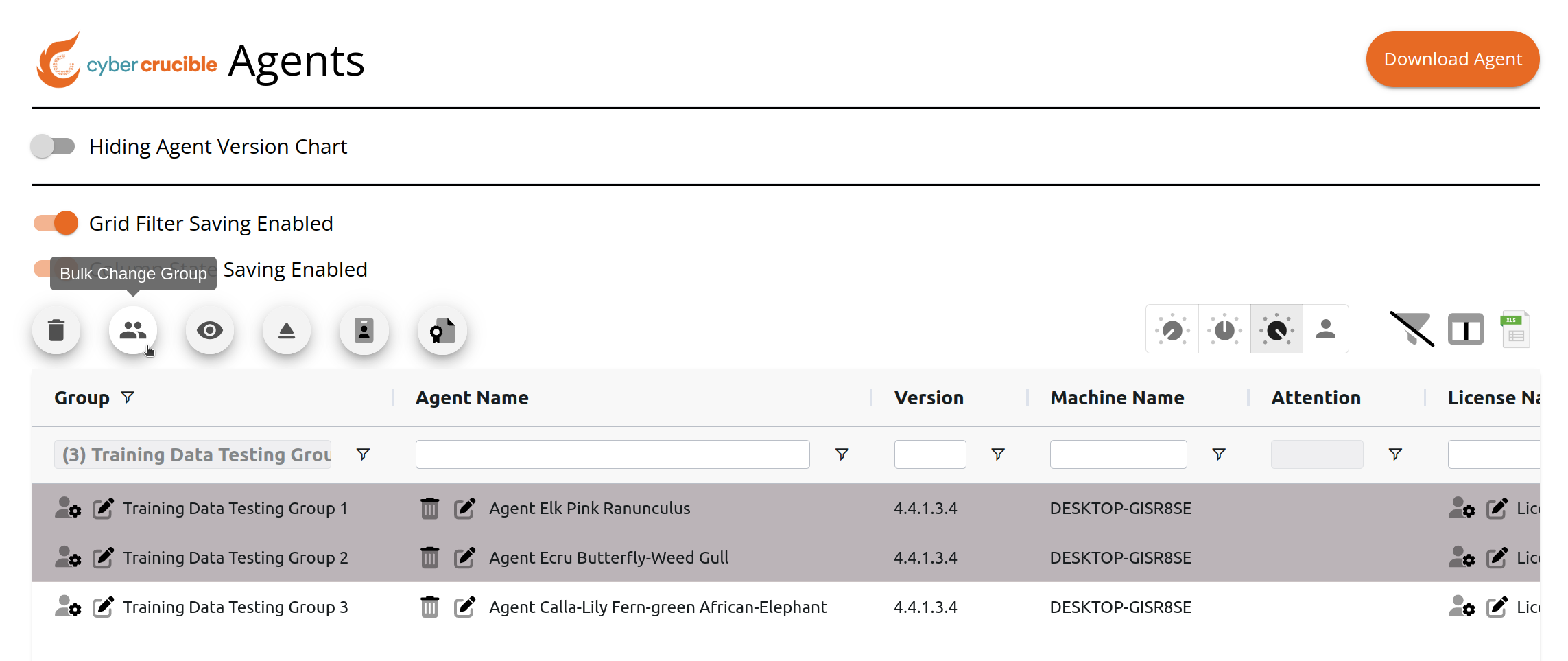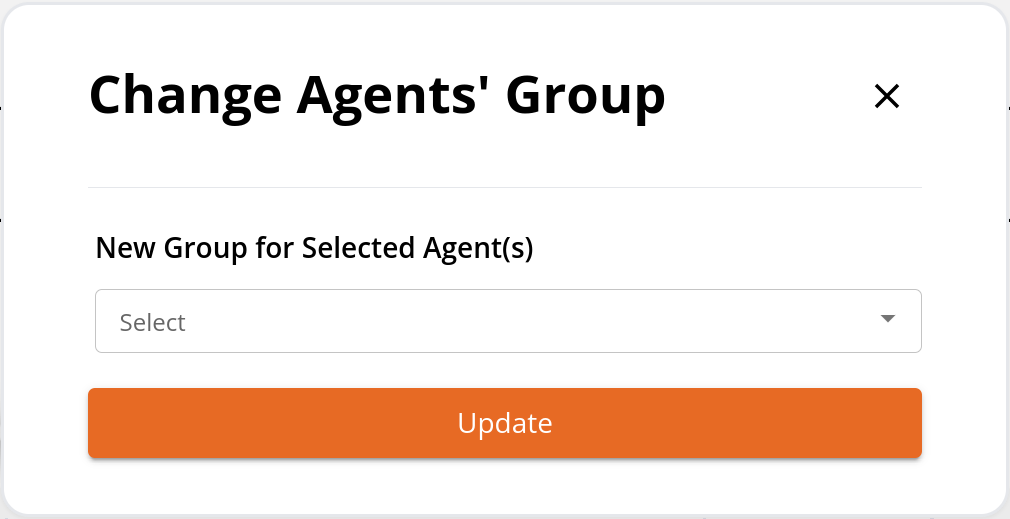In the modal that pops up, select the destination group. The agents will migrate to the new group.
# Microsoft SSO Integration With Cyber Crucible Dashboard
Clients can integrate their Microsoft Entra ID (Azure AD) SSO with the Cyber Crucible dashboard by following these steps below:
1. Client updates in the Entra ID SAML config
1. First, go to Enterprise applications and click the desired app
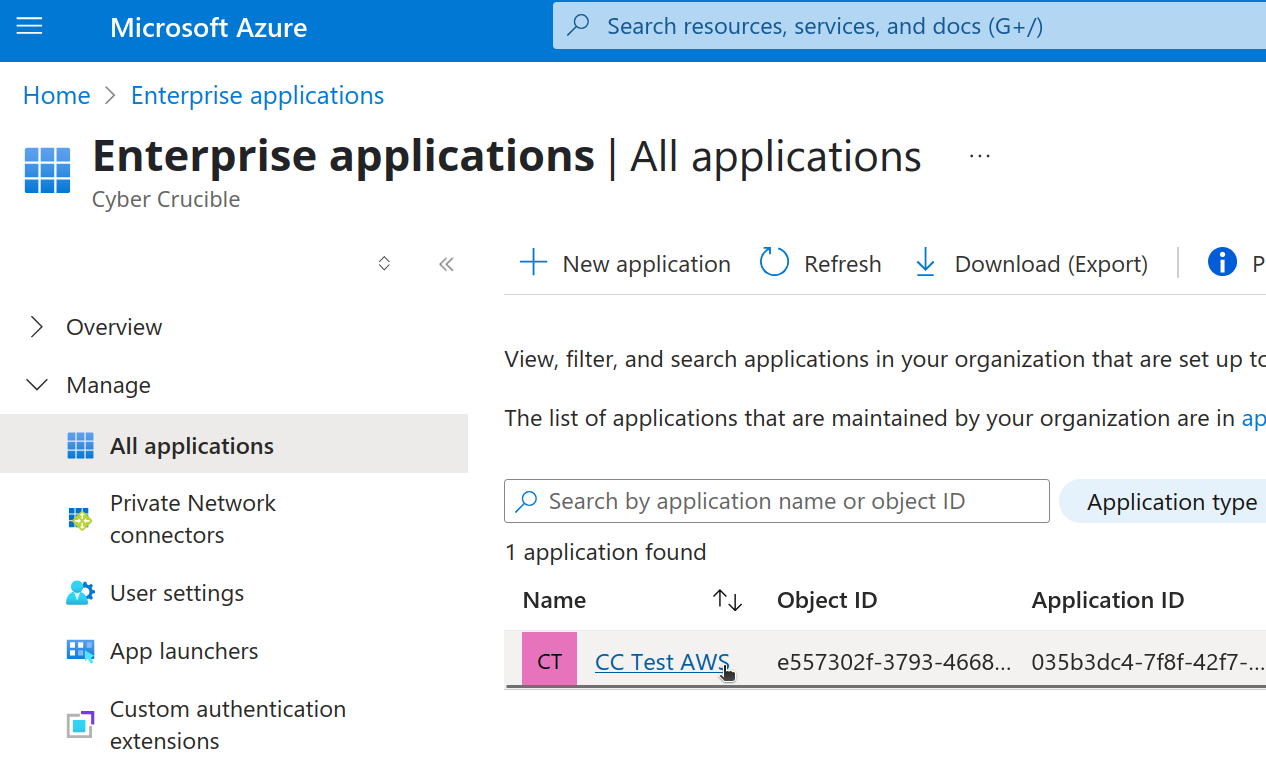
1. If you do not have one yet, then click create New application inside the Enterprise applications section.
1. Enter your app name and click the “(Preview) Integrate any other application you don't find in the gallery (Non-gallery)” setting for the “What are you looking to do with your application?” field
2. Edit the Basic SAML Configuration in the enterprise app, do this by clicking the Single sign-on setting under Manage and click edit in the Basic SAML Configuration section
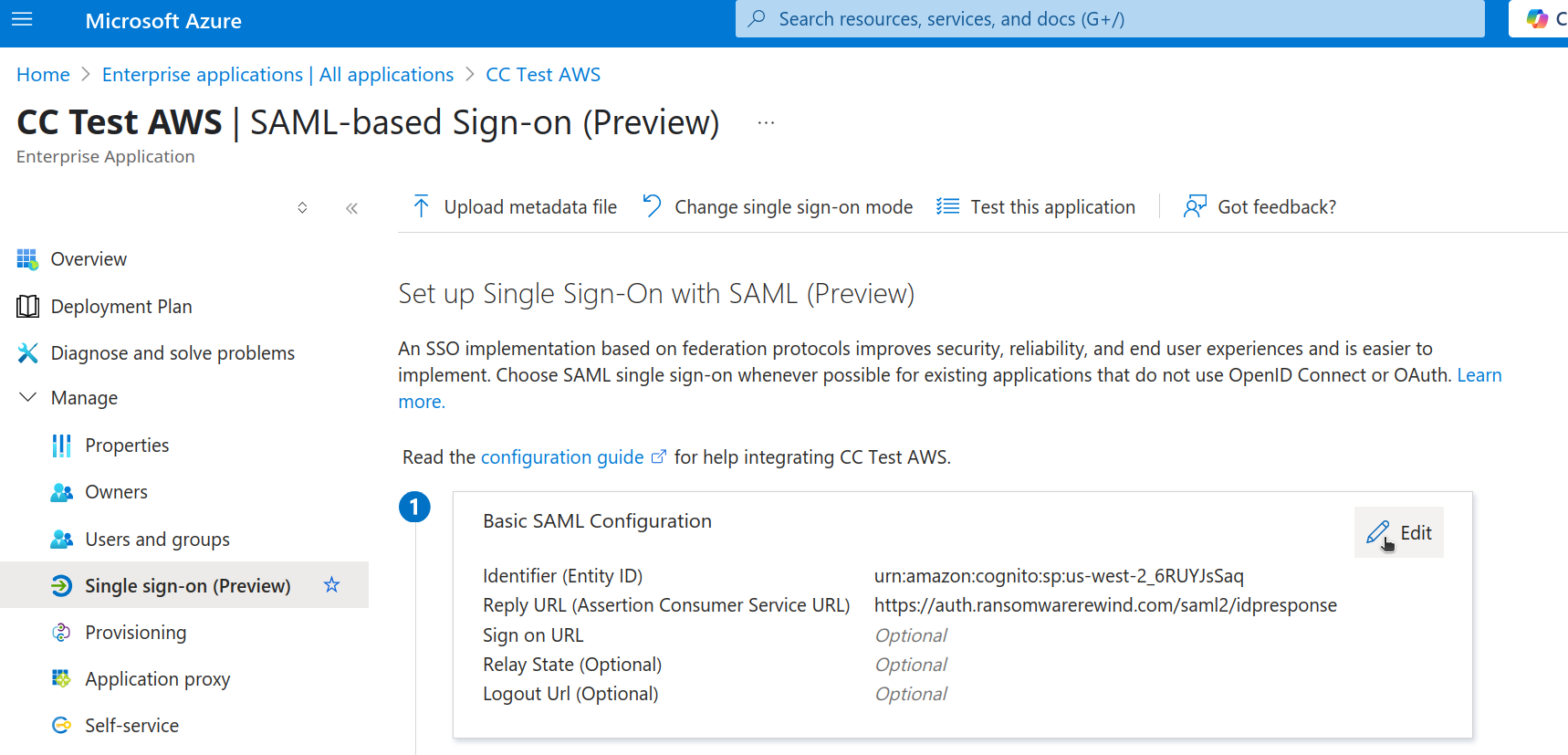
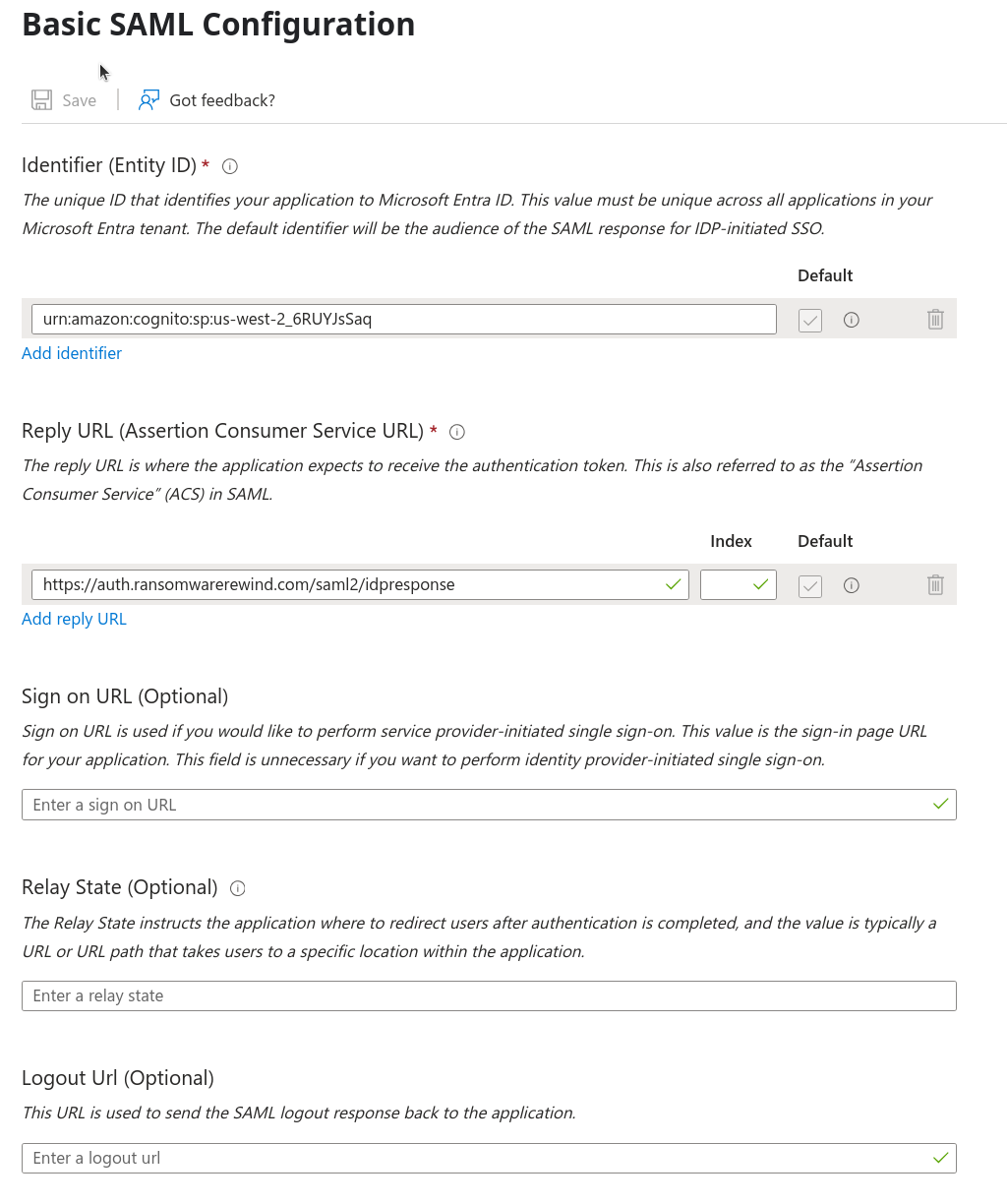
1. In the “Identifier (Entity ID)” field, enter ‘urn:amazon:cognito:sp:us-west-2\_6RUYJsSaq’
2. In the “Reply URL (Assertion Consumer Service URL)” field, enter “[https://auth.ransomwarerewind.com/saml2/idpresponse](https://auth.ransomwarerewind.com/saml2/idpresponse)”
3. The config should look like this:
4. 
3. After saving the Basic SAML Config, click Edit in the Attributes & Claims Section
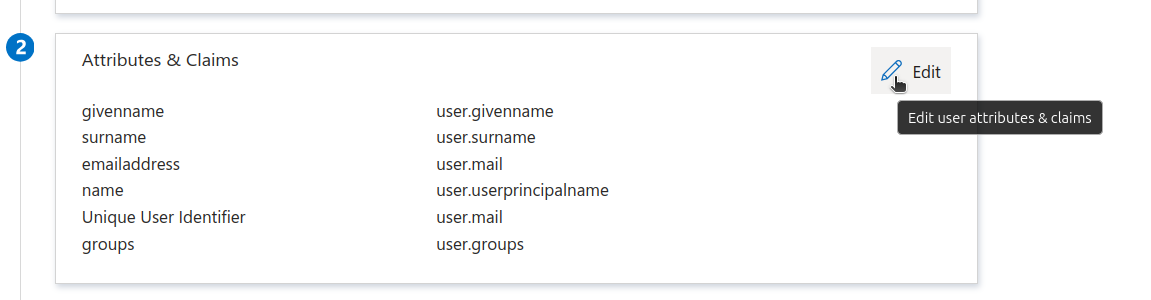
1. THIS NEXT STEP IS REQUIRED
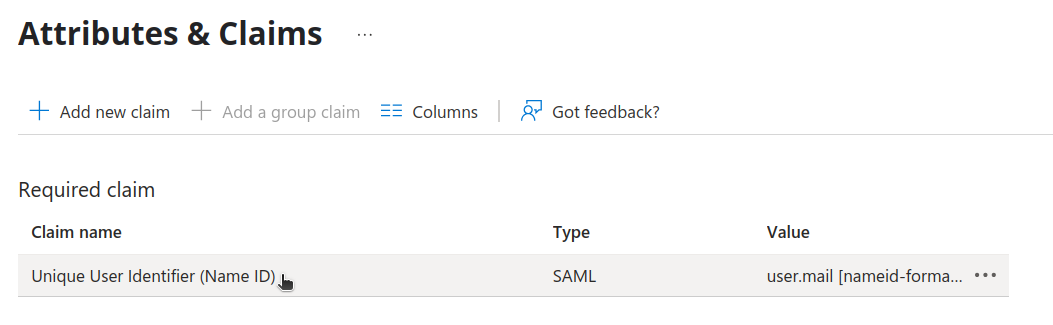
1. Click the Required claim titled “Unique User Identifier (Name ID)” to edit it
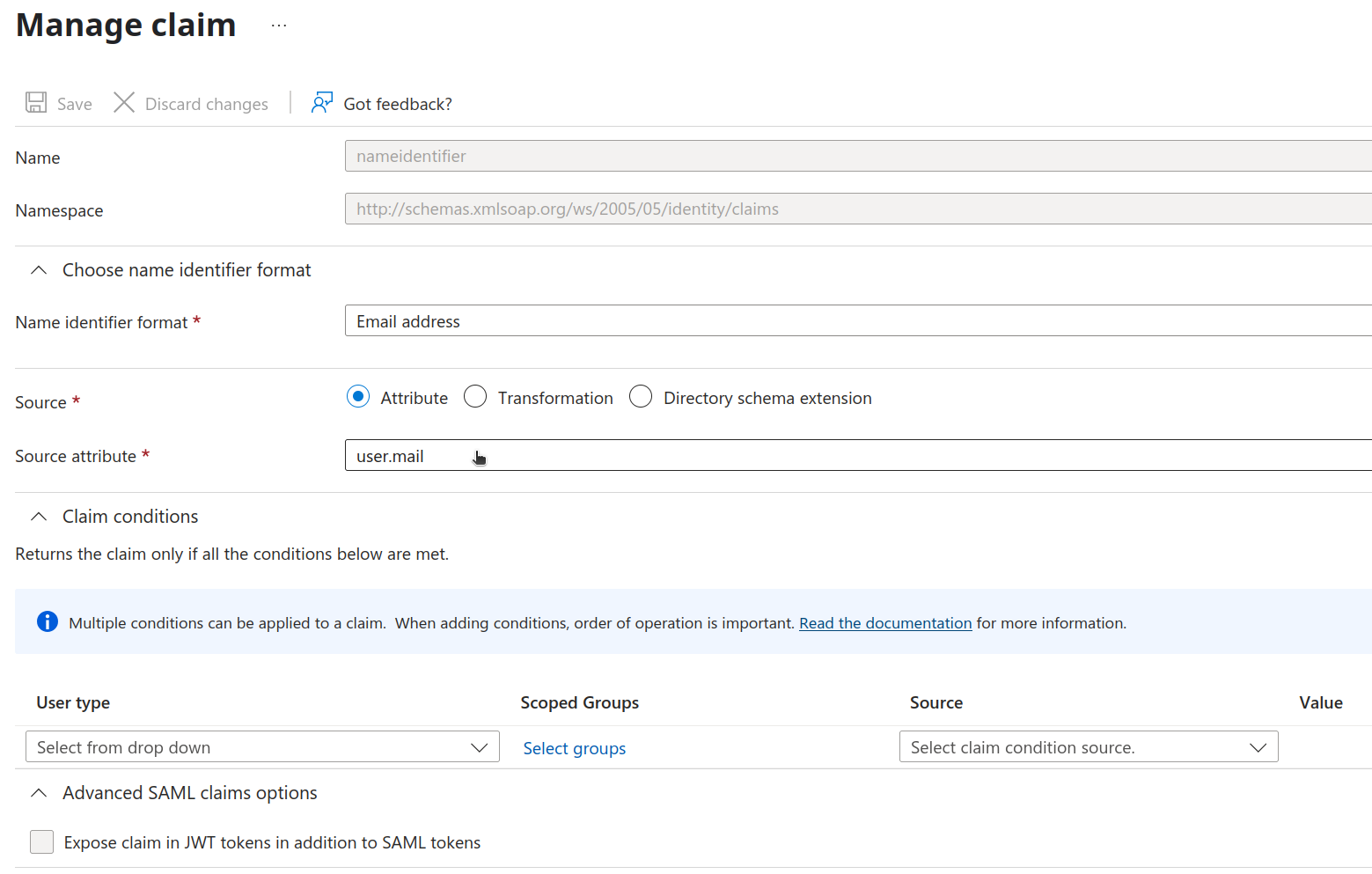
2. Then edit and save the claim as follows
1. The Name identifier format should be Email address
2. The Source attribute should be “user.mail”
3. This field will be the identifier in the access tokens we see in the rest server
2. Get in contact with Cyber Crucible to pass information over as this information is needed for Cyber Crucible’s updates in AWS Cognito. We will need the following information
1. The “App Federation Metadata Url” value under the SAML Certificates section in the clients Entra ID Enterprise App
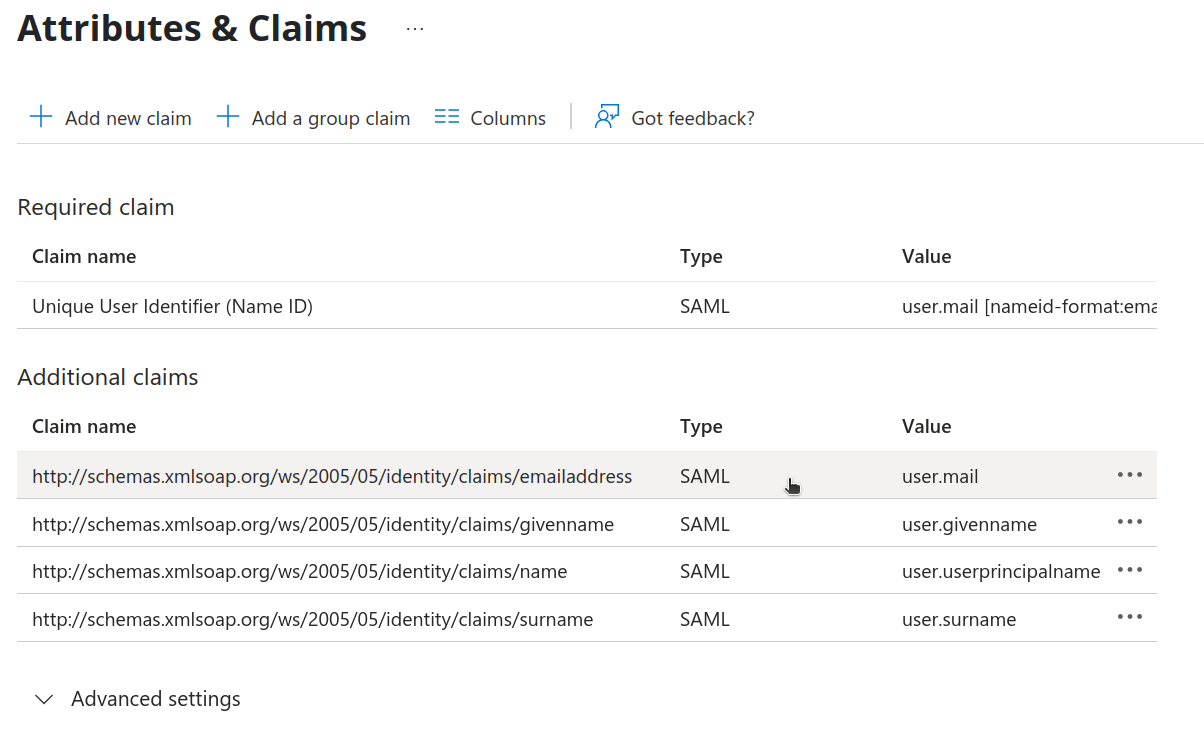
2. Clients should go to the “Attributes & Claims” section on the Single sign-on settings. Under the Additional claims section we need the schemas found in the Claim name section
1. 
3. Cyber Crucible will make a new domain for users to use in order to login to the dashboard using the SSO setup above
# How do I assign an agent a license?
- [How do I view if an agent has a license assigned?](#bkmrk-how-do-i-view-if-an-)
- [How do I assign an agent a license?](#bkmrk-how-do-i-assign-an-a)
# How do I view if an agent has a license assigned?
During the installation process, an agent will automatically be assigned a license from the group it installs with if one is available, or the group’s [source distribution group](https://cybercrucible.atlassian.net/wiki/spaces/CYB/pages/58359809/How+Do+I+Automatically+Allocate+Licenses+from+a+Distribution+Group).
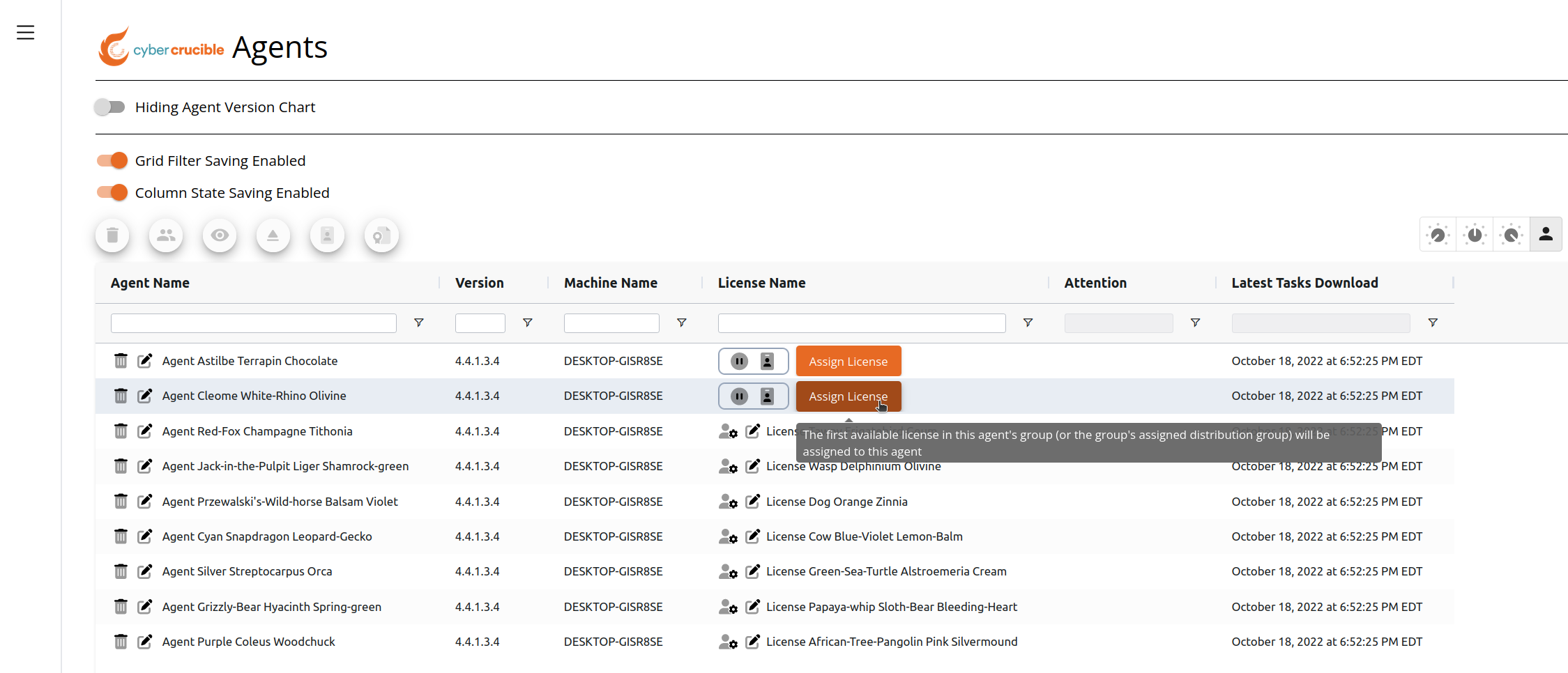
On the Agents page, the License Name column shows the license that is assigned to the agent.
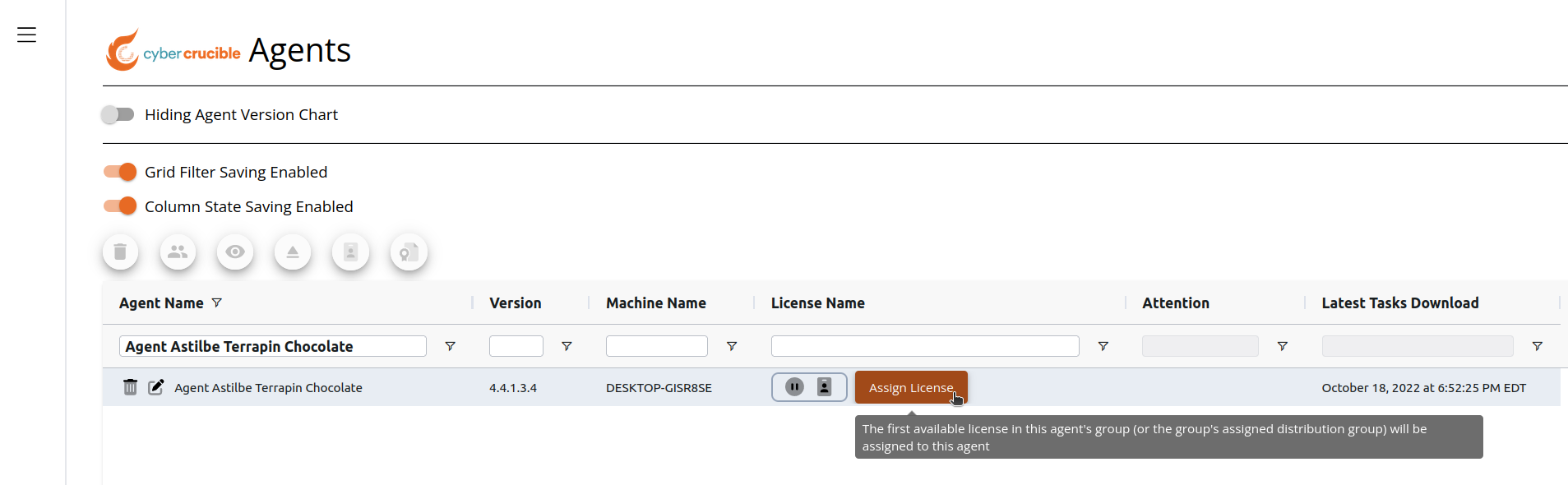
If there is not a license assigned to that agent, an orange “Assign License” button will be visible, with which you can assign a license to that agent.
If you wish to know more about the license, you can click on the Manage icon for that license name.
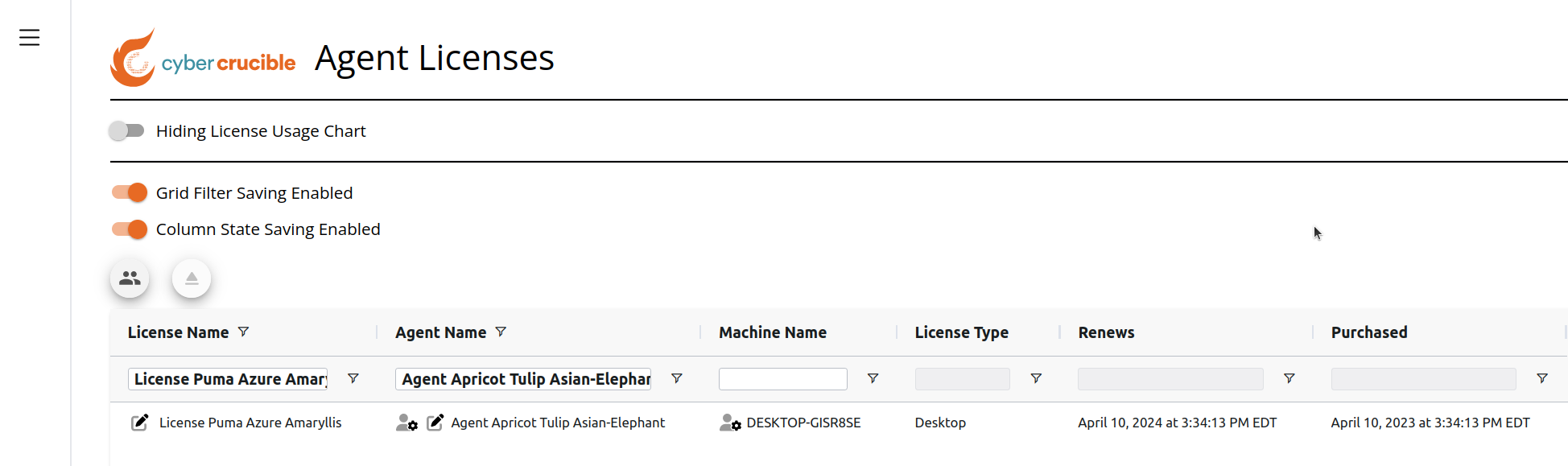
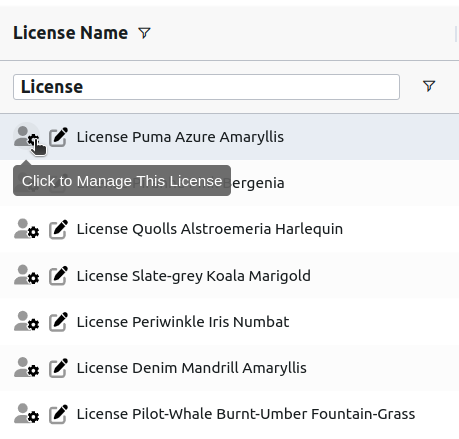Clicking will redirect you to the Agent Licenses page for that agent, as shown below.
# How do I assign an agent a license?
On the Agents page, you may assign a single agent a license or assign multiple agents a license at once.
To assign a single agent a license, click the “Assign License” button in the “License Name” column for an agent not yet assigned a license. The first license available in the agent’s group (or this group’s source distribution group) will be assigned to the agent.
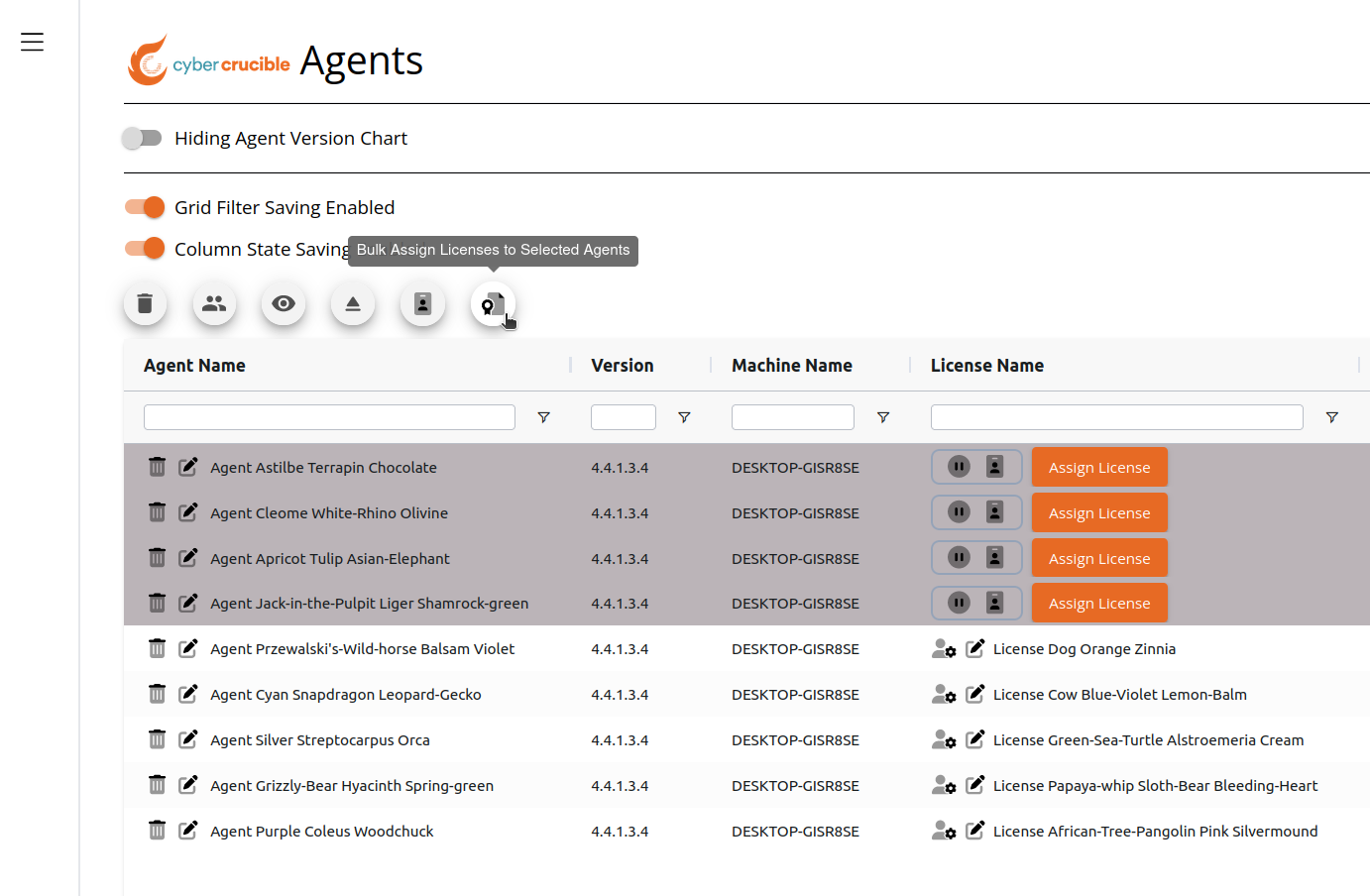
To assign multiple agents a license at once:
First, select the agents you wish to assign a license.
Then click the bulk assign licenses icon.
# Changing Which Group An Agent Is In
Changing the group that an agent is in is simple.
First, navigate to the Agents page.
Second, find the Agent you wish to change group membership.
Double click on the Group cell of the row of the agent you wish to change group membership for.
The cell you double clicked on (the first cell in this example) changes to this view:
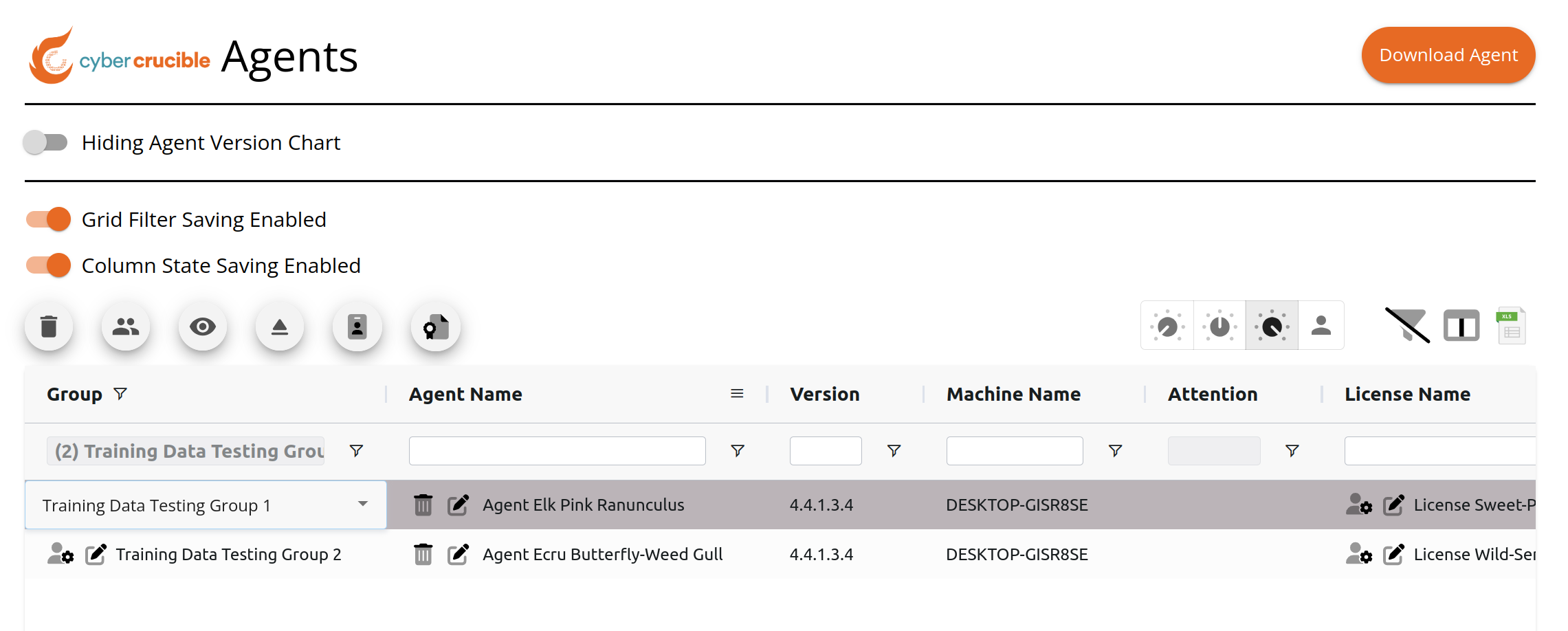Select the drop down, and the groups available to move the agent to appears.
If you change your mind, and do not want to change groups - just click on a different row of the grid.
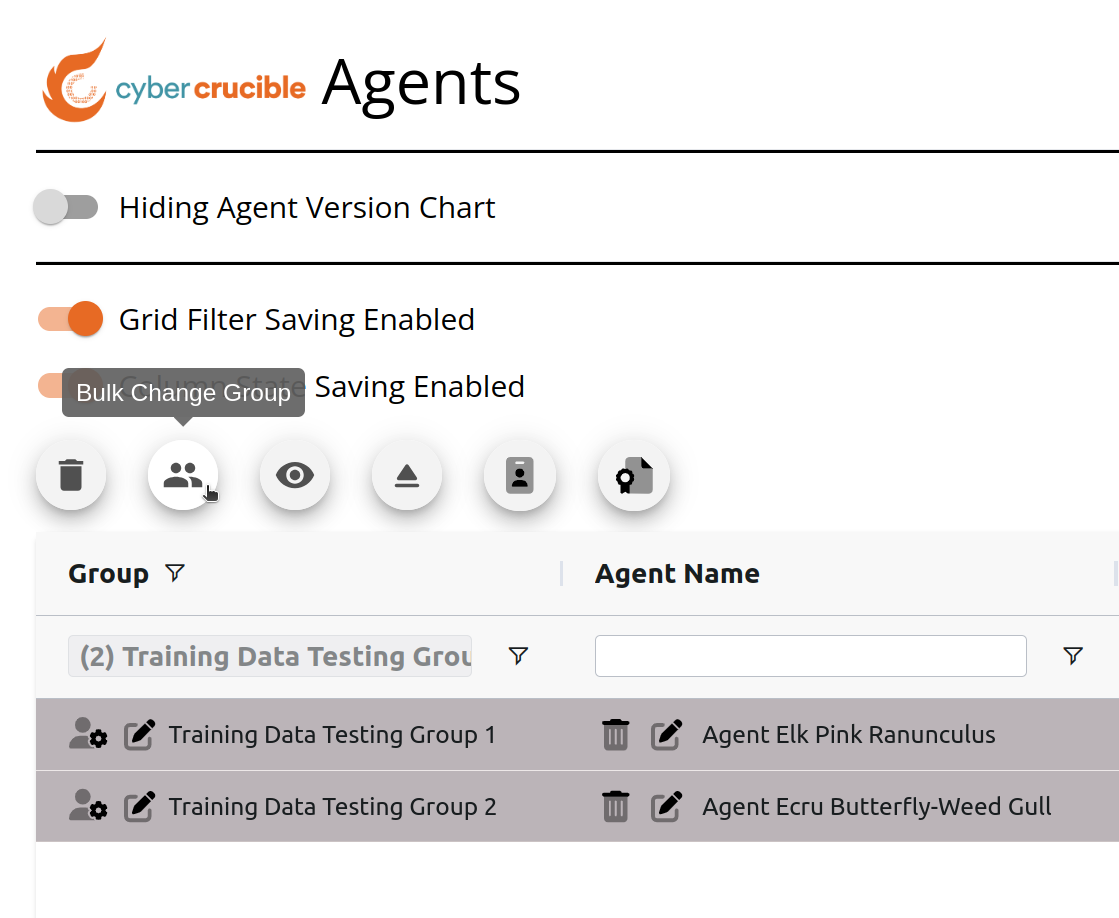
You can also change the group of multiple agents at once on the Agents page by:
First, selecting the agents you wish to change group membership.
Second, clicking the bulk change group icon.
Third, selecting the new group for the agents and clicking the Update button.
# How do I Resend an Invitation to a New User Account
User accounts are automatically created when a user is added to a group without previously having an account made. Doing this will automatically send an invitation to the user containing a temporary password to login with.
After initially logging with the temporary password, the user will be able to set the new password for their account. These temporary passwords will expire after a few days if the user has not set their new password.
Now, users have the ability to resend invitations to accounts with a new temporary password.
First, navigate to the Groups page (found under Administration in the sidebar) and click the manage group icon for the group the new account was added to.
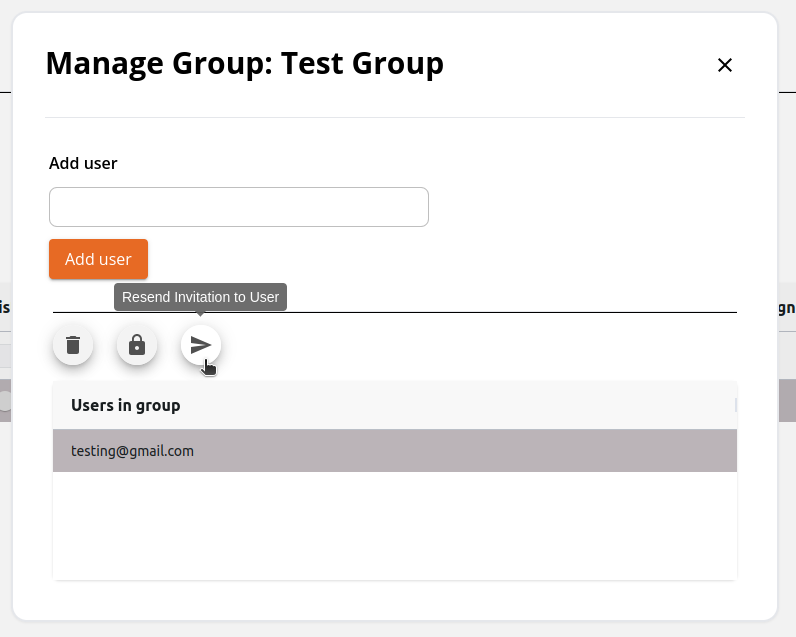
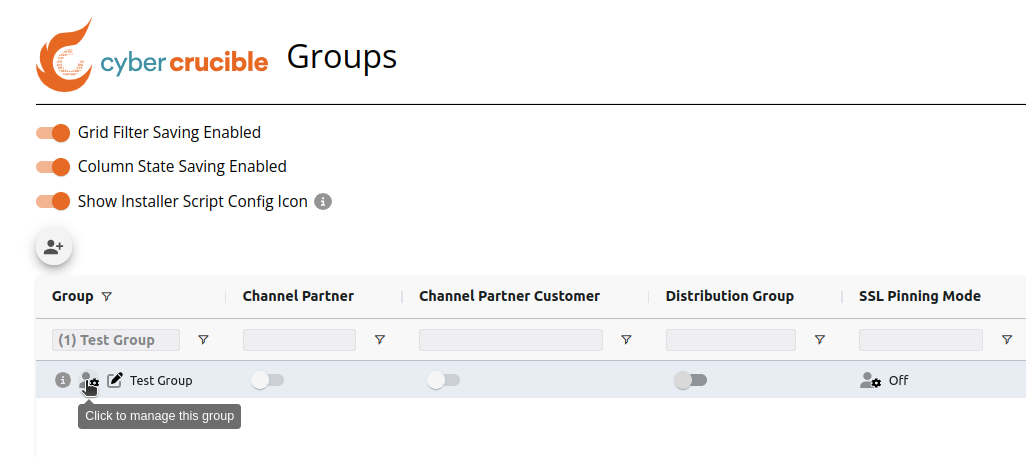Next, a modal will appear with a grid containing the users that are members of the group. Select the user account that needs to be sent a new temporary password to login with and press the Resend Invitation to User icon. An email will automatically be sent to the selected user containing their new temporary password.
# License True-Ups
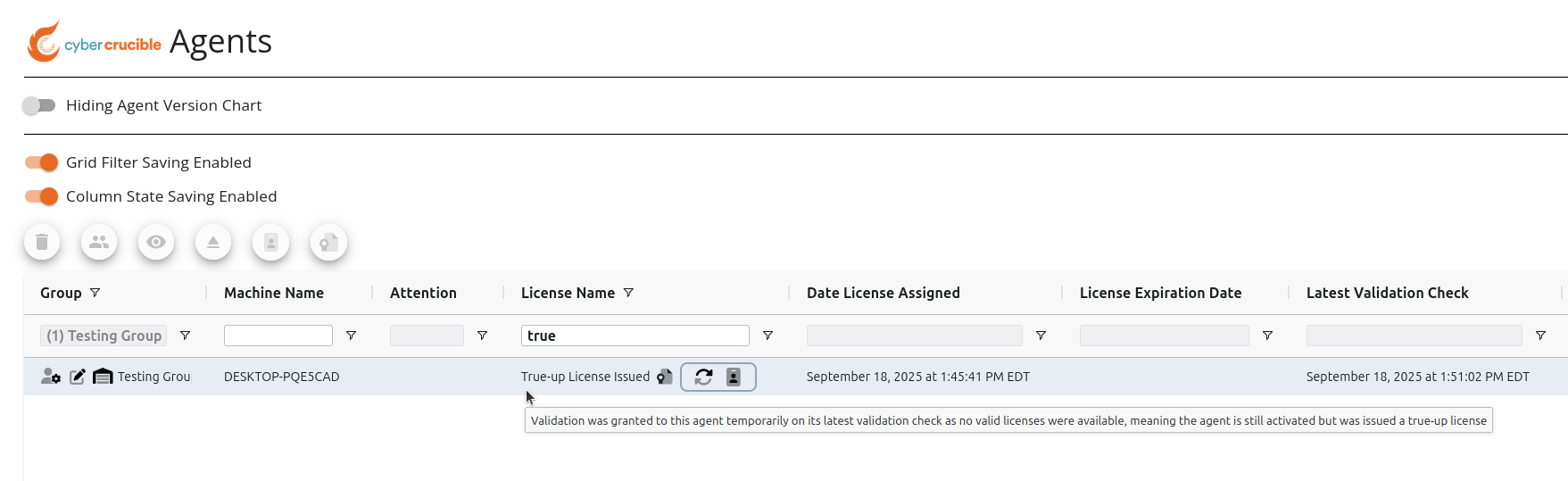
True-up licenses are issued temporarily to agents when there are no more licenses available in the agent’s group (or distribution group) to assign to the agent. These true-up licenses allow the agents to be fully activated and working while the details for the purchase of more licenses are gathered.
We allow up to 30 days of grace on a case by case basis before we require payment for the true-up licenses. Note that true-up licenses can only be issued when other valid real licenses exist in the agent’s group (or distribution group).
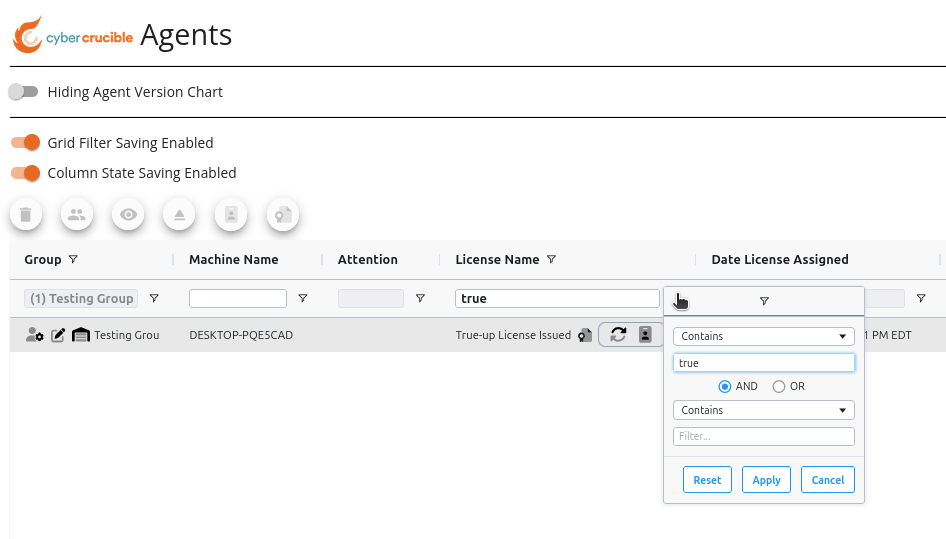
Users can find true-up licenses by navigating to the Agents page found under the Operations tab in the sidebar. On this page, look for the License Name column. In this column’s filter you can search for the true-up licenses by typing in “true”, “true-up”, etc. After entering the filter, you will see any agent that has been issued a true-up license in the grid.
# How to Clone a Group
Users can create a new group by first navigating to the Groups page found under the Administration tab in the sidebar.
Then, click the Clone a Group icon above the grid.
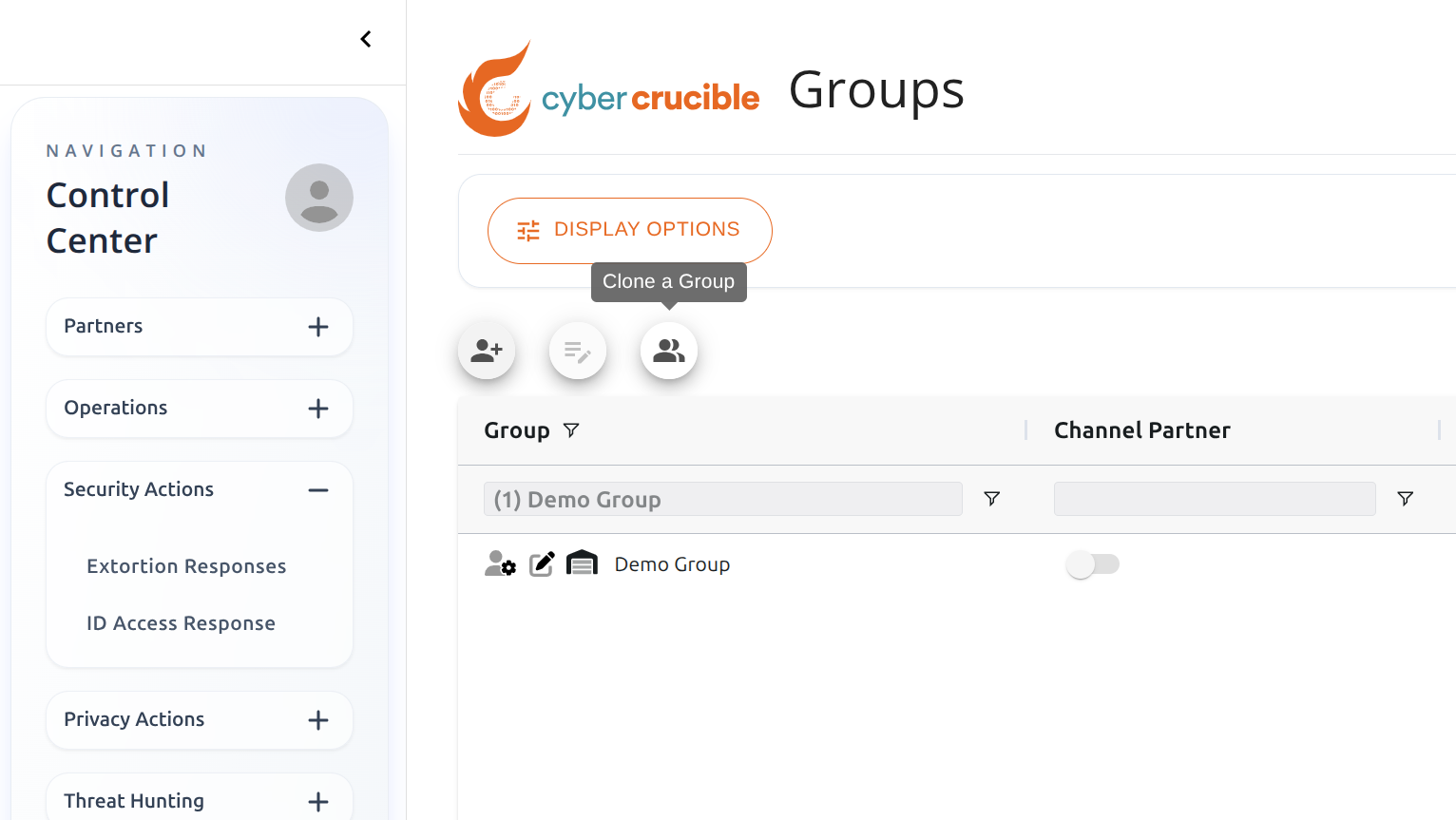Clicking this icon will popup a modal where you can choose a group to clone. Note: the current user must be the manager of the group in order to clone.
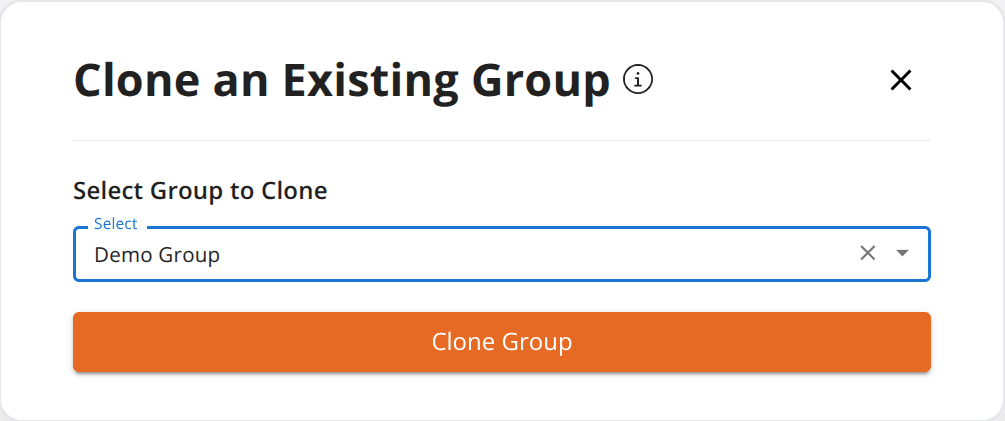Note: Fields that are cloned
- Channel Partner Customer
- Organization Name
- Distribution Group
- Source Distribution Group
- SSL Pinning Mode
- Agent Version
- Collect Agent Telemetry Data
- User Password Expiration Policy
- Canary Extension Mode
- Automatically Hide Agents
- Run Agents in Safe Mode
- Proxy Server Config
- DMZ Mode
- Agent Kernel Authenticode
- Agent Module Load Policy
- Module Load Insertion Behavior
Note: Objects that are cloned
- Tailored Behaviors
- Security Notifications
- Silent Responses
- Session Expiration Rules
# How to Create a Group
Users can create a new group by first navigating to the Groups page found under the Administration tab in the sidebar.
Then, click the Create New Group icon above the grid.
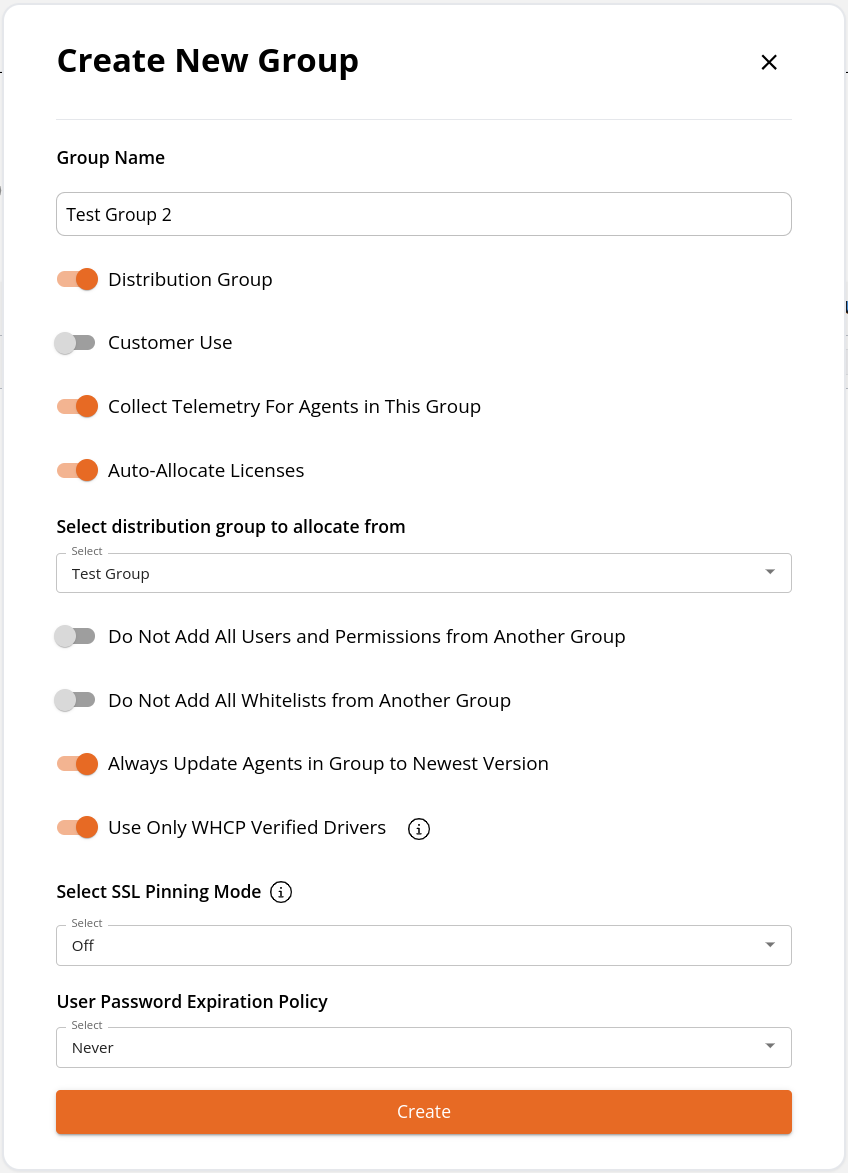
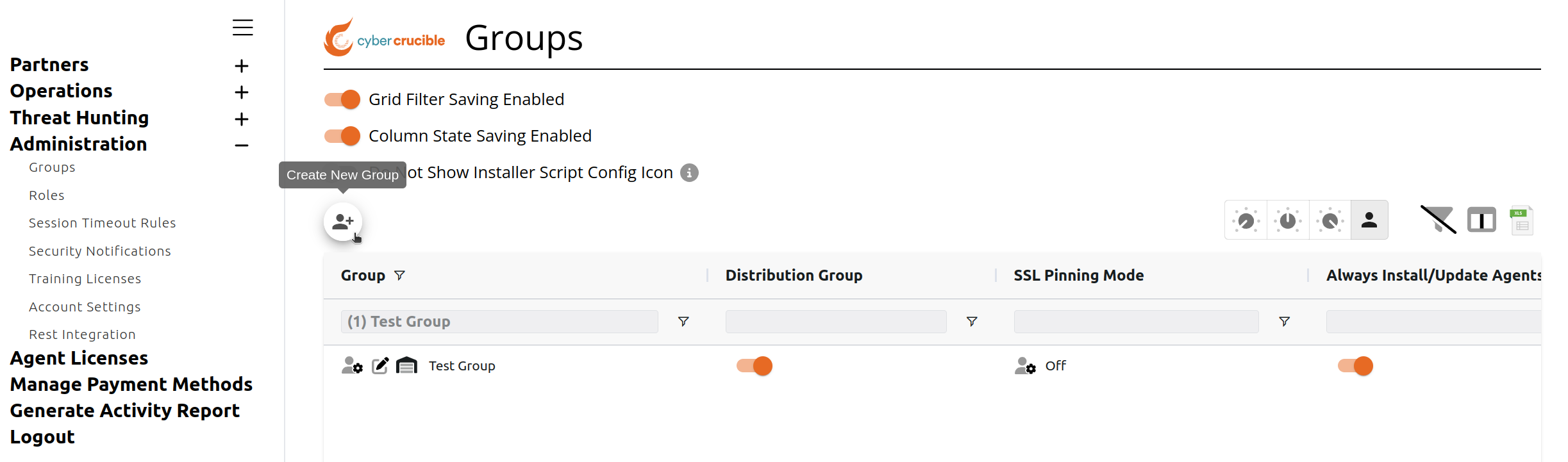Clicking this icon will popup a modal where you can fill out the information for the new group. Note that the user who creates the group will automatically be added to the group as the Admin.
# Removing Users from a Group
Removing users from a group is easy.
First, go to the Groups page found under the Administration tab in the sidebar.
Then click the Manage Group icon on the group you want to remove the user from.
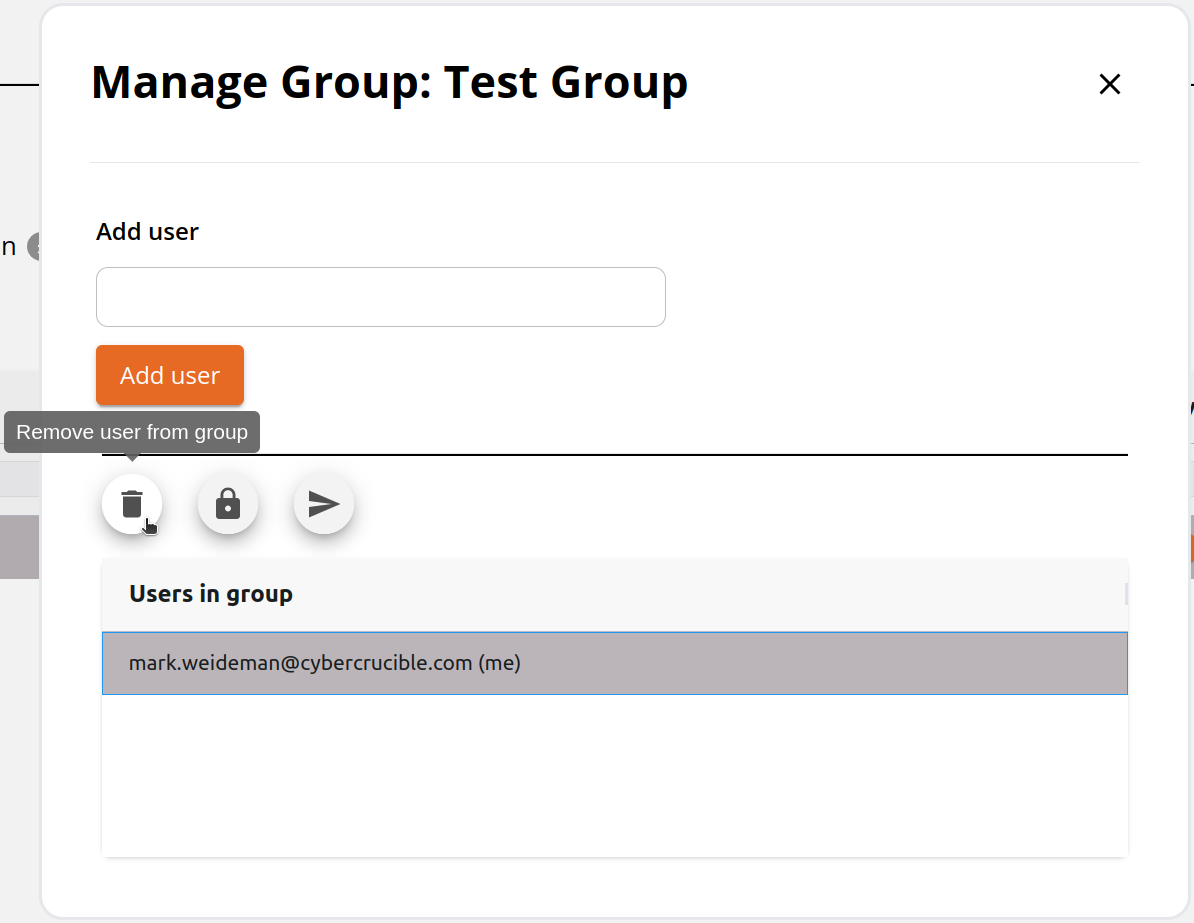
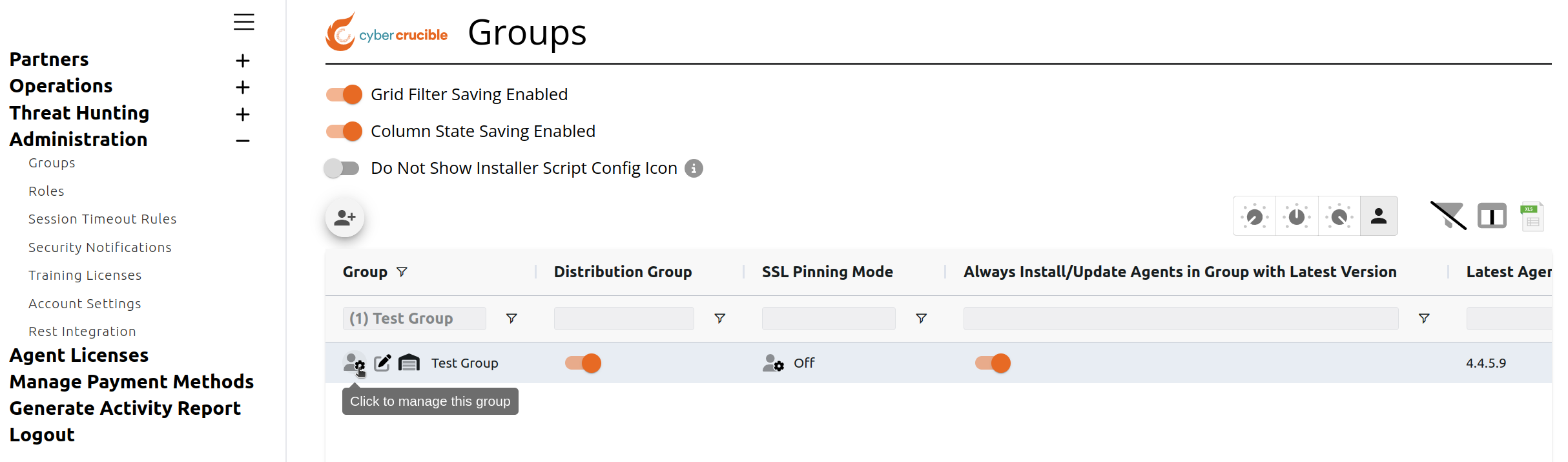Clicking the icon will popup the Manage Group Modal where you can select the user you want to remove from the group, and then click the trash icon. Doing so will remove the user from the group and remove any assigned roles the user had in the group.
# Role Management
- [Creating a Role](#bkmrk-creating-a-role)
- [Assigning Roles to Users](#bkmrk-assigning-roles-to-u)
- [Deleting a Role from a Group](#bkmrk-deleting-a-role-from)
- [Editing a Role’s Permissions](#RoleManagement-EditingaRole%E2%80%99sPermissions)
By default, there are three built-in roles:
- Guest has no permissions.
- Read Only grants read only permissions to tailored behaviors, silent responses, and partner deals.
- Admin gives full read and write access to all portions of the web application.
# Creating a Role
Custom roles may be created with granular control.
Find the Create New Role button under the Administration → Roles section of the web application.
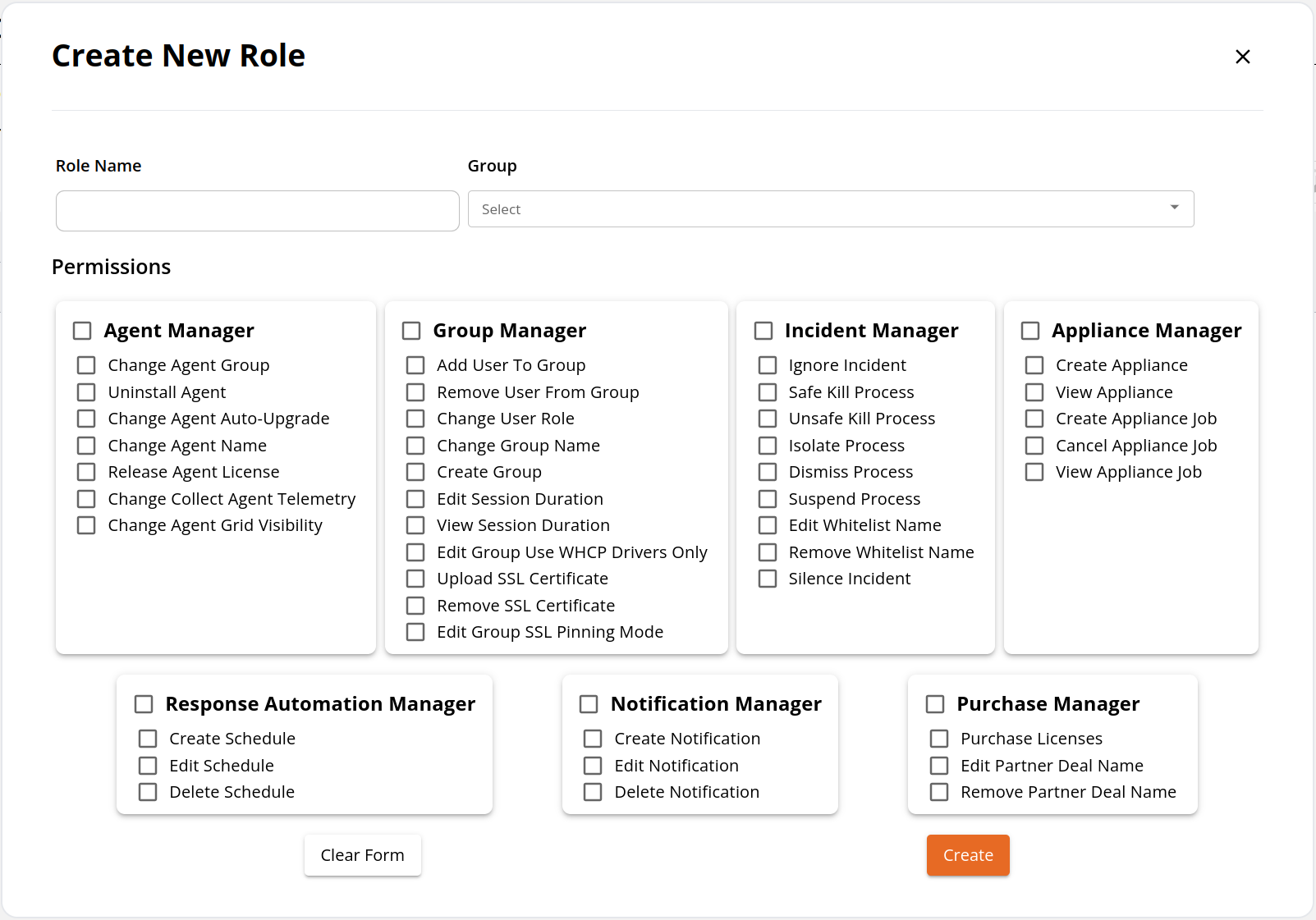
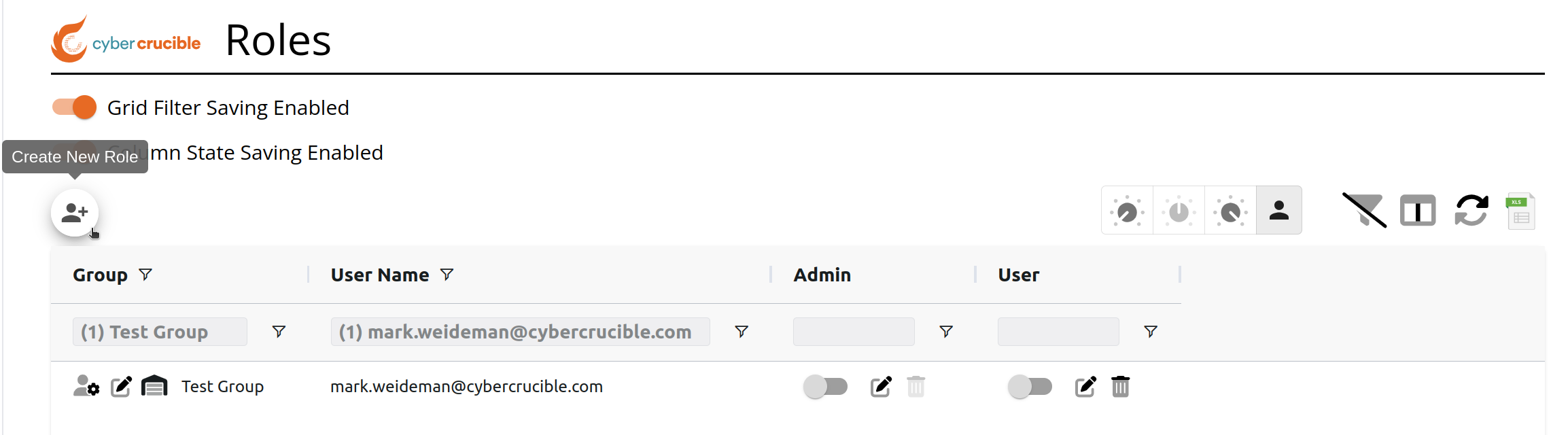After clicking on the Create Role button, enter the Role Name, select the Group to add the Role to, and select the permissions associated with the Role.
# Assigning Roles to Users
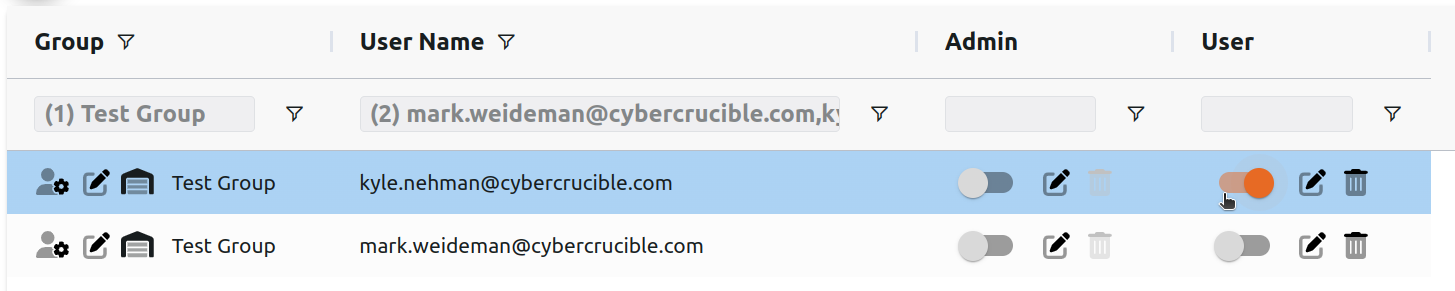
On the Roles Page, each row on the grid represents a user inside a group and their assigned roles inside that group. To assign a role to a user inside a group, or remove a role from a user, click the toggle inside the column for the desired role.
When a role is assigned to a user, the toggle will be flipped to the right and will look like:
# Deleting a Role from a Group
On the Roles Page, each row on the grid represents a user inside a group and their assigned roles inside that group. To delete a role inside a group, find the desired role (represented by a column) for the group you are deleting it from, and click the trash icon inside the cell. Note that default roles cannot be deleted.
# Editing a Role’s Permissions
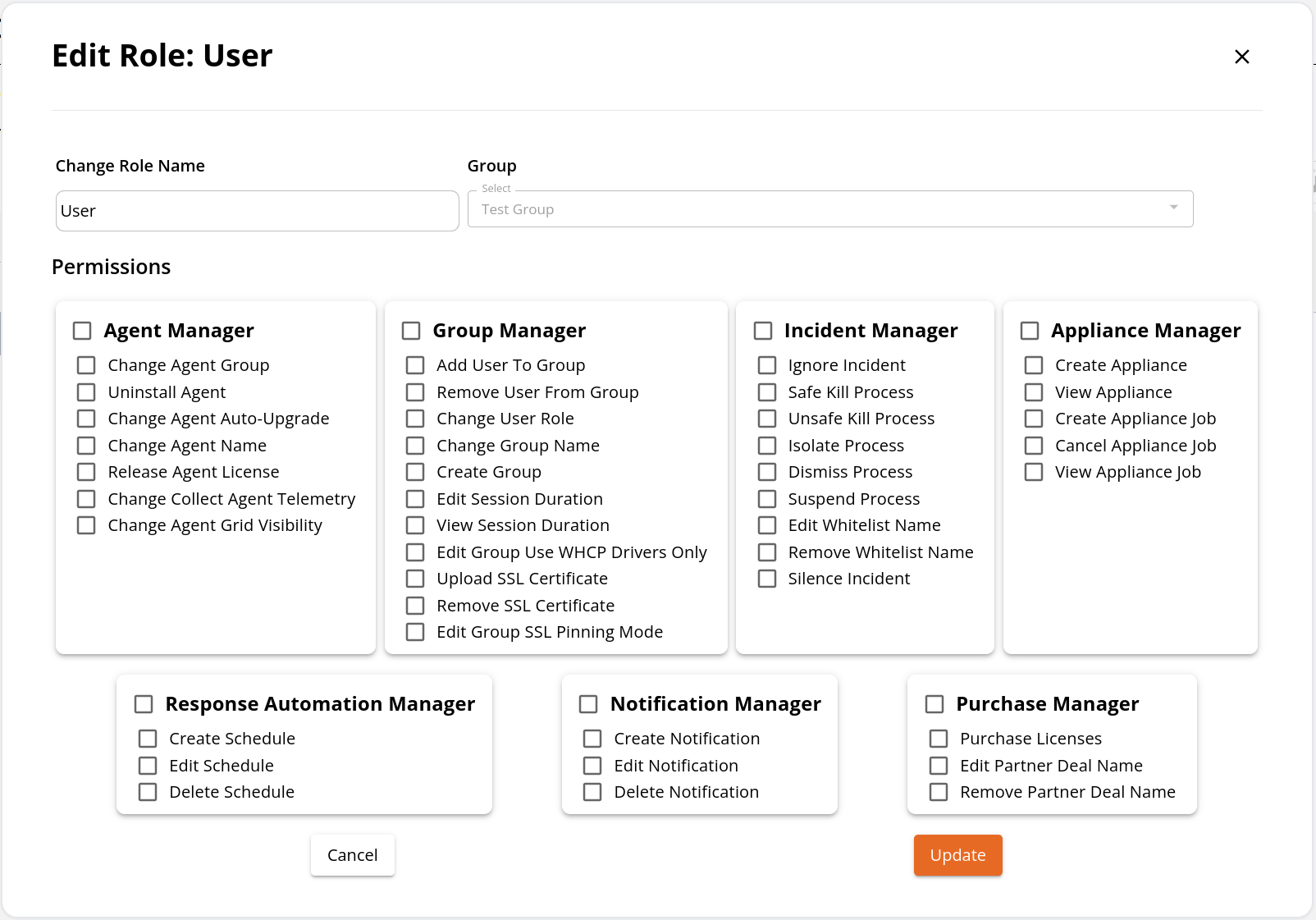
On the Roles Page, each row on the grid represents a user inside a group and their assigned roles inside that group. To edit a role’s permissions for a group, find the desired role (represented by a column) for the group you are editing it for, and click the edit icon inside the cell. This will popup the Edit Role modal and show the current permissions associated with the role, which you are able to change. Note that default roles cannot be edited.